
Your Rupeezy account details — personal information, Client Code, DP Client ID, nominees, bank account, and more — are all in the Profile section of the Rupeezy Dock app.
How do I view my account details on Dock?
1. Log in to Dock — Dock is Rupeezy's back-office portal for account, profile, and statement management. Log in at dock.rupeezy.in.
2. Open the Profile tab — click Profile in the top navigation (alongside Portfolio, Bids, Funds, and Reports). Your Client Code and DP Client ID are shown at the top of the page, each with a copy icon.
3. Pick a section from the left sidebar:
- Personal — your name, gender, marital status, PAN number, email ID, and mobile number. Email and mobile each have an Edit option.
- Nominees — the nominee(s) added to your demat account.
- Bank — your linked bank account details.
- Segments & MTF — your active trading segments and Margin Trading Facility (MTF) status.
- Upload Documents / Uploaded Documents — KYC document upload and history.
- Brokerage Plan — your current brokerage plan.
- DDPI Activation — Demat Debit and Pledge Instruction (DDPI) status.
- Family Account — linked family accounts, if any.
How do I view my account details on the Rupeezy app?
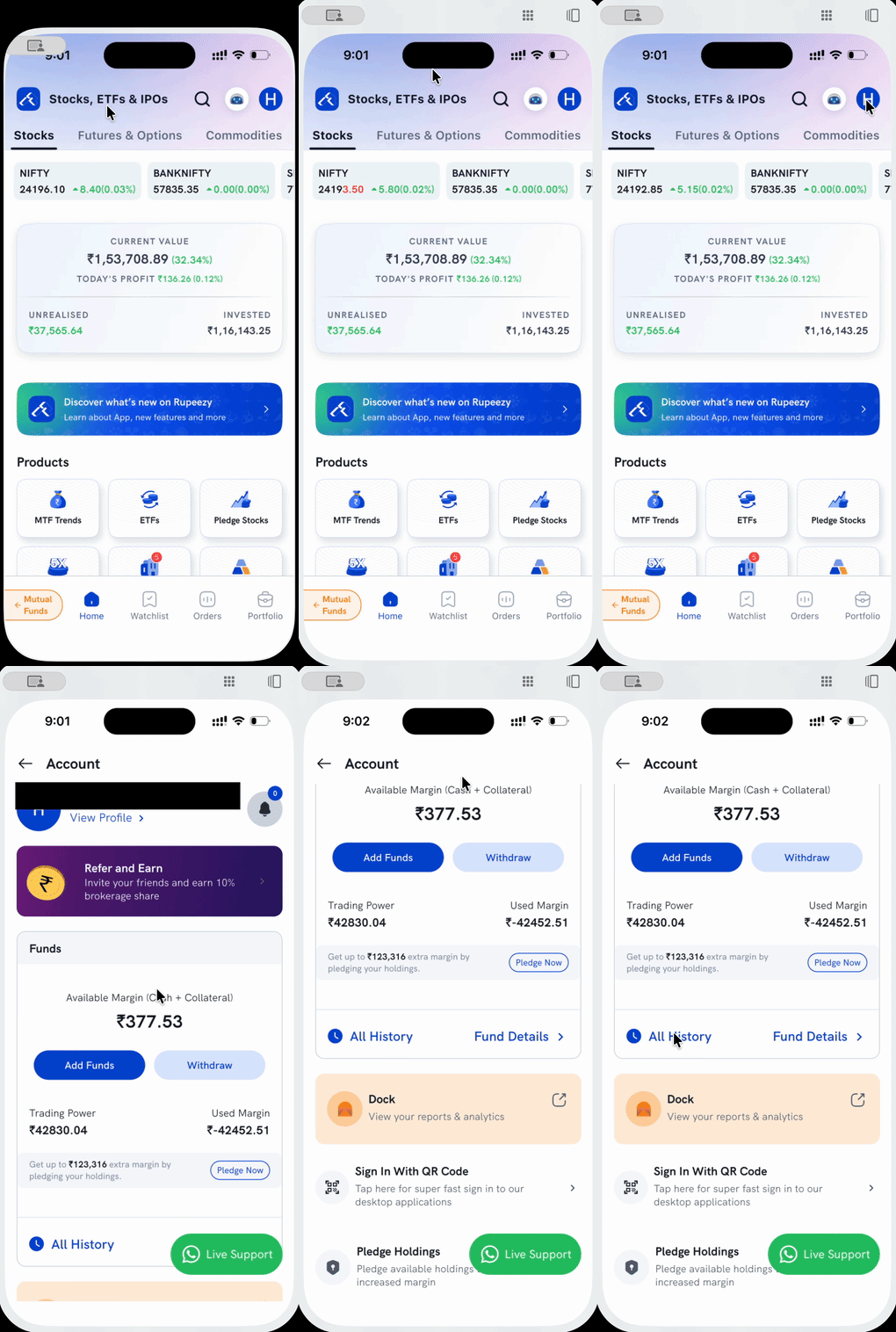
1. Tap your profile icon — on the Home screen, tap the circular avatar in the top-right corner.
2. Open Account — this takes you to the Account screen, showing your name at the top with a View Profile link, alongside your Funds summary (Available Margin, Trading Power, Used Margin).
3. Go to Dock for the full picture — scroll down and tap the Dock banner ("View your reports & analytics") to reach the full account details covered above: Client Code, DP Client ID, PAN, bank, nominees, and more.