
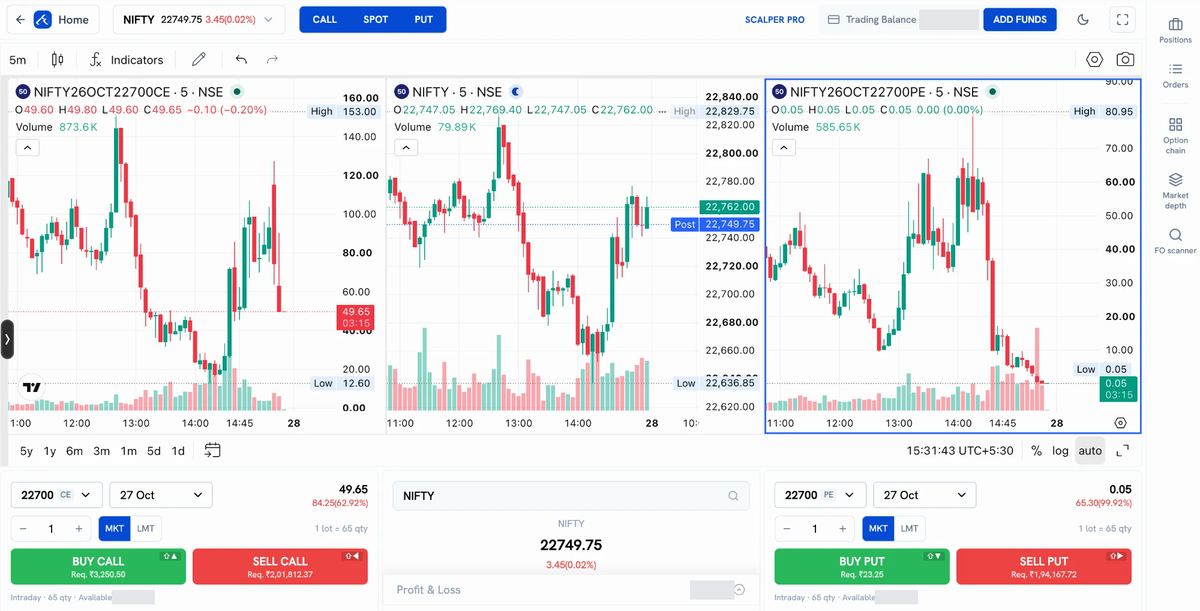
Scalper Pro on Rupeezy Web shows the Call chart, the Spot chart and the Put chart side by side, each option with its own order panel, so you can buy or sell an option in one click without leaving the screen. Open it from Scalper in the top menu of Rupeezy Web.
How do I open Scalper Pro?
-
Log in to Rupeezy Web on a desktop browser.
-
Click Scalper in the top menu (next to Market).

-
Click the symbol name at the top left to choose what you want to trade. The Select symbol window has Indices, FnO Stocks, Commodity and Watchlist tabs, and a search bar.
The screen opens with three charts: the Call option on the left, the Spot (underlying) chart in the middle and the Put option on the right. Use the CALL, SPOT and PUT buttons at the top to hide or show any of them.
How do I place an order with Scalper Pro?
The Call and the Put each have their own order panel under their chart. Set it up once, then place the order in one click.
- Pick the strike — click the strike box (for example 22750 CE) and choose from ITM + 5 to OTM + 5 around ATM.
- Pick the expiry — choose a date from the expiry dropdown next to the strike.
- Set the lots — use − and +, or type the number. The panel shows the lot size (for example 1 lot = 65 qty), so you always know the quantity.
- Choose the order type — MKT for a market order, or LMT for a limit order. With LMT, a price box appears, filled in with the current price. Change it if you want a different price.
- Place the order — click BUY CALL / SELL CALL (or BUY PUT / SELL PUT). The margin needed for that order is shown on each button as Req. ₹….
The line under the buttons shows the product, the quantity and your available balance. Scalper Pro orders are placed as Intraday.
Can I place orders with keyboard shortcuts?
Yes. Each order button shows its shortcut:
| Action | Shortcut |
|---|---|
| Buy Call | Shift + ↑ |
| Sell Call | Shift + ← |
| Buy Put | Shift + ↓ |
| Sell Put | Shift + → |
The panels on the right have shortcuts too: Positions (Alt/Option + P), Orders (Alt/Option + O) and Option chain (Alt/Option + C).
How do I track or exit my positions?
Click Positions in the right-hand panel. It shows your overall, realised and unrealised P&L, with Square Off All to exit everything and Set P&L Exit to exit automatically at a profit or loss you choose. The same panel also opens Orders, Option chain, Market depth and FO scanner without leaving Scalper Pro.
To set an automatic exit, see How do I set an automatic exit based on my intraday P&L?
Things to keep in mind
- A keyboard shortcut places the order straight away. Check the strike, expiry, lots and order type before you press it.
- Make sure the Req. ₹ amount on the button is within your available balance, or the order will be rejected.
- Intraday positions are squared off automatically before the market closes if you don't exit them yourself. See What happens to my Intraday positions at the end of the day?
Using the mobile app instead? See What is Scalper mode and how do I use it?