
On Rupeezy, P&L Exit automatically exits your open Intraday positions when your total Intraday P&L for the day — including profit or loss you've already booked — reaches a profit target or a loss limit that you set. It works for Intraday positions in equity, F&O and commodities. You set it from the Positions screen on the mobile app or the web app, and it stays active for the current trading session only.
How does P&L Exit work?
You set up to two targets in rupees:
- Book profit at — when your Intraday P&L rises to this amount, your Intraday positions are exited to lock in the profit.
- Limit loss at — when your Intraday P&L falls to this loss, your Intraday positions are exited to stop the loss from growing.
You can turn on both targets, or only one of them. The exit is placed as a Market order, so the final P&L can be slightly higher or lower than the target you set.
Note: P&L Exit works on your overall Intraday P&L for the day, not on each position separately.
What happens when P&L Exit triggers?
- Your open Intraday positions are exited with Market orders, and you're sent a notification.
- Your pending orders are not cancelled — cancel them yourself if you don't want them to go through.
- You can keep trading Intraday for the rest of the day.
- P&L Exit switches off after it triggers once. To use it again that day, set it again.
Is the exit guaranteed?
No. When your target is reached, P&L Exit places exit orders for your Intraday positions, but it cannot guarantee that those orders are executed. An exit order can be rejected or stay unfilled, and your position then stays open. Check your Positions and Orders screens after P&L Exit triggers.
To give the exit orders the best chance of going through:
- Keep sufficient margin in your account. If there isn't enough margin, or you've already closed or changed the position yourself when the exit order goes out, the order can be rejected.
- Clear pending orders you no longer need. Any pending order that uses up margin can make an exit order fail. For example, if you already have a pending square-off order for a position, the exit order from P&L Exit counts as a further order on the other side and needs extra margin, so it can be rejected. Cancel the pending orders you don't want before you rely on P&L Exit.
- Check for pending GTT orders. If a GTT order is active on the same scrip, there's no guarantee whether the GTT or P&L Exit will trigger first. A GTT that triggers after P&L Exit has already exited the position can take you into a new position in the opposite direction. Cancel any GTT you don't want before setting P&L Exit.
How do I set P&L Exit on the Rupeezy mobile app?
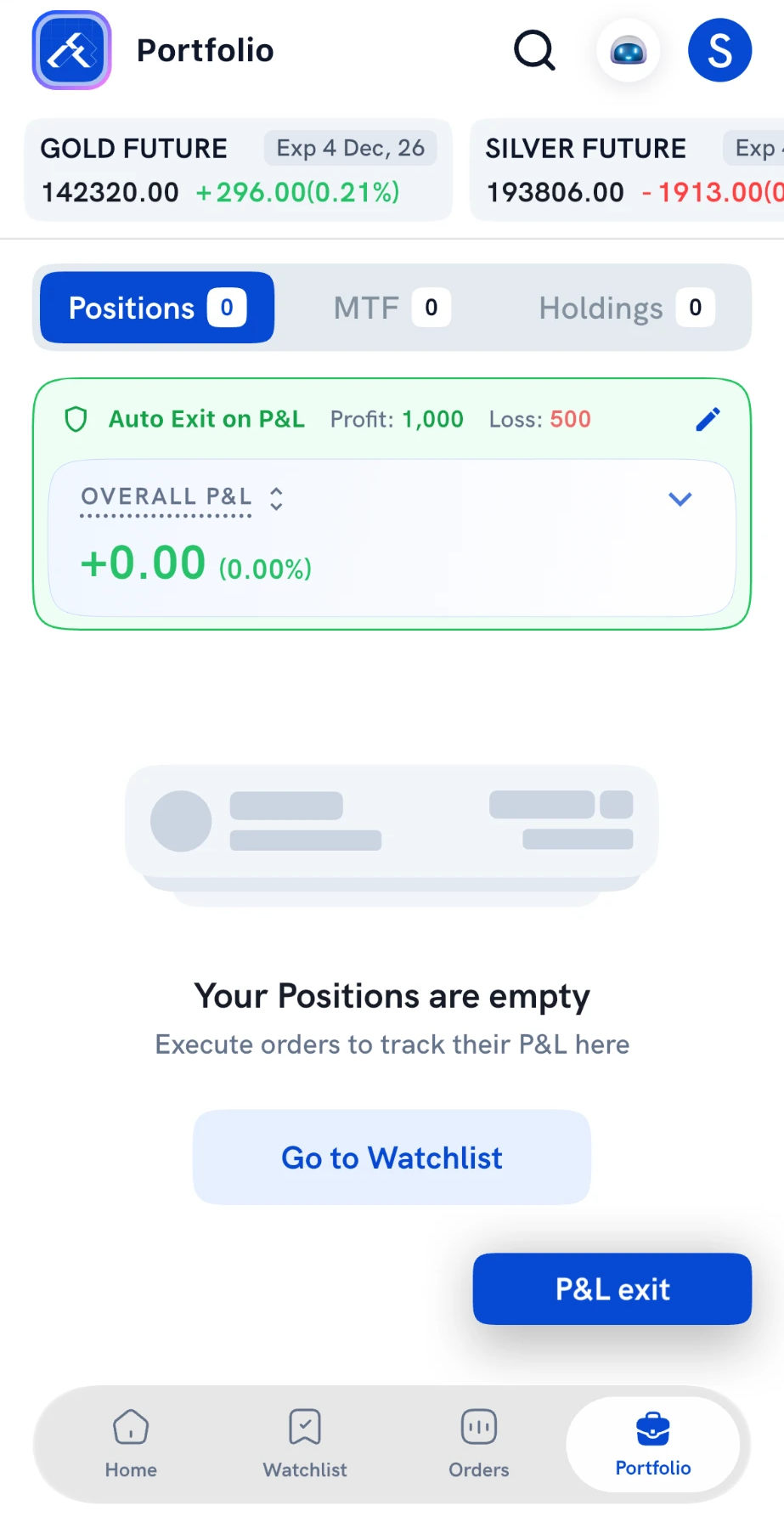
1. Open Positions — tap Portfolio at the bottom of the app, then select the Positions tab.
2. Tap P&L exit — the P&L exit button sits at the bottom right of the Positions screen.
3. Set your targets — on the P&L based Exit screen, turn on Book profit at and/or Limit loss at and enter the amounts in rupees. The top of the screen shows your live Intraday P&L and the number of open positions.
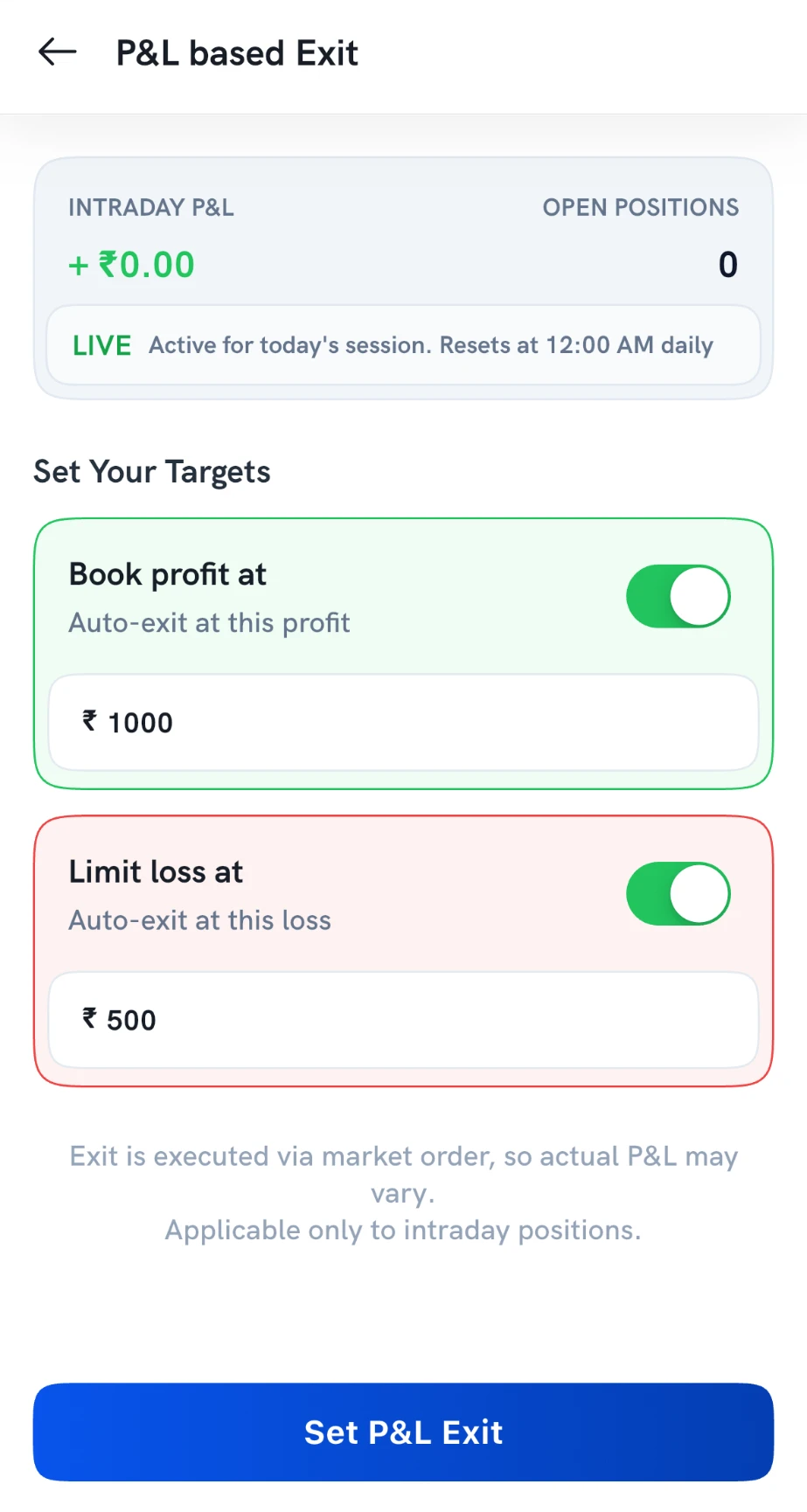
4. Tap Set P&L Exit — your targets are now active.
Once P&L Exit is set, the Positions screen shows an Auto Exit on P&L banner with your profit and loss targets, so you can see at a glance that it is running.
How do I set P&L Exit on the Rupeezy web app?
1. Open Positions — click Portfolio in the top menu, then select Positions.
2. Click Set P&L Exit — the button is next to Square Off All, beside your overall P&L.

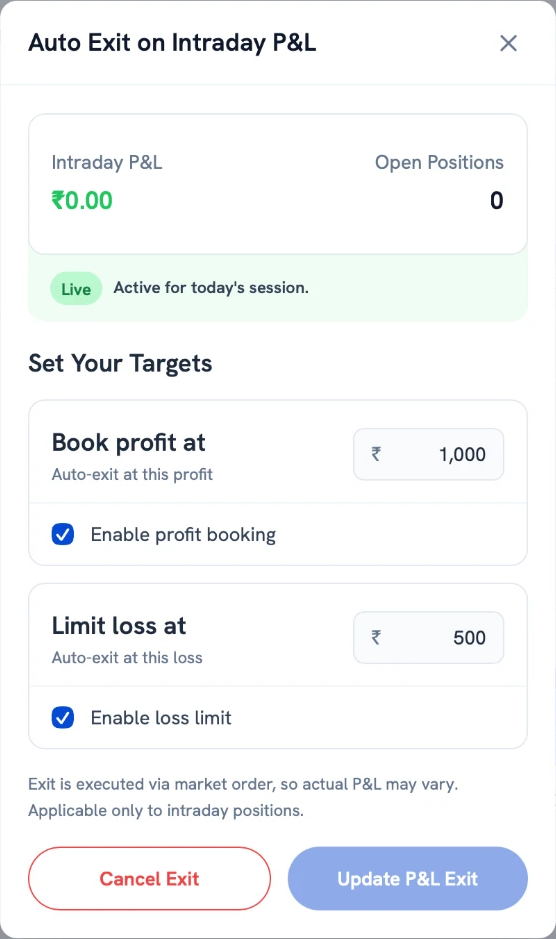
3. Set your targets — in the Auto Exit on Intraday P&L window, enter the Book profit at and Limit loss at amounts and tick Enable profit booking and/or Enable loss limit for the targets you want.
4. Click Set P&L Exit to save your targets.
How do I change or cancel P&L Exit?
You can change your targets at any time before they trigger.
- Mobile app — tap the edit (pencil) icon on the Auto Exit on P&L banner in Positions, update the amounts or switch a target off, and save.
- Web app — open the Auto Exit on Intraday P&L window from Positions. Change the amounts and click Update P&L Exit, or click Cancel Exit to turn P&L Exit off completely.
Things to keep in mind
- Intraday only — P&L Exit tracks and exits only your Intraday positions. Delivery, MTF and T+5 positions are not affected.
- Converted positions are not covered — P&L Exit does not apply to positions you convert between Intraday and Delivery.
- One day at a time — P&L Exit is active for today's session and resets at 12:00 AM. Set it again each trading day you want to use it.
- Market order exit — because the exit is a Market order, fast price moves can make your final P&L differ from the target.
- Not a replacement for auto square-off — Intraday positions that are still open near the close are handled by the usual auto square-off. See Why is my intraday position not auto squared off?
- To exit positions yourself at any time, see How do I square off positions on the Rupeezy app? To stop trading in a segment entirely for the day, use the Kill Switch.