
Losing your TOTP authenticator app — a new phone, a deleted app, a factory reset — doesn't lock you out of Rupeezy. At the login screen, use Login with OTP instead of your (now unavailable) TOTP code, then re-link a fresh authenticator from Account > Settings > Reset TOTP whenever you're ready.
How do I log in right now if I can't get to my old authenticator app?
At the point Rupeezy asks for your TOTP code, tap Login with OTP to get an OTP by SMS/email instead — you don't need the old authenticator entry at all. See How do I log in to the Rupeezy app? for the full login flow.
How do I set up TOTP again on my new phone or a new authenticator app?
Once you're logged in, go to Account > Settings and tap Reset TOTP. This opens the same enrollment screen you saw the first time — a fresh QR code and setup key to scan into your (new) authenticator app, plus a field for the 6-digit code and your MPIN to confirm. It replaces the old, now-unreachable entry with a new one; you don't need the old app or device for this.
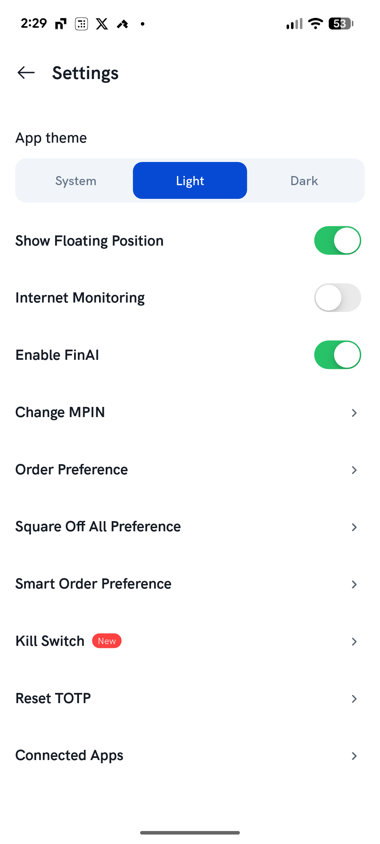
See How to disable Time-based OTP (TOTP)? for more on what Reset TOTP does and doesn't do. For first-time setup steps, see How do I set up TOTP for app login?.
Do I need to contact Rupeezy support for this?
No — losing the authenticator app is self-serve: log in with Login with OTP, then Reset TOTP from Settings. Support only needs to get involved if you've also lost access to your registered mobile number itself (so OTP can't reach you either) — see How do I log in if my mobile is lost or unavailable? — or if you want TOTP turned off completely rather than re-linked.
Things to keep in mind
- Two-factor authentication itself can't be switched off from the app — SEBI requires it. Losing the authenticator app just means falling back to OTP until you reset TOTP; it doesn't disable 2FA.
- Never share your OTP, TOTP code, QR code or setup key with anyone claiming to be Rupeezy support — support will never ask for it.