
To add money by Net Banking, open Add Funds in the Rupeezy app, enter the amount, then tap Net Banking under Other Options. Rupeezy hands you over to your own bank's page, where you log in and approve the payment. Net Banking carries a fee of ₹8 + GST on amounts under ₹50,000 and is free at ₹50,000 and above, so the total your bank asks you to pay is slightly higher than the amount you entered.
How do I pay by Net Banking on the Rupeezy app?
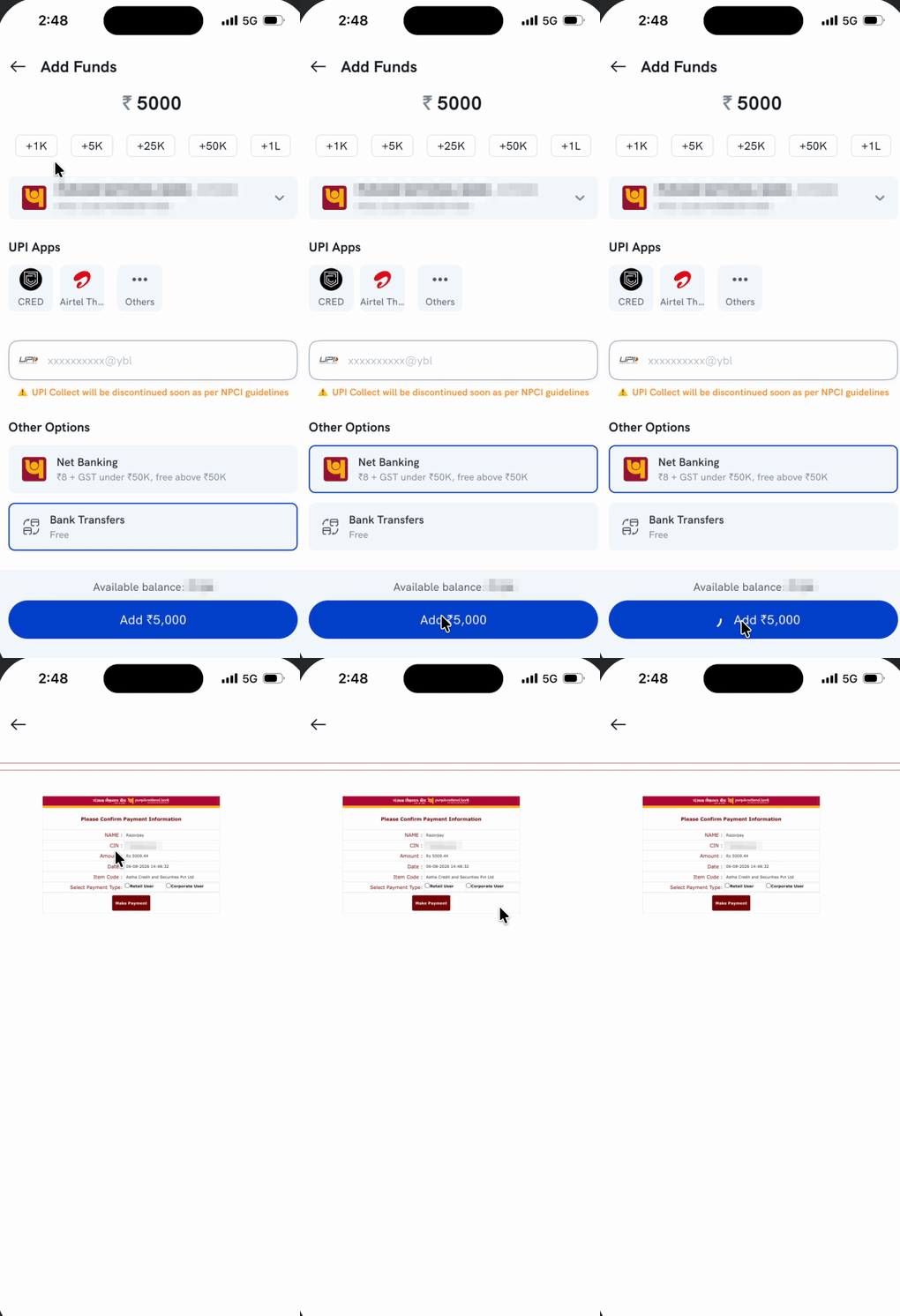
- Tap your profile icon on the Home screen to open Account, then tap Add Funds in the Funds card.
- Enter the amount you want to add, or tap one of the +1K / +5K / +25K / +50K / +1L shortcuts.
- Scroll down to Other Options and tap Net Banking.
- Tap the blue Add button at the bottom — it shows the amount you entered.
- Wait while the app shows Loading Bank page… and redirects you to your bank.
- On your bank's page, check the payment details, choose the account type your bank asks for, and complete the payment by logging in and approving it.
Your bank's page looks different from the one in the walkthrough above — each bank has its own screens, and some ask you to pick between a retail and a corporate login before you sign in.
Why does my bank ask for more than the amount I entered?
Because the Net Banking fee is added on top of the amount you are adding, not taken out of it. In the walkthrough above, ₹5,000 was entered on the Add Funds screen and the bank page asks for ₹5,009.44 — the ₹8 fee plus GST on it. The extra amount is the fee; the amount credited to your Rupeezy account is the ₹5,000 you entered.
The exact total can differ slightly from one bank to another, because the fee is set per bank. Always go by the amount your own bank's page shows.
When is Net Banking free?
At ₹50,000 and above. The Add Funds screen states this on the Net Banking row: ₹8 + GST under ₹50K, free above ₹50K. Below ₹50,000 the fee applies; at ₹50,000 and above no fee is added and your bank asks for exactly the amount you entered.
If you would rather not pay the fee on a smaller amount, UPI has no fee shown against it, and a bank transfer by IMPS, NEFT or RTGS is listed as Free.
Which bank account does the money come from?
The one you have linked to your Rupeezy account — the Add Funds screen shows it above the payment options, and Rupeezy sends you to that bank. Money added to your trading account has to come from a bank account linked to your Rupeezy account, as SEBI regulations require.
To link a new bank account, see How do I change my bank account number?
Important: Do not close the app or press back while your bank's page is loading or while a payment is in progress. If you interrupt it, the money can leave your bank without the payment being confirmed back to Rupeezy, which then needs a support ticket to sort out.
What if the payment fails or the money does not show up?
- If your bank's page does not load, or the payment fails there, no money is debited — go back to Add Funds and try again, or use UPI instead.
- If the money has left your bank but is not showing in Rupeezy, see Why are my transferred funds not updated? before raising a ticket.
Things to keep in mind
- Check the amount on your bank's page before approving it — that figure includes the fee.
- Keep your bank's netbanking credentials to yourself. Rupeezy never asks for your netbanking password, and you only ever enter it on your bank's own page.
- Net Banking needs you to log in to your bank each time. If you add money often, UPI is quicker.