
On the Rupeezy app, the order window shows the price on both NSE and BSE for any stock listed on both exchanges — tap the radio button next to either price to switch which exchange your order goes to.
How to switch exchanges on the order window
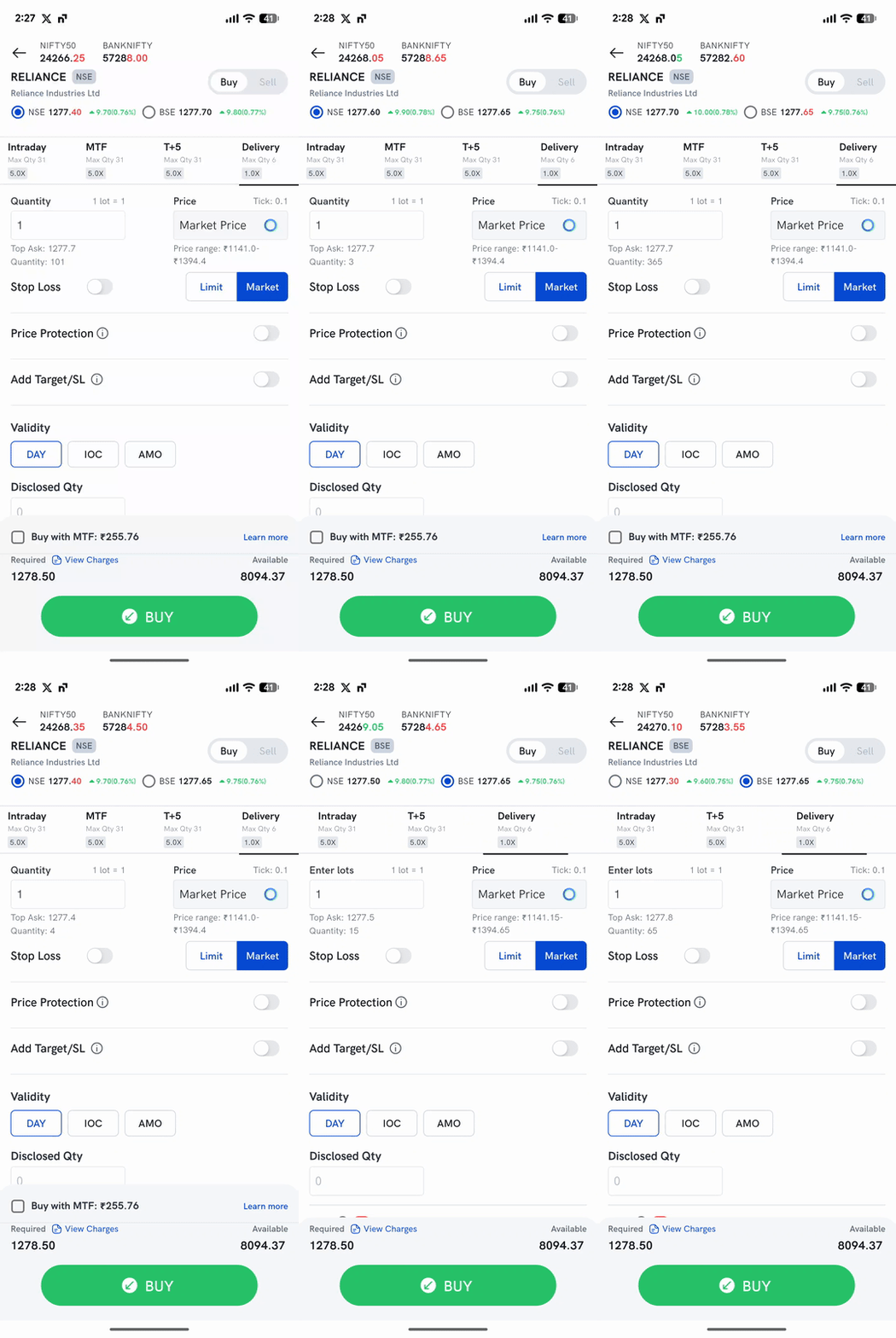
1. Open the order window for a stock listed on both exchanges — you'll see two rows just below the stock name, one for NSE and one for BSE, each with its own live price.
2. Tap the radio button next to the exchange you want — the selected exchange is highlighted, and the exchange tag next to the stock name at the top updates to match.
3. Place the order as usual — quantity, product, and price now apply to the exchange you picked.
Things to keep in mind
- The exchange you pick applies only to that order — switching NSE/BSE on one order window doesn't change your default for future orders.
- Product options can differ by exchange — for example, on BSE the order window may not show the same set of products (MTF, T+5) as NSE for the same stock. Pick the exchange first, then confirm the product you need is available before placing the order. See Which product should I choose — Intraday, Delivery, MTF or T+5? for what each product needs. To turn on MTF, see How to activate Margin Trading Facility (MTF)?; if a product isn't available and the order is rejected, see Why do orders get rejected?.