
Tap the search icon (or the + next to "My Watchlist") on your Watchlist screen, search for the stock, index, or contract by name, tap + on the result, then Done.
How to add an instrument to your Watchlist
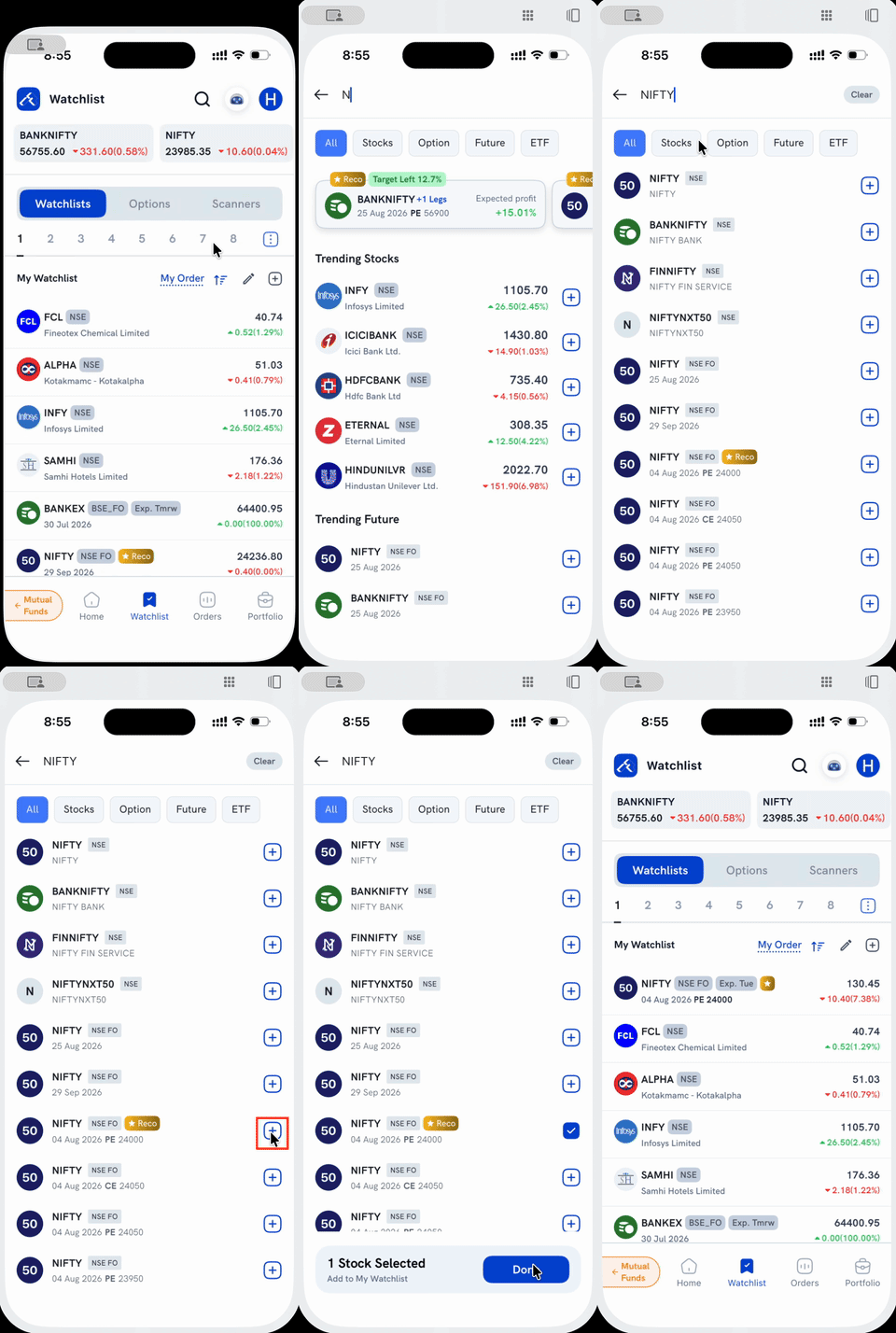
1. Open search. Tap the search icon at the top of the Watchlist screen, or the + next to "My Watchlist." Both open the same search screen.
2. Type what you're looking for. A stock, an index, a mutual fund, or a specific F&O contract all work from the same search box. The results list every match, with each row tagged by exchange/segment (NSE, BSE, NSE FO, and so on).
3. Tap the + next to the result you want. It turns into a checkmark, and you can tap + on more than one result before adding them all together.
4. Tap Done on the bar at the bottom. You're taken back to your Watchlist, a confirmation appears, and every instrument you selected now shows up in your list.
Things to keep in mind
- Adding an instrument to your Watchlist just tracks its price. It doesn't place an order. To trade something you've searched, tap the result's row itself (not the +) instead.
- For the F&O-specific details (picking the right expiry, strike, or CE/PE), see How do I add F&O contracts to my Watchlist? For MCX commodity F&O, see How do I add MCX F&O contracts to my Watchlist? For adding indices like Nifty 50, BankNifty, or Sensex, see How do I add Nifty 50, Sensex or other indices to my Watchlist? Searching "Bharat Bond" also surfaces an unrelated stock alongside the ETF. See How do I add Bharat Bond ETF to my Watchlist? for how to tell them apart.