
Search for the underlying (like NIFTY or a stock) from your Watchlist, then pick the exact Futures & Options (F&O) contract you want (its expiry, and strike and type for options) from the results and tap + to add it.
How to add an F&O contract to your Watchlist
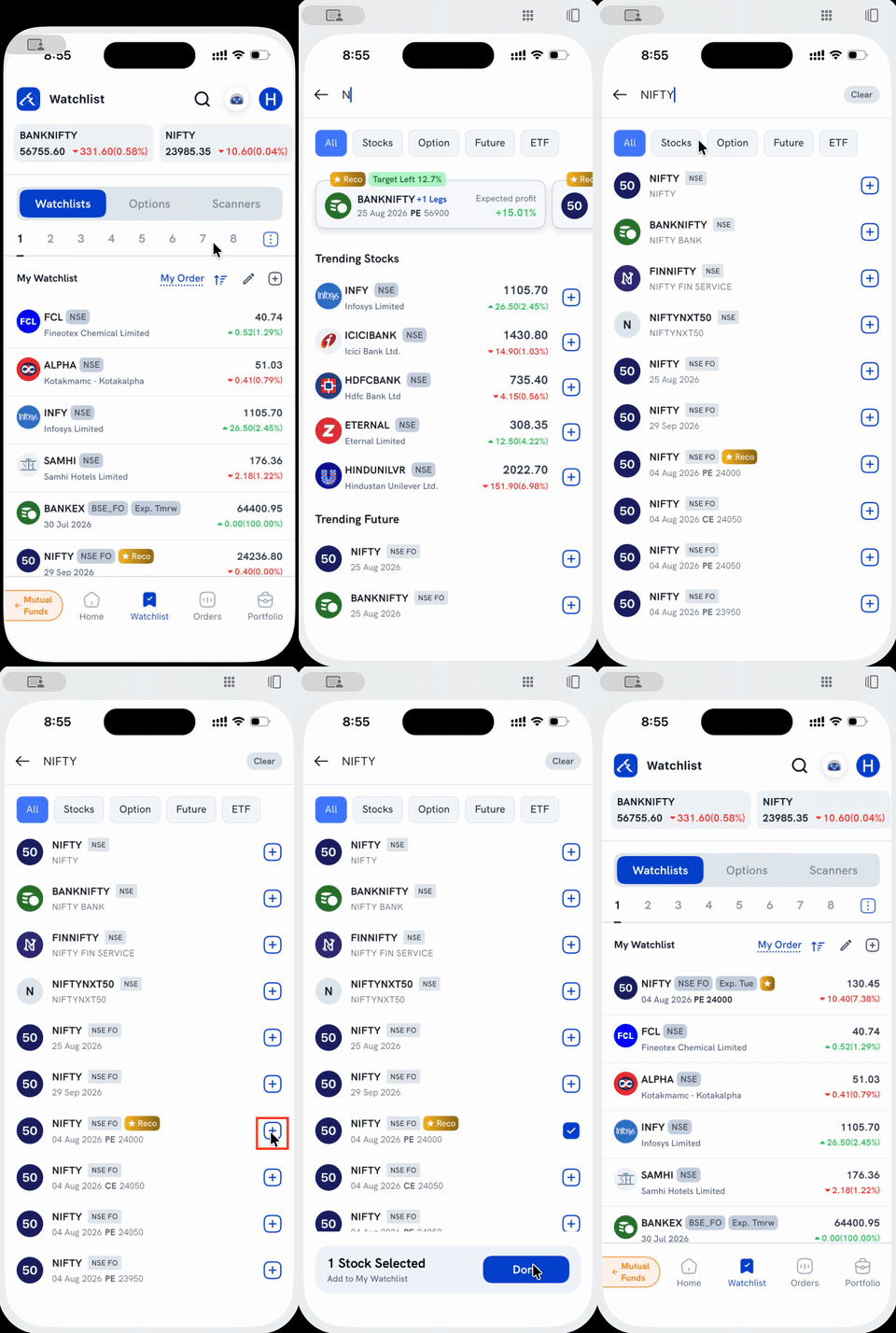
1. Tap the search icon on the Watchlist screen.
2. Type the underlying's name, an index like NIFTY/BANKNIFTY, or a stock. The results list shows every matching instrument: the cash-market stock/index, plus every F&O contract on it, each tagged NSE FO or BSE FO. Futures show just their expiry date; options also show the strike and CE/PE. Use the Option or Future filter tab above the results to narrow a long list down to just one type. If you'd rather browse every strike for an expiry at once before picking one, use the Option Chain or Futures Chain instead.
3. Tap the + next to the exact contract you want. It turns into a checkmark, and a bar appears at the bottom showing how many you've selected. You can tap + on more than one contract before adding them together.
4. Tap Done on that bottom bar. You're taken back to your Watchlist, a "Added to watchlist" confirmation appears, and the contract now shows up in your list with its expiry (and strike/type, for options).
Things to keep in mind
- The + only adds the contract to your Watchlist for tracking. It doesn't place an order. Tap the contract itself (not the +) to open its detail screen and trade it, the same way you would for a stock.
- Each expiry and strike is a separate contract with its own row in search, so make sure you're adding the one you actually meant to track, not just the nearest match.
- For commodity derivatives instead, see How do I add MCX F&O contracts to my Watchlist?