
Tap the fund's name at the top of its screen, or tap any fund in search results. That opens the scheme's own page: what the fund charges, how big it is, what it holds, how risky it is and how it compares with similar funds. This is about the fund itself, not about your investment in it.
How do I open a scheme's page?
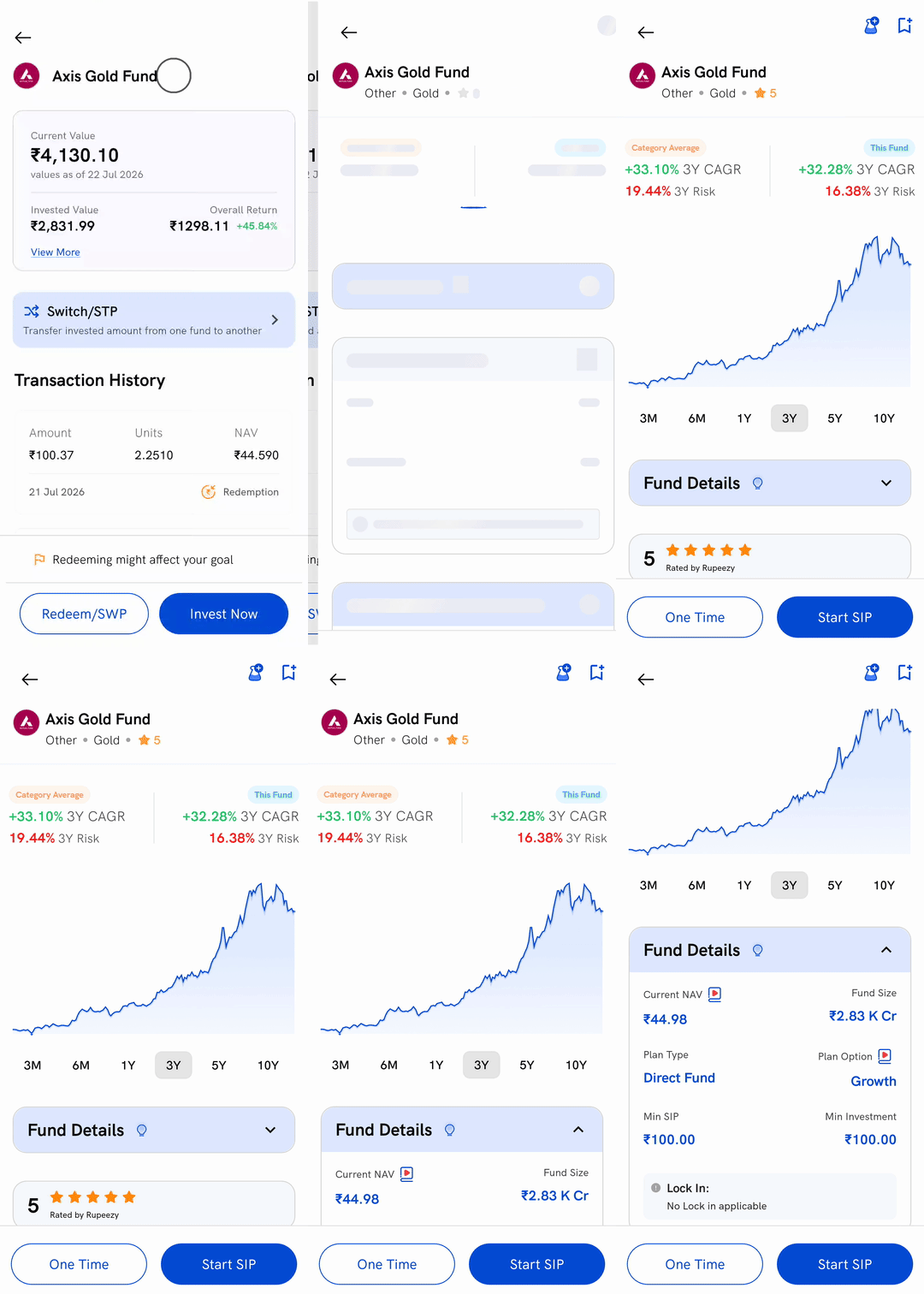
1. Open a fund you hold — tap it under My Mutual Funds on the Portfolio tab. If you are not sure how to get there, see How to view mutual fund investment details on Rupeezy? first.
2. Tap the fund's name — the name in bold at the top of the screen. This is the step people miss: the rest of that screen is your holding, and only the name leads to the fund.
3. Tap Fund Details — if the block is closed, tapping the blue Fund Details bar opens it.
You do not have to own the fund. Searching for a scheme and tapping the result opens the same page — see How to search for mutual funds on Rupeezy?.
What does Fund Details show?
Six figures about the scheme, and a Lock In note underneath:
- Current NAV — the fund's latest published net asset value
- Fund Size — the total money the scheme manages
- Plan Type — Direct Fund or a regular plan
- Plan Option — Growth or an income-distribution option
- Min SIP — the smallest SIP instalment this scheme accepts
- Min Investment — the smallest one-time amount it accepts
- Lock In — how long withdrawals are blocked, or No Lock in applicable
Some labels carry a small red video icon. Tapping it plays a short explainer on that term.
Where do I see what the fund charges?
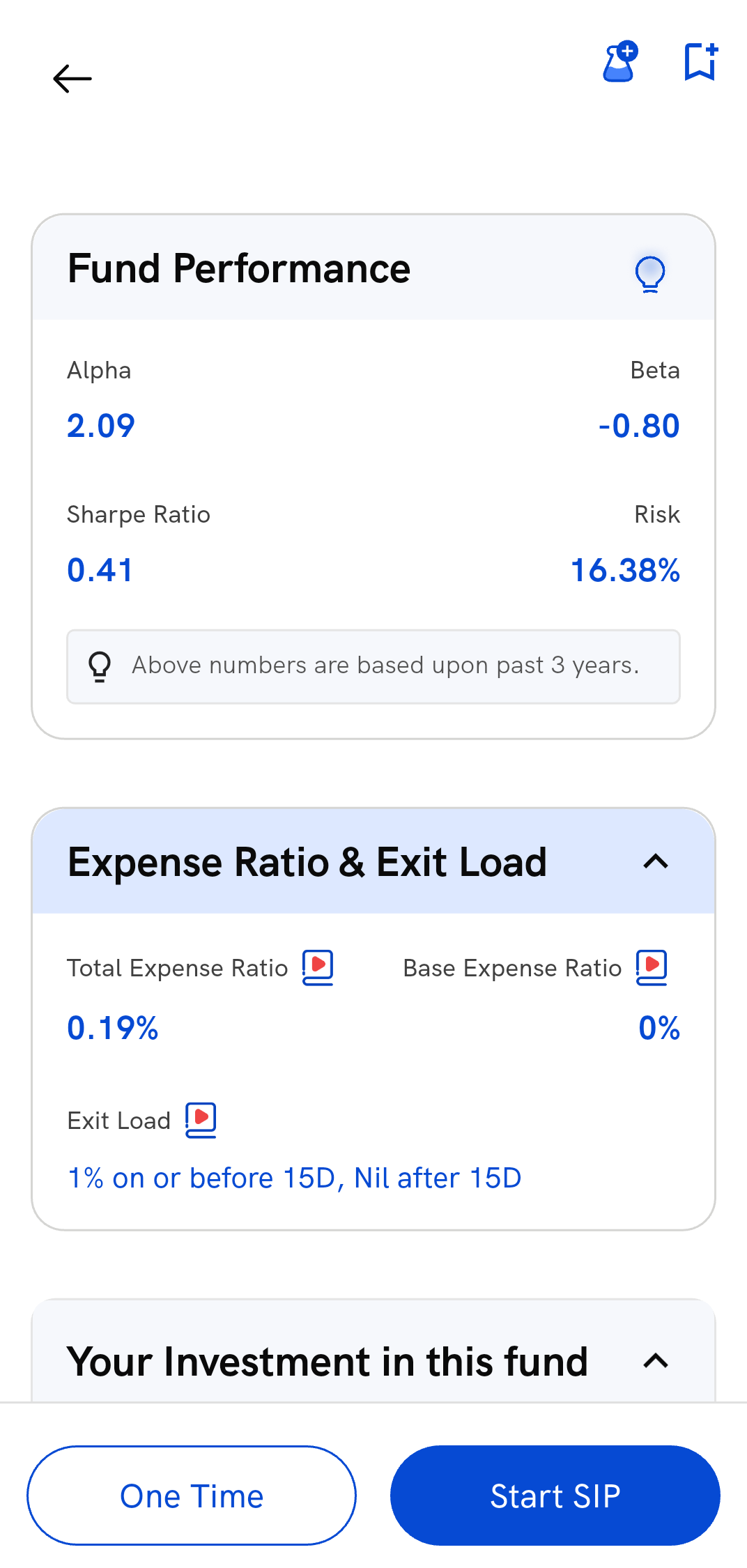
Expense Ratio & Exit Load, a little further down.
- Total Expense Ratio — what the fund house charges each year to run the scheme
- Base Expense Ratio — the management-fee part of it, before other costs
- Exit Load — the fee for selling early, written as the fund house states it, such as 1% on or before 15D, Nil after 15D. Tap Read more if the text is longer than two lines
Fund Performance, just above it, holds four numbers, all based on the past three years: Alpha, Beta, Sharpe Ratio and Risk. The bulb icon beside the heading explains each one.
How do I check how risky the fund is?
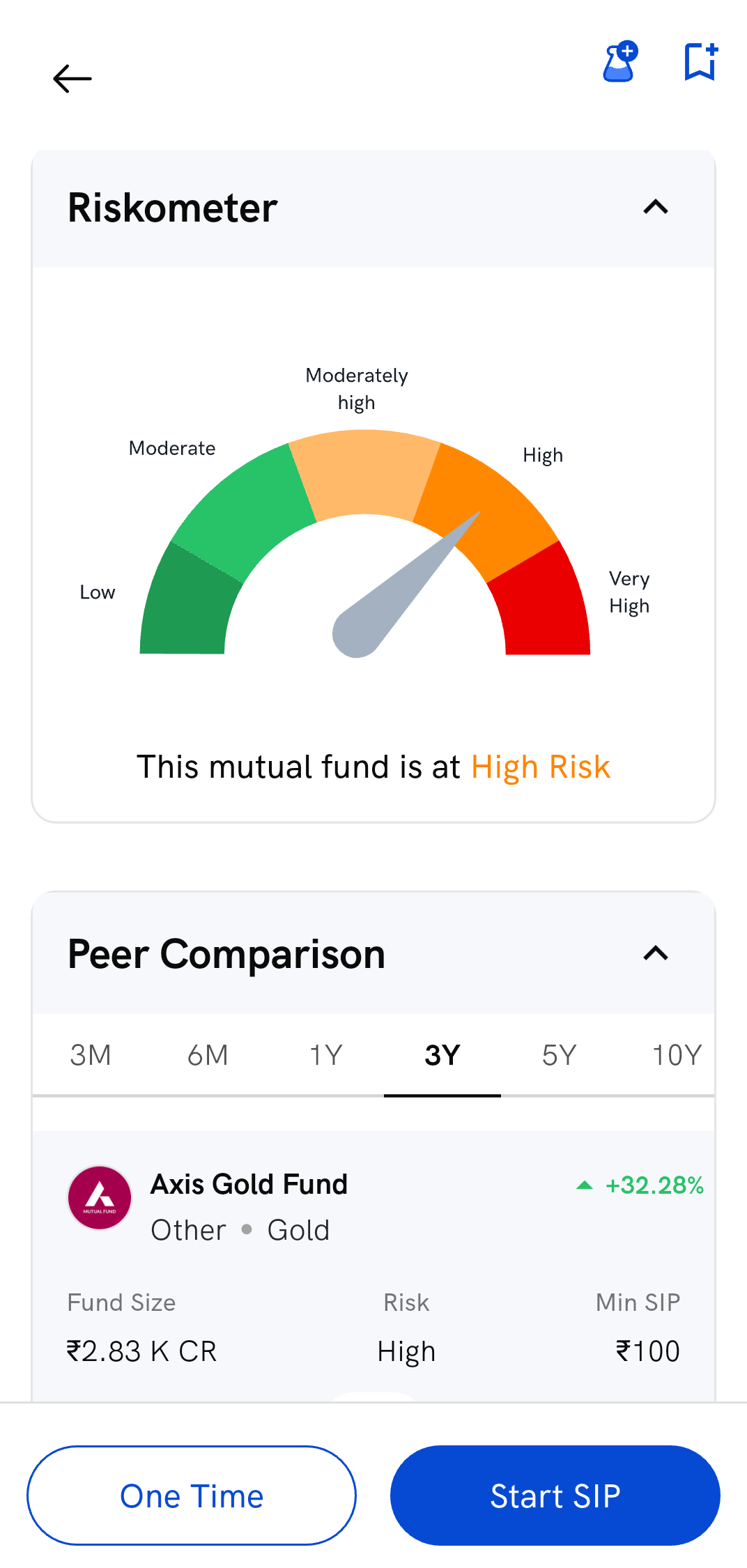
The Riskometer section shows the scheme's risk on the standard five-step scale — Low, Moderate, Moderately high, High, Very High — with a line underneath reading This mutual fund is at [level] Risk.
Peer Comparison below it lists funds in the same category, ranked by return over the period you pick, with Fund Size, Risk and Min SIP for each. Your fund sits at the top, above a vs divider. View All opens the full list, and See scatter plot plots return against risk.
What else is on the page?
Scrolling down, in order:
- The chart — the fund's NAV over time, with 3M to 10Y buttons under it. See How to view mutual fund investments on the NAV graph?
- Rated by Rupeezy — Rupeezy's own star rating for the scheme
- Your Investment in this fund — your invested amount and current value, shown only if you already hold it
- Impact Analysis — enter an amount and it estimates what adding this fund would do to your portfolio's risk and expected return. View full analysis opens the detail
- Portfolio Overlap — how much this fund already holds what you hold, with View Details
- Returns Calculator — put in a Monthly SIP or One Time amount, pick a period, and it shows what that would have become
- Holding Pattern — what the fund owns, under Companies, Sector and Assets tabs. It shows the top few; View All opens the full list
- Fund Management — who manages the scheme
- Fund House — the AMC's name, its Total AUM and Date of incorporation, and a Scheme Information Document link that opens the fund house's own website outside the app — see What is a Scheme Information Document (SID), and where can it be read? for what that document covers
What are the buttons and icons on this page?
- One Time and Start SIP at the bottom start an investment in this scheme. Neither buys anything by itself — each opens a flow you still have to complete
- The bookmark icon at the top right adds the fund to your Watchlist
- The flask icon beside it adds the fund to MF Lab, where you can test it in a virtual basket. It works only on schemes more than three years old; on a newer one it returns Fund age should be more than 3 years
If the fund house has blocked a route, the button tells you so when you tap it — One-time investment is blocked by the fund house, or the same for SIP.
Things to keep in mind
- This page is about the scheme, not about you. The only part that reflects your money is Your Investment in this fund, and it appears only if you hold the scheme.
- Every figure here comes from the fund house and the exchange, not from Rupeezy. Returns shown are past performance and are not a promise of future returns.
- The chart's period buttons depend on the fund's age. A scheme younger than ten years simply has fewer of them, and a very new fund may have only 3M.
- Some sections need a portfolio. Impact Analysis, Portfolio Overlap and the Returns Calculator need three years of fund history, and the overlap also needs holdings of your own — otherwise they do not appear.
- The invest buttons are not always there. They show only when the scheme's plan type matches the type of plan you invest in.