
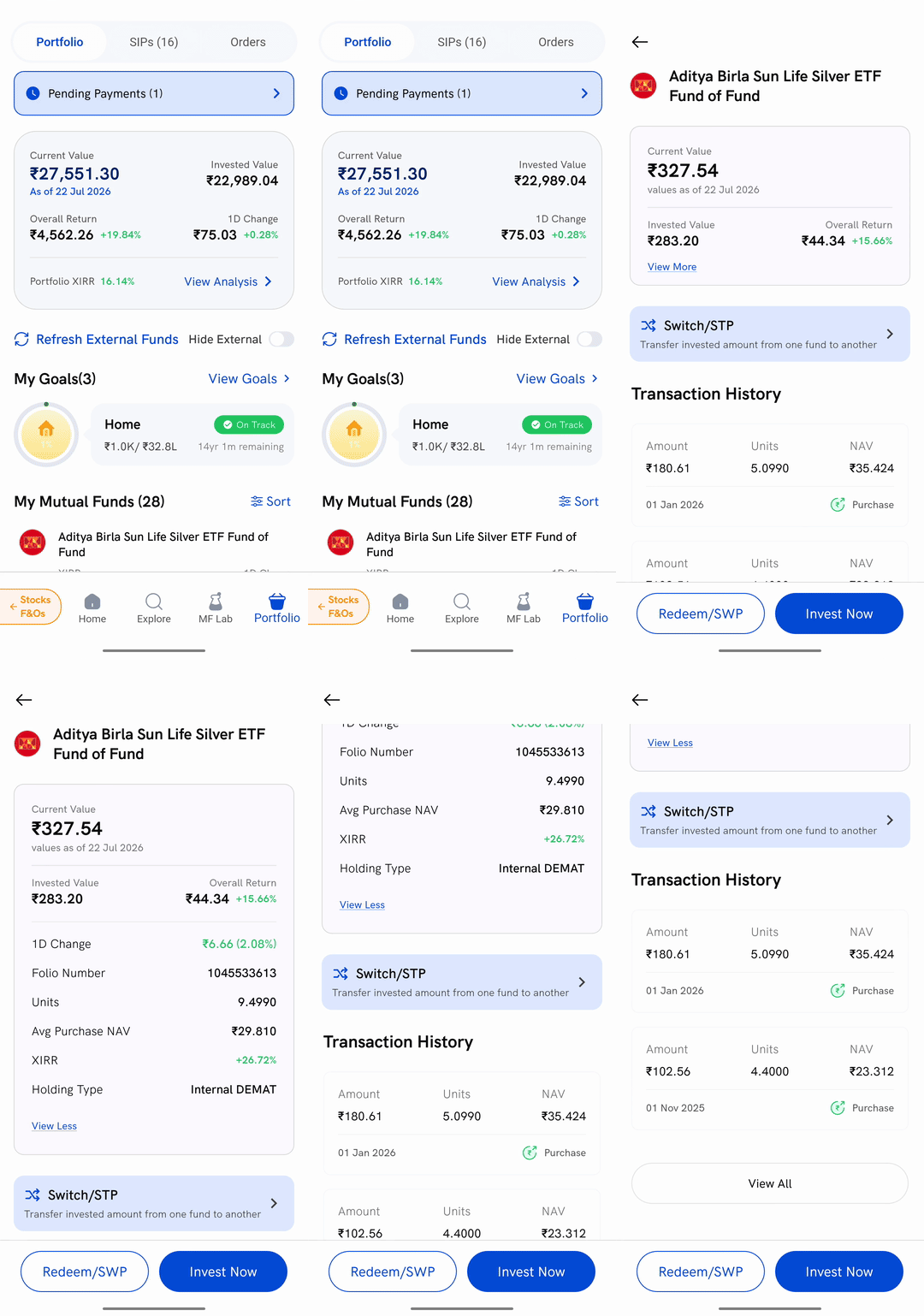
Tap any fund under My Mutual Funds on the Portfolio tab of the Rupeezy app. That opens the details for that one fund: what it is worth today, how many units you hold, your folio number and average purchase NAV, and every transaction you have made in it.
How do I open a fund's details?
1. Open the Portfolio tab — if you are not sure how to get there, see How to view mutual fund investments on Rupeezy? first.
2. Tap the fund you want — anywhere on its card under My Mutual Funds.
3. Tap View More — the summary card opens with four figures; View More underneath expands it to show your units, folio number and the rest.
4. Scroll down — Transaction History for that fund sits below the card.
What does the summary card show?
The fund's name sits at the top of the screen, and the card underneath opens showing four things:
- Current Value — what your holding in this fund is worth, with the values as of date the valuation was taken from
- Invested Value — what you have put into this fund
- Overall Return — the difference between the two, in rupees and as a percentage
Tapping View More adds six more:
- 1D Change — how much this fund moved since the previous valuation
- Folio Number — your account number with that fund house
- Units — how many units you hold, to four decimal places
- Avg Purchase NAV — the average NAV your units were bought at, across every purchase in this folio
- XIRR — the annualised return for this fund alone
- Holding Type — how the units are held (see below)
View Less collapses it again.
What does Holding Type mean?
It is two facts joined together, and it reads as something like Internal DEMAT or External Physical.
- Internal means you bought the fund through Rupeezy. External means you hold it elsewhere and imported it to track it here.
- DEMAT means the units sit in your demat account. Physical means they are held in statement form with the fund house instead, which is the normal way mutual fund units are held.
This matters mainly when you come to sell: units in an external demat holding cannot be redeemed through Rupeezy.
What if my investments in one fund are split across folios?
You can end up with more than one folio in the same scheme — for example one you bought through Rupeezy and one you imported from elsewhere.
When that happens, tapping the fund opens a Select Folio screen first, headed Your investments in [fund name] are split into multiple folios. Each row shows that folio's value and its folio number, and imported ones carry an External tag. Pick a folio to open the details for it.
Every figure on the details screen is for the one folio you picked, not the whole scheme. The card on the Portfolio tab is what adds your folios together.
Where do I see this fund's transactions?
Transaction History below the card lists your three most recent transactions in this folio, newest first. Each one shows:
- Amount — what the transaction was worth
- Units — how many units it added or removed
- NAV — the NAV the units were allotted at
- The date, and whether it was a Purchase or a Redemption
Tap View All underneath to see the full list on its own screen. If nothing has been allotted in this folio yet, the section reads No Data Available and there is no View All button.
What are the buttons at the bottom?
- Redeem/SWP — starts selling this fund, either in one go or as a systematic withdrawal
- Invest Now — adds to this fund with a lump sum or a SIP. It appears when the fund matches the type of plan you invest in
- Switch/STP — a separate strip above Transaction History, described as Transfer invested amount from one fund to another. It shows only when the fund house allows switching out of that scheme and you have units available
Nothing is bought or sold by opening this screen or by tapping any of these — each one starts a flow you still have to complete and confirm.
Redeem/SWP appears greyed out when you cannot sell right now, with a line above it saying why: Redemption is blocked by AMC, Units unavailable for redemption, or Redeeming external demat funds is not available. If the folio is attached to a goal you have set up, a note reads Redeeming might affect your goal.
Things to keep in mind
- These are not live prices. Mutual funds are valued once a day, which is why the card carries a values as of date.
- Avg Purchase NAV is an average, not a price you paid. If you bought in instalments, no single purchase was made at this NAV.
- Tapping the fund's name opens something different. The name at the top of the screen leads to the scheme's own details — how the fund itself has performed — rather than to your holding in it.
- Units are shown to four decimal places. Mutual fund units are not whole numbers, so a small purchase very often buys a fraction of a unit.