
Picture-in-Picture (PIP) mode on the Rupeezy Android app opens a small floating window that shows Nifty and Bank Nifty prices and your running P&L, and stays on screen while you use other apps. To launch it, tap the PIP icon at the top right of the Positions screen, or on the Floating Position (Scalper) panel of any chart.
What does PIP mode show?
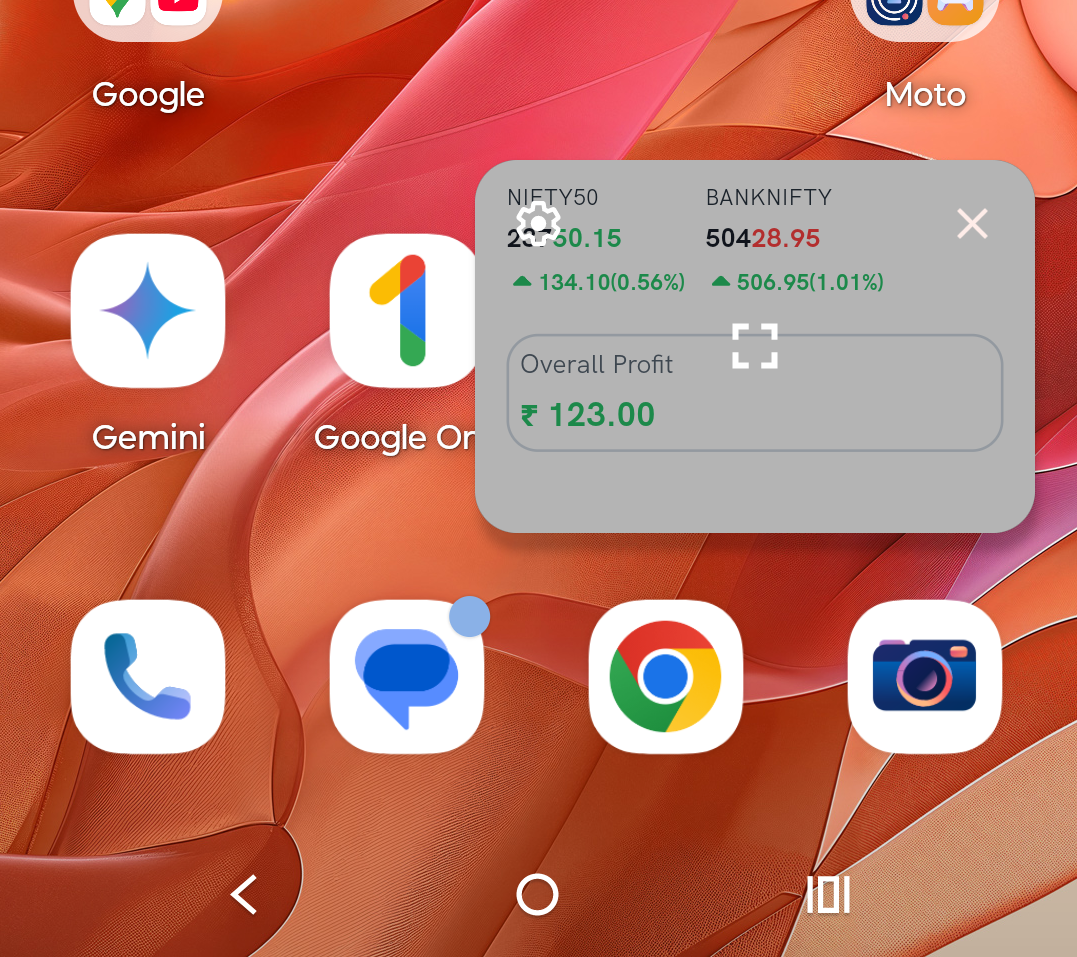
The PIP window is a small, movable overlay with:
- Nifty's Latest Traded Price (LTP)
- Bank Nifty's Latest Traded Price (LTP)
- Your running positions' P&L
It stays visible even when you leave the Rupeezy app, so you keep sight of these numbers while you multitask on your phone.
How do I launch PIP mode from the Positions screen?
- Go to the Positions screen.
- Tap the PIP icon at the top-right corner, beside the search box.
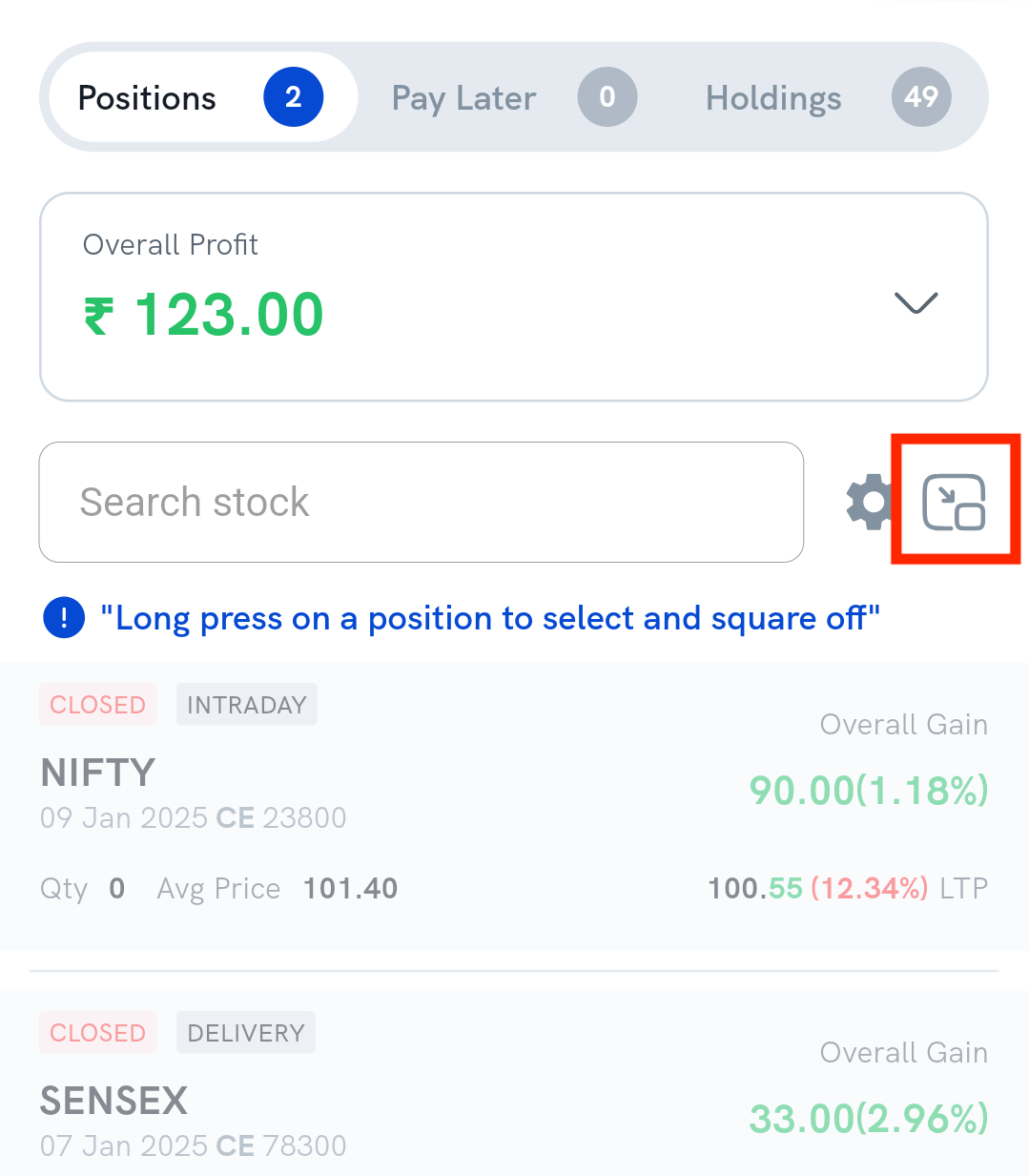
The PIP window opens as a compact overlay that you can drag and resize.
Can I launch PIP mode from a chart?
Yes. You can launch it from the Floating Position (Scalper) panel on any chart.
- Open the chart of any instrument. The Floating Position (Scalper) panel appears at the bottom of the screen.
- Tap the PIP icon on the right side of the panel.
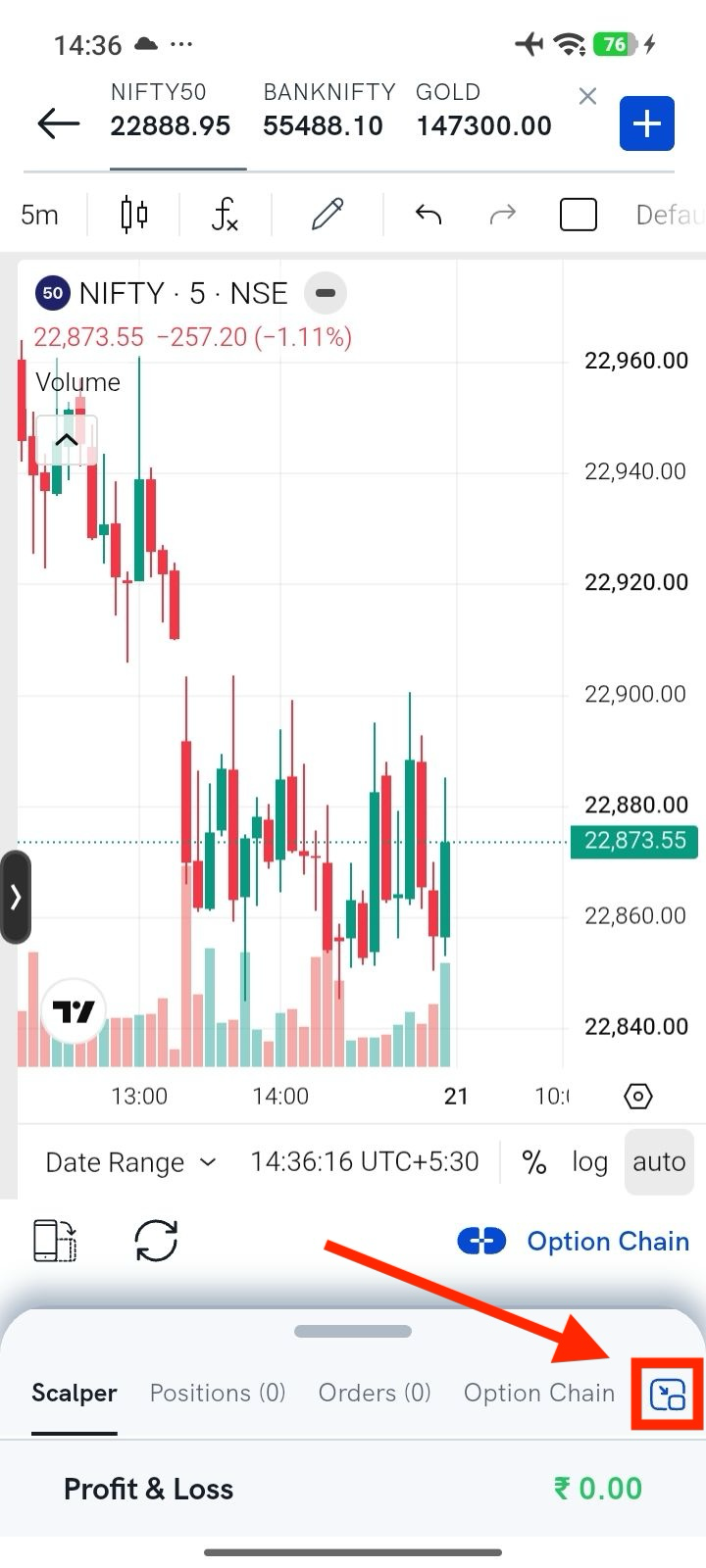
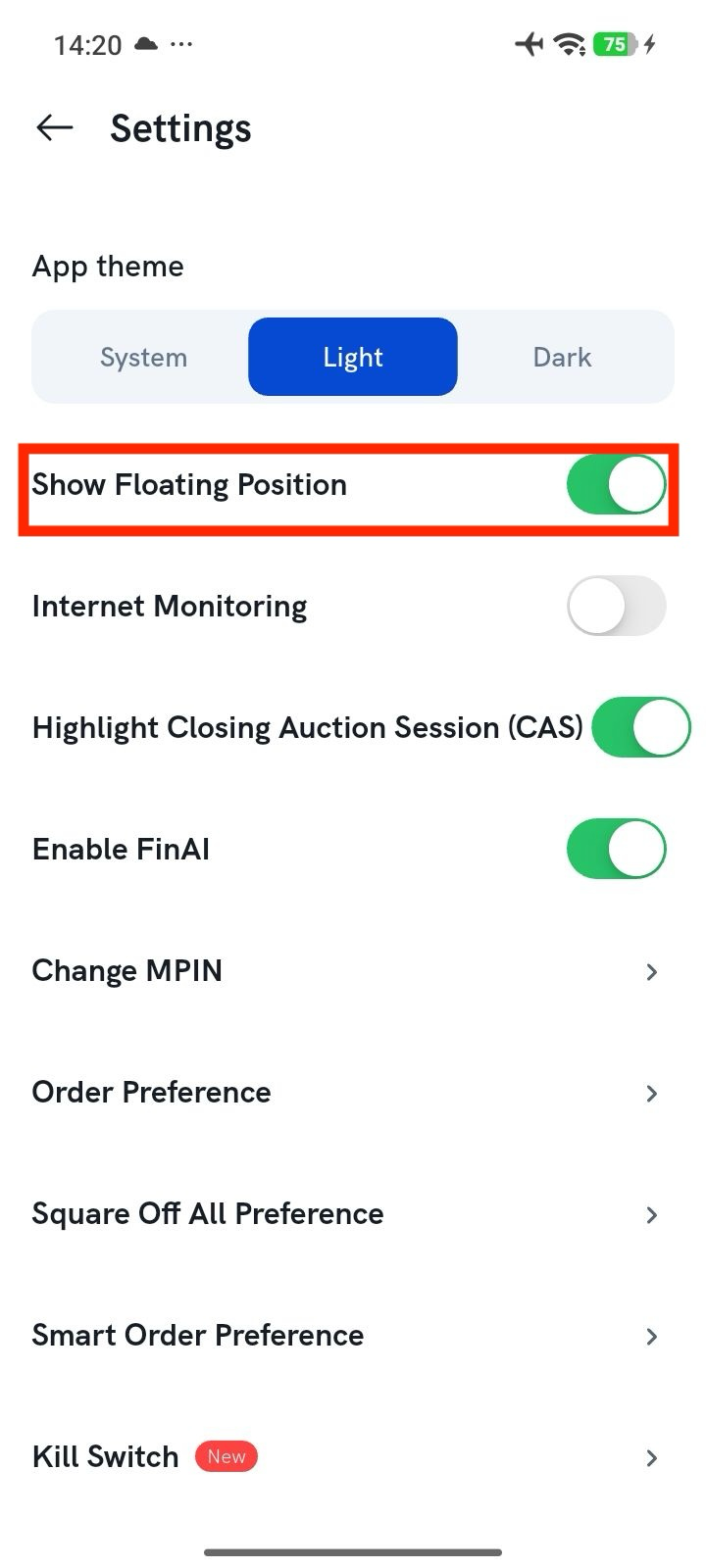
Don't see the Scalper panel? Turn it on from Profile → Settings → Show Floating Position. To trade from that panel, see What is Scalper mode and how do I use it?
How do I resize, expand or close the PIP window?
- Resize it: pinch out on the window to make it bigger, or pinch in to make it smaller.
- Go back to full screen: tap the square expand icon in the centre of the PIP window to reopen the Rupeezy app in full-screen mode.
- Close it: tap the close (X) icon on the window, or drag the window to the bottom of your screen.
Things to keep in mind
- PIP mode is available only on the Rupeezy Android app. It isn't available on the iOS app. If you don't see the PIP icon, update to the latest version from the Play Store — see How do I update the Rupeezy app?