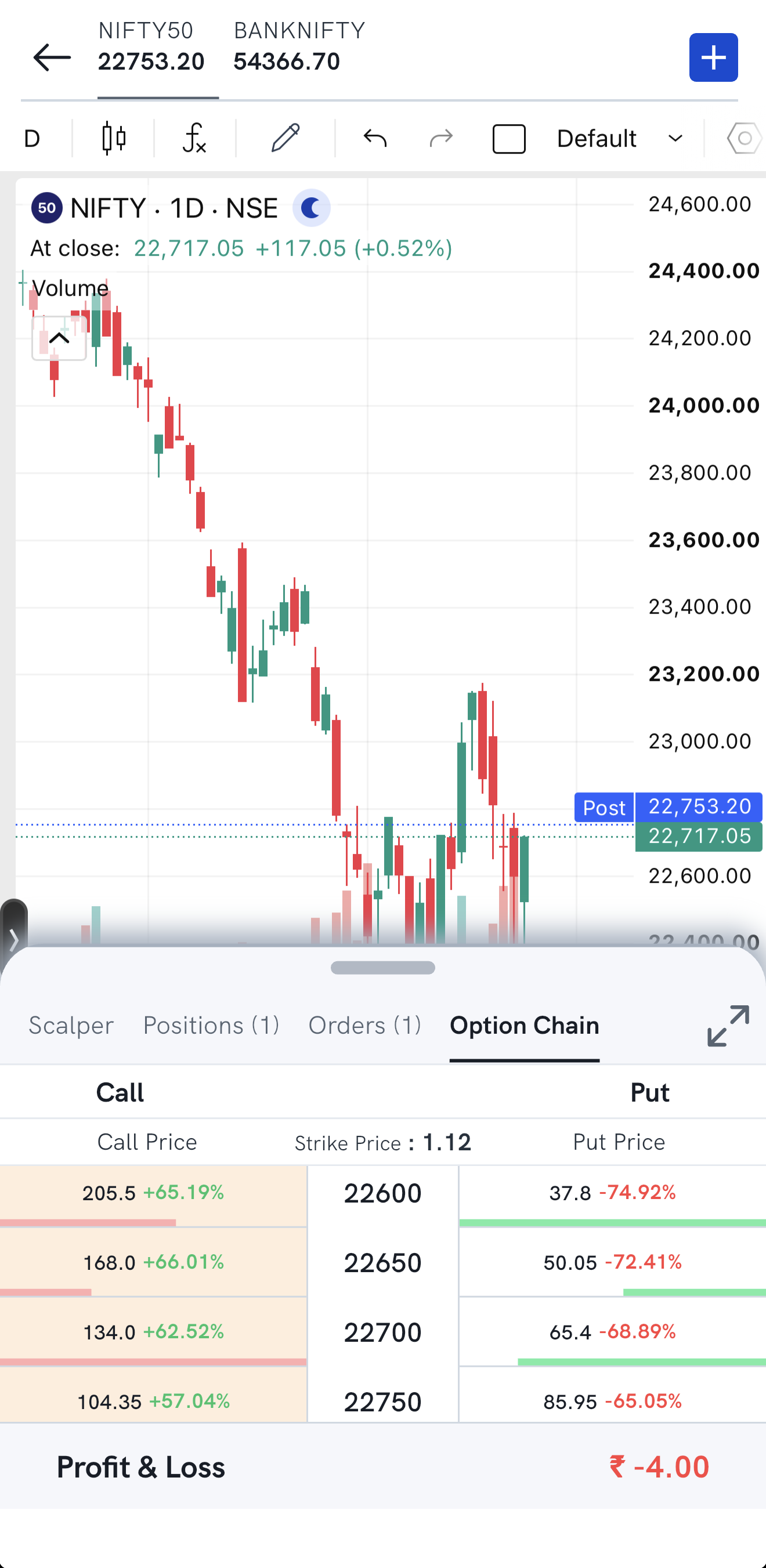
Floating Position is a panel at the bottom of every chart in the Rupeezy app that lets you track and act on your positions without leaving the chart. Drag it up to square off positions, add a target or stop-loss, cancel or modify pending orders, and view the option chain for the scrip on the chart.
How do I open the Floating Position panel?
- Open the chart for any scrip (stock or index).
- At the bottom of the chart you'll see the Scalper, Positions, Orders and Option Chain tabs. Scalper lets you trade an option from the chart — see What is Scalper mode and how do I use it?
- Drag the bottom sheet up to see your positions, orders and the option chain for the scrip on the chart.
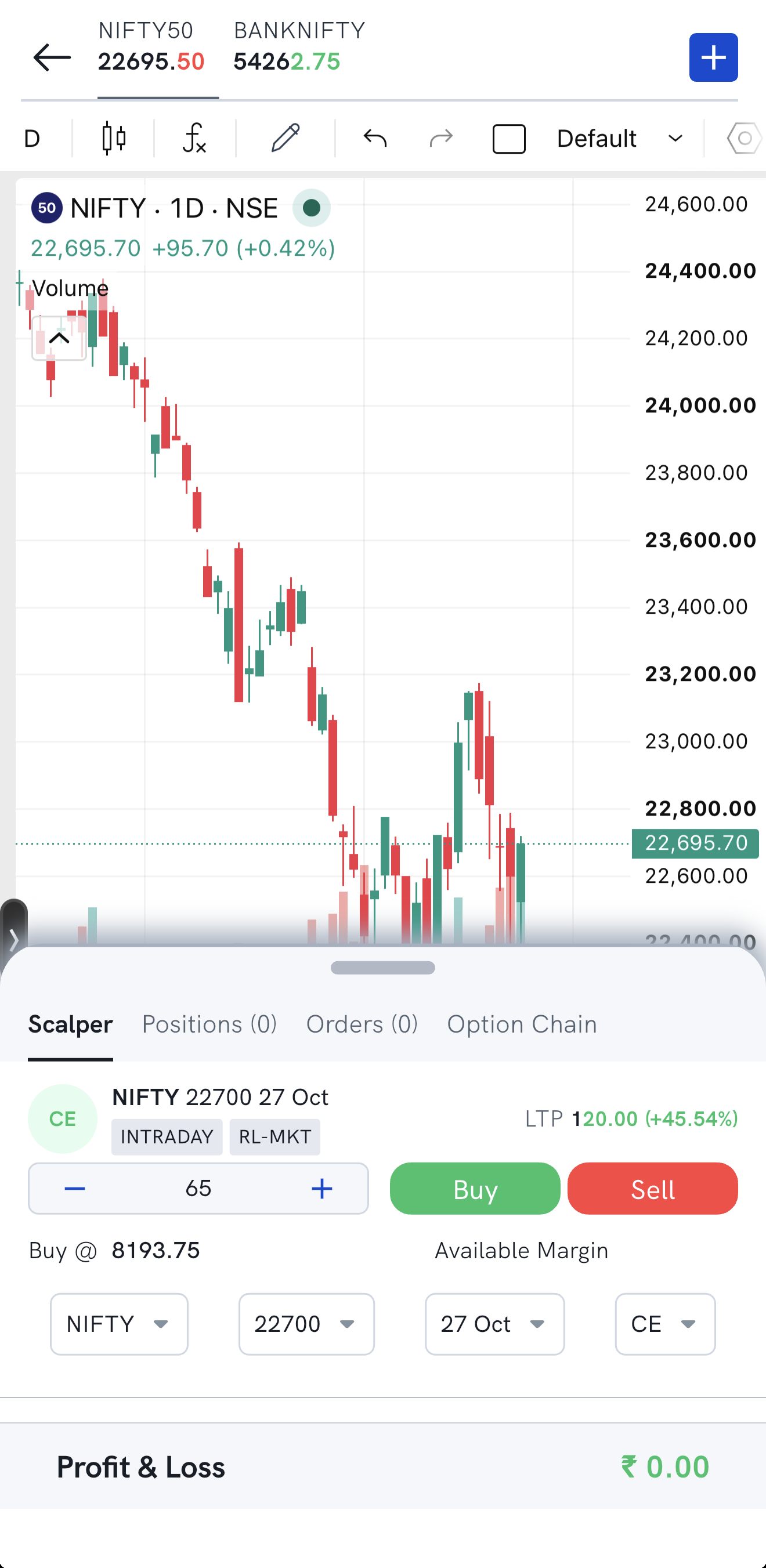
If you don't see the panel, turn it on from Profile → Settings → Show Floating Position. The same panel is where you launch Picture-in-Picture (PIP) mode.
How do I square off positions from the chart?
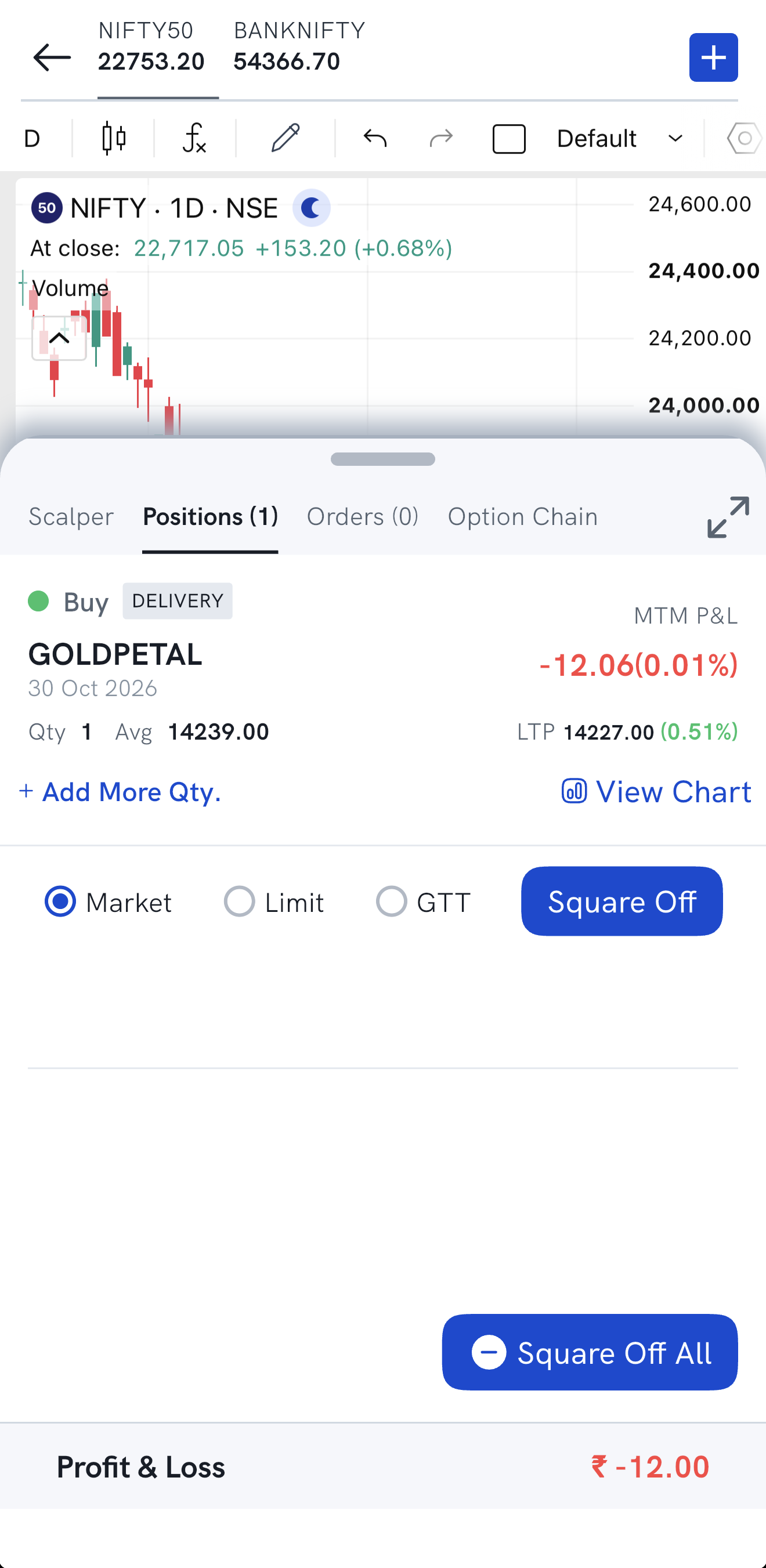
- Square Off All — tap Square Off All to close all your positions at once. To square off only the positions that match your criteria, tap Edit Preference and set your preferences.
- Square off one position — tap the position and choose Market or Limit:
- Market: select Market and tap Square Off. The position closes at the market price.
- Limit: select Limit and tap Square Off. An order screen opens where you set the limit price for closing the position.
For other ways to close a position, see How do I square off positions on the Rupeezy app?
How do I add a target or stop-loss to a position?
Tap the position, select GTT and tap Square Off. A GTT order screen opens where you enter your target and stop-loss prices. To learn how these orders work, see What are GTT Orders at Rupeezy?
How do I cancel or modify orders from the chart?
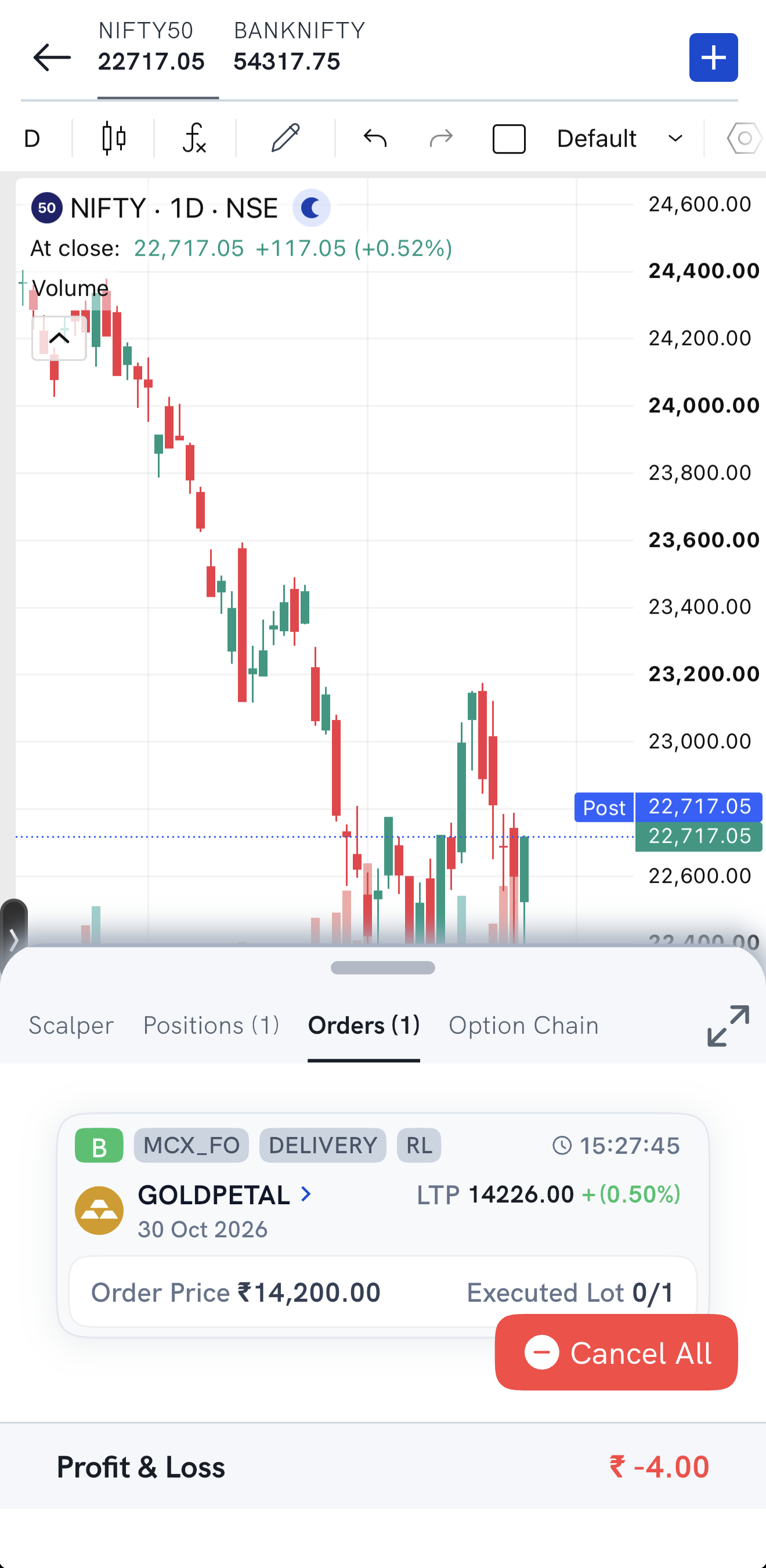
Open the Orders tab on the panel:
- Cancel all pending orders — tap Cancel All.
- Cancel one order — tap the order, then tap Cancel.
- Modify an order — tap the order, then tap Modify. A screen opens where you update the order details.
How do I see the option chain from the chart?
Open the Option Chain tab. It shows the option chain for the underlying scrip — tap the index or scrip you want in the header to see its option chain. For what each column means, see How do I view the Option Chain on Rupeezy and what does it show?