
Order Tags let you attach a short note-to-self to any order on Rupeezy, either while you place it or after it's placed — for example, the reason for a trade or the strategy it belongs to. Your tags show in your trade history in Dock and in exported CSV files, which makes them a simple way to keep a trading journal and review how your trades performed. For why that's worth doing, see Why should I keep a trading journal?
How do I add a tag while placing an order?
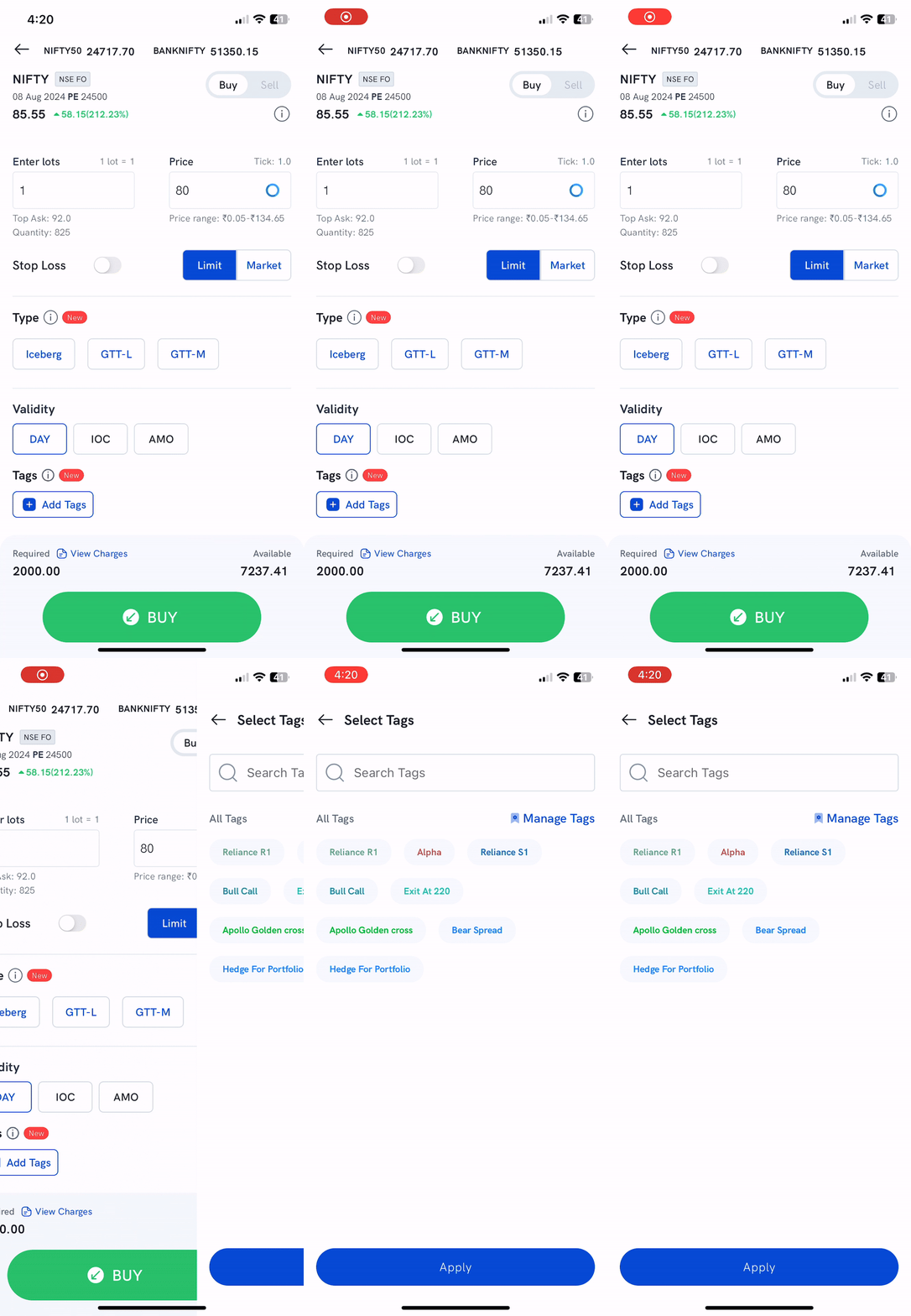
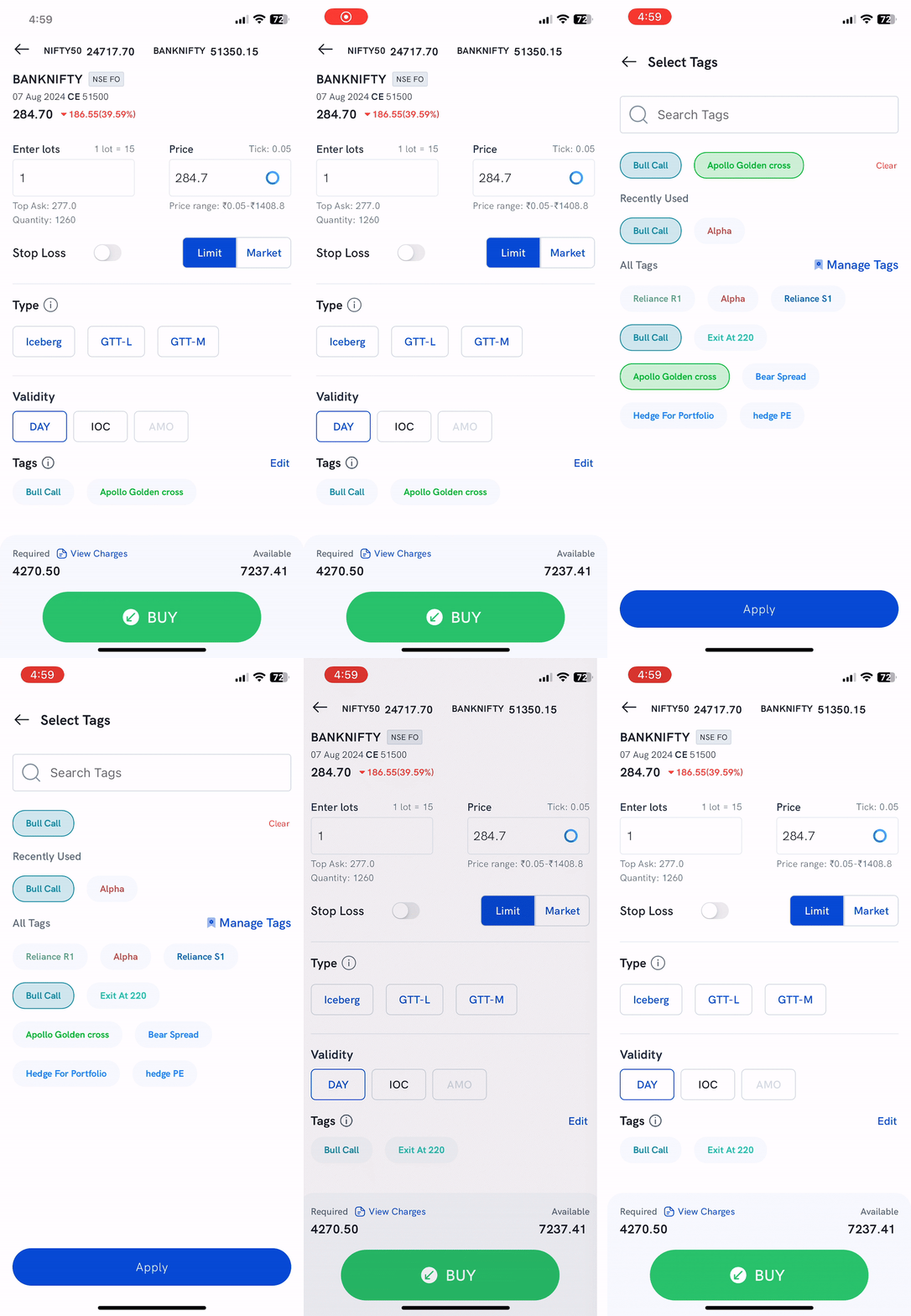
- Open the order screen for the stock or contract you want to buy or sell.
- Under Tags, tap Add Tags.
- Tap one or more of your existing tags to apply them.
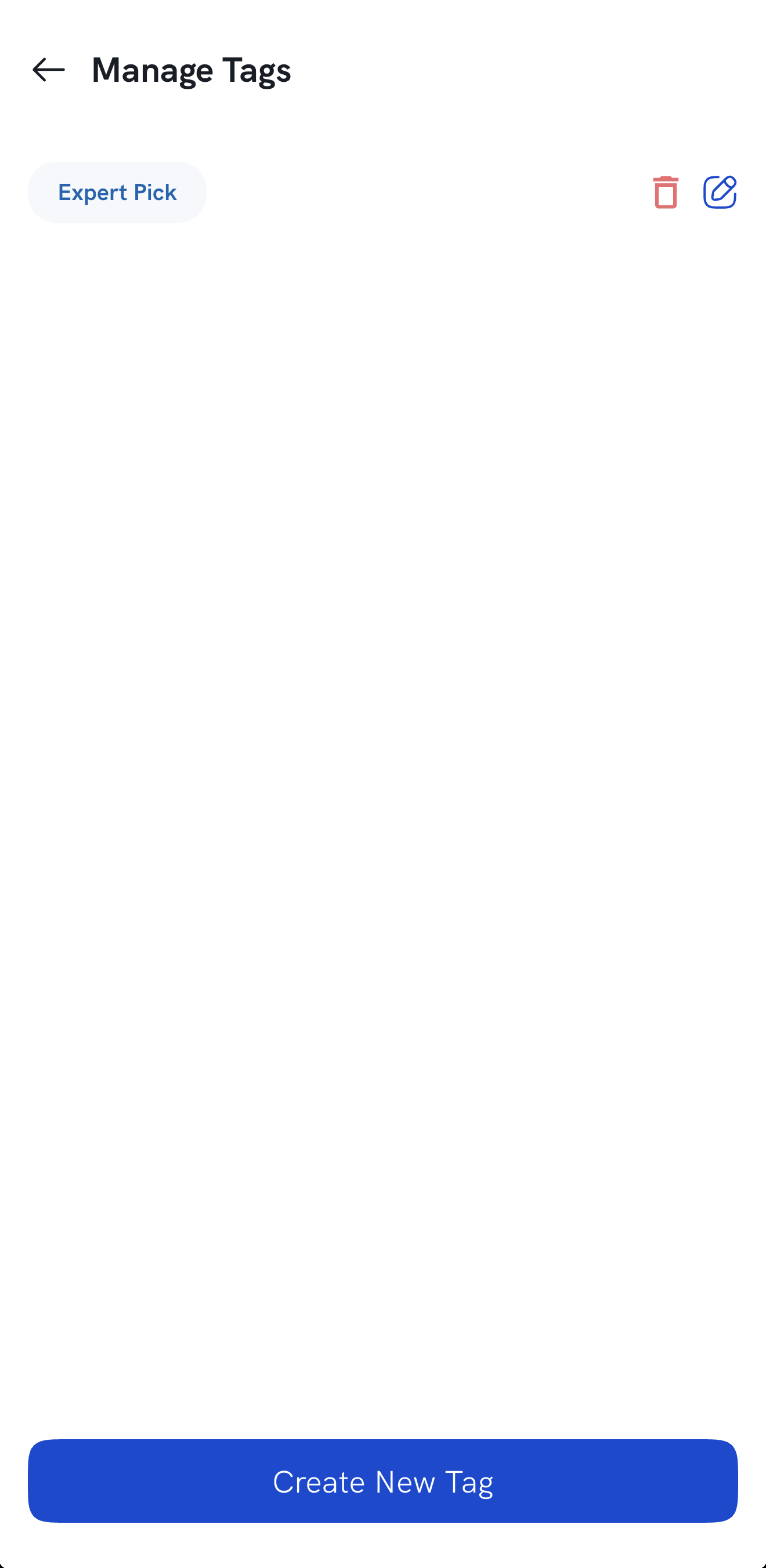
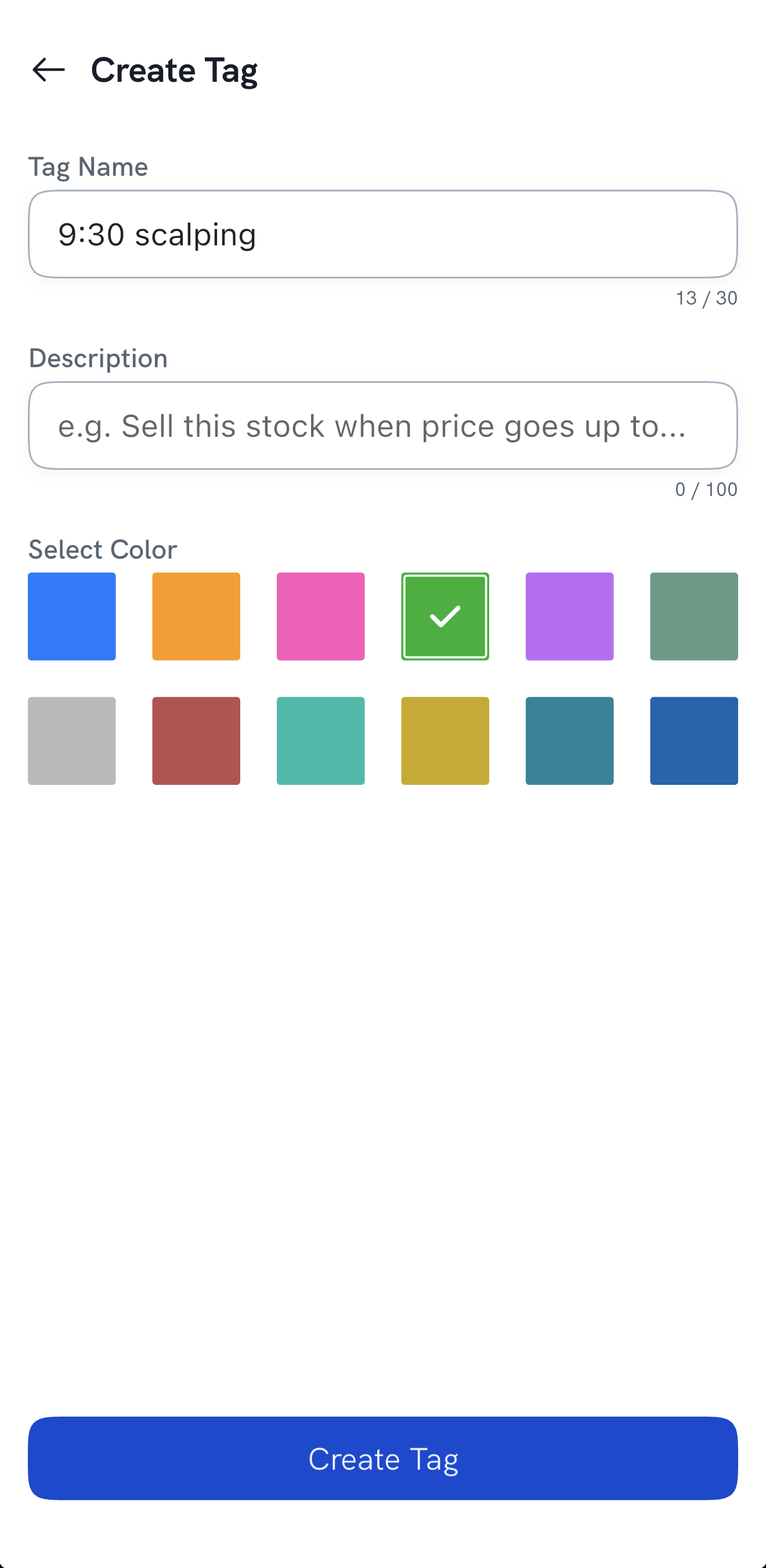
- To make a new tag, tap Manage Tags, then Create New Tag. Enter a name (up to 30 characters) and, if you like, a description (up to 100 characters), pick a colour, and tap Create Tag.
How do I add a tag to an order I've already placed?
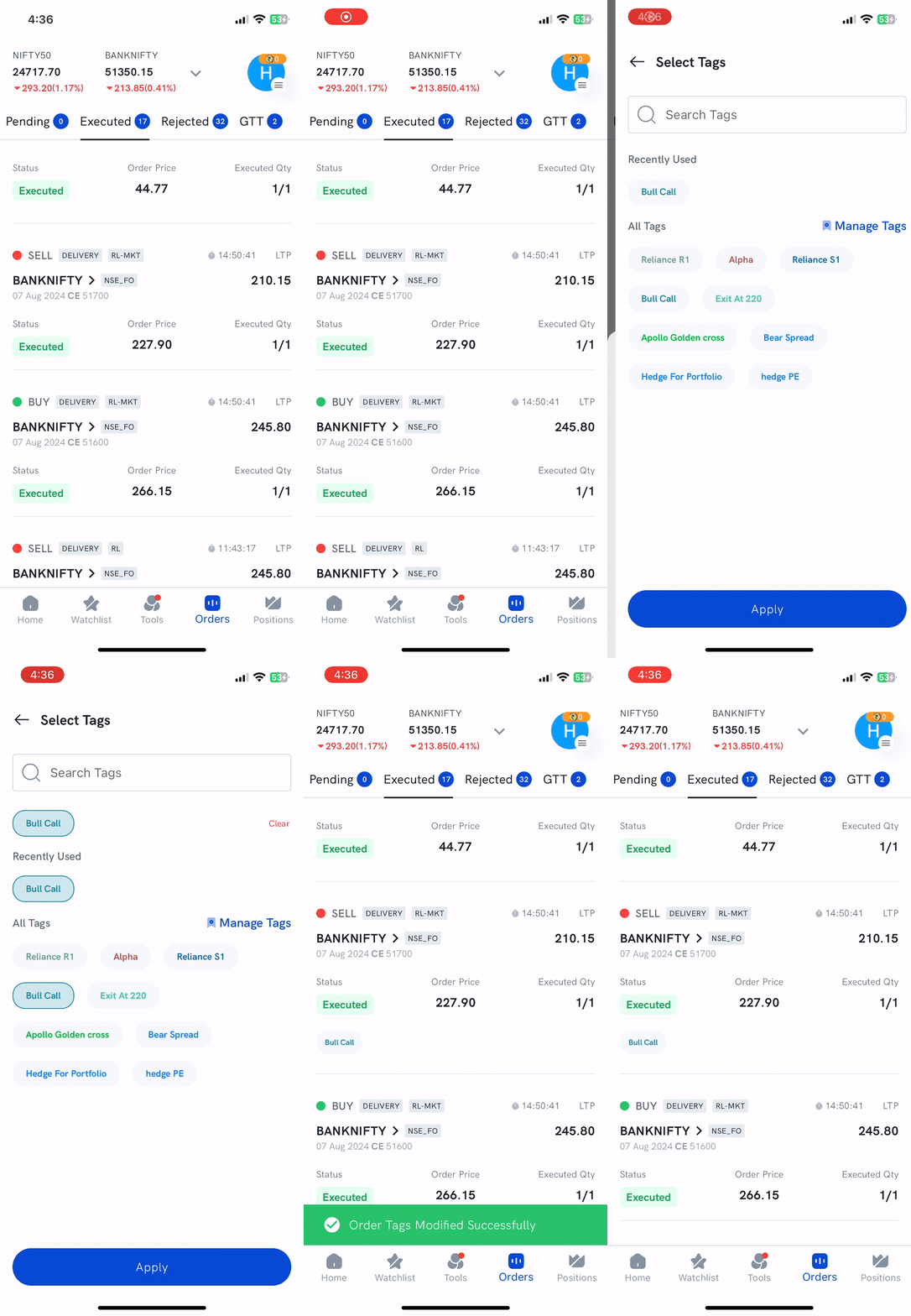
- Go to Orders and open the Pending or Executed tab.
- Tap the order you want to tag.
- Tap Add Tags.
- Tap one or more existing tags to apply them, or tap Manage Tags to create a new one.
How do I change the tags on an order?
- Open the order screen, or tap an executed order in Orders.
- Tap Edit next to Tags.
- Unselect the tags you want to remove, or select new ones. To create a new tag, tap Manage Tags.
- Tap Apply.
On the order screen
On an executed order
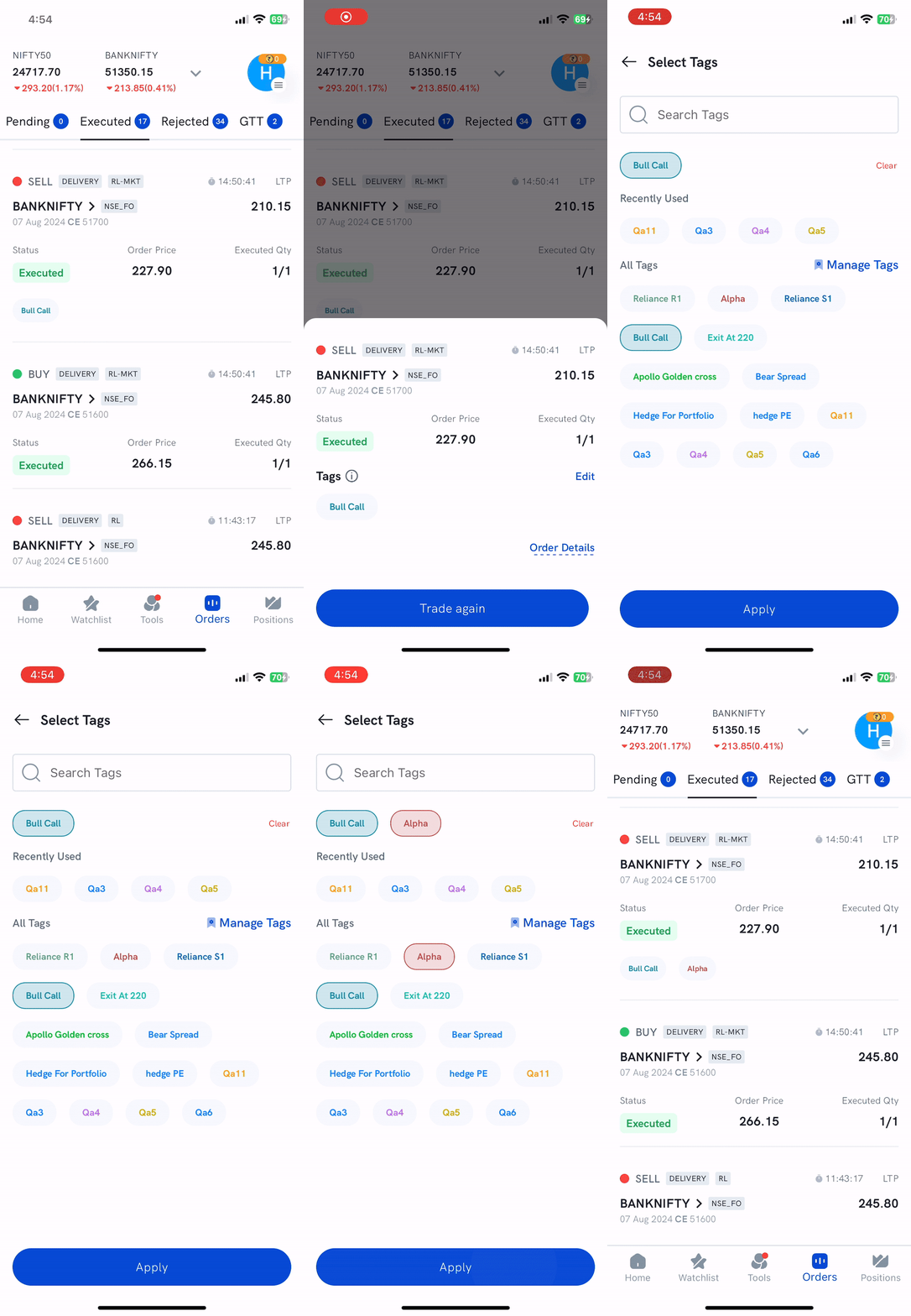
How do I edit or delete a tag?
Open Manage Tags from the Select Tags screen. Tap the edit icon next to a tag to change its name, description or colour and tap Update Tag, or tap the delete icon (or Delete Tag on the edit screen) to remove it.
Things to keep in mind
- You can apply up to 5 tags to an order.
- You can't add tags to rejected orders.