
On Rupeezy, tap the sort icon on your Holdings screen and pick a metric — the figure shown at the top right of every holding card switches to match what you picked, not just the sort order.
How do I switch what each holding shows?
1. Go to Portfolio, then the Holdings tab.
2. Tap the sort icon — the lines icon beside the search icon, above your holdings list.
3. Pick a metric. The Sort sheet lists six: Alphabetically, Today's % Change, Today's Absolute Change, Absolute % Change, Absolute Change, and Invested Value.
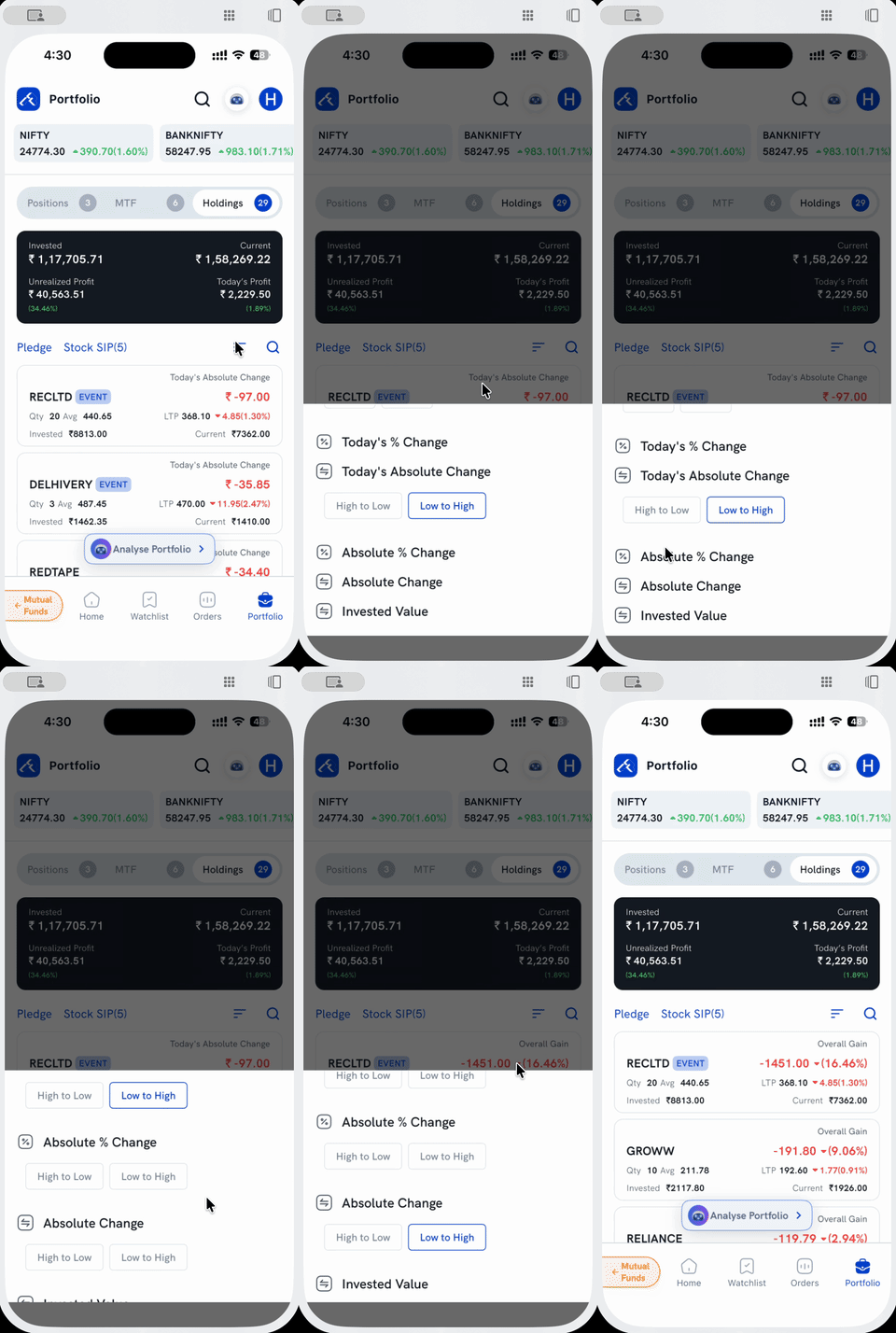
Your choice applies as soon as you tap it — you don't need to close the sheet first.
What do Today's Absolute Change and Absolute Change show?
These two are confirmed directly from the app:
- Today's Absolute Change — the card's top-right label reads Today's Absolute Change, showing just today's move in rupees, e.g. ₹-97.00. This is your day change, in absolute value.
- Absolute Change — the label switches to Overall Gain, showing your overall gain since you bought, in rupees and percentage together, e.g. -1451.00 ▼(16.46%). This is your net change, with both values in one line.
What about Today's % Change and Absolute % Change?
Both exist as options in the same Sort sheet — Today's % Change for day change and Absolute % Change for net change since you bought, mirroring the two Absolute options above. Select either the same way, from the same sheet.
Things to keep in mind
- Alphabetically and Invested Value don't show a gain figure — they sort by name or by how much you've put into each holding instead.
- Your last choice is what also decides the sort order of your Holdings list, not just the figure shown — see How do I sort and filter my orders, positions, MTF and holdings? for the High to Low / Low to High direction toggle and the rest of the sort options.
- For what Day's P&L and overall P&L mean and how each is calculated, see What is the Day's P&L in holdings and how is it calculated?