
On Rupeezy, tap the sort label above your Watchlist — it reads Volume, Absolute change, or Change % — to change what your list is sorted by.
How do I sort my Watchlist by change?
1. Open the Watchlist tab.
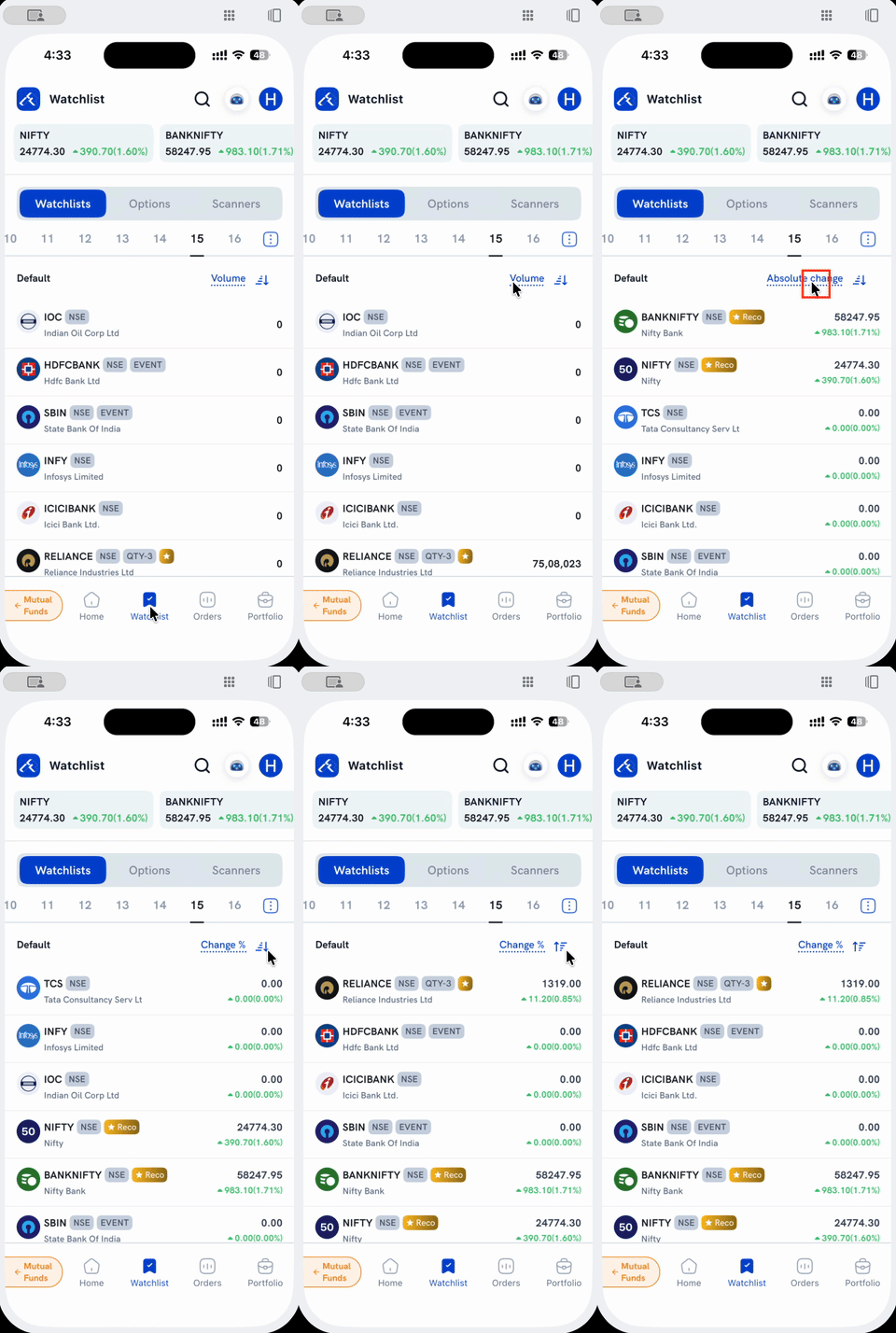
2. Tap the sort label above your list. It cycles through Volume → Absolute change → Change % each time you tap it.
3. Tap the direction icon next to it to flip between High to Low and Low to High.
What does each option sort by?
- Volume — sorts by traded volume. While this is selected, the row's right side shows just the volume figure (e.g. 75,08,023) instead of price and change.
- Absolute change — sorts by today's move in rupees.
- Change % — sorts by today's percentage move.
Things to keep in mind
- Absolute change and Change % sort differently but display identically — the row always shows price plus the combined ▲change(%) figure under either one; picking between them only changes the order, not what you see. See How to view the day's price change in absolute, percentage, or both on the Watchlist?
- This is a different control from the sort options on Positions, MTF and Holdings, where selecting a metric does change the figure shown on each card. See How do I sort and filter my orders, positions, MTF and holdings? and How do I see the net change and day change in holdings in % and absolute values? for that screen.