
On the Rupeezy app, open any fund's details page and tap the bookmark icon at the top right — the fund is saved to your Watchlist. Your Watchlist lives on the mutual funds Home screen, under Your Watchlist, so you can track a shortlist of funds and their returns before you decide to invest.
How do I add a fund to my Watchlist?
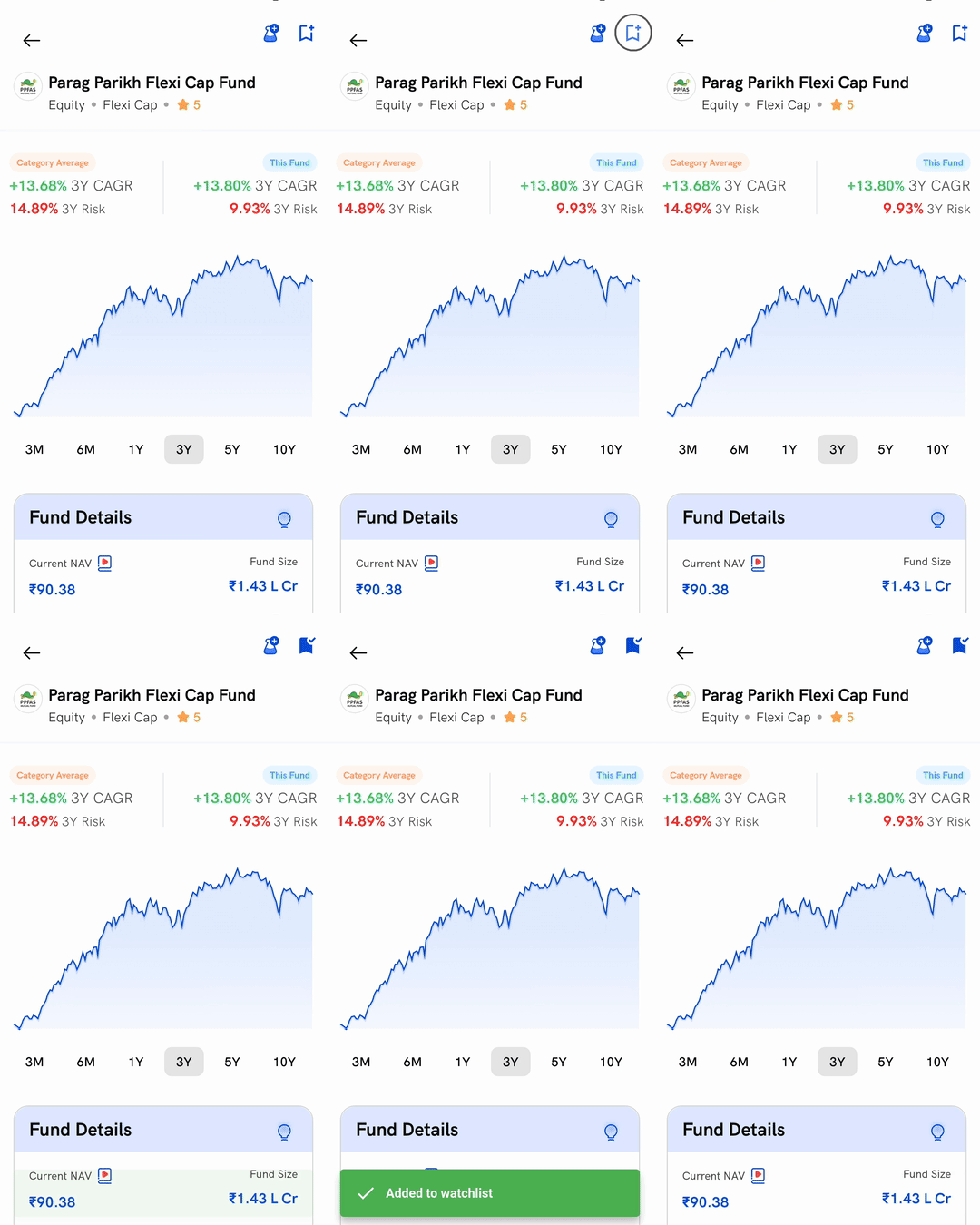
1. Open the fund's details page — search for a fund in Explore, or tap it anywhere it appears in the app, to open its details page.
2. Tap the bookmark icon — it sits at the top right of the fund's page, next to the flask icon.
3. That's it — a green Added to watchlist message confirms it, and the bookmark fills in to show the fund is saved.
Where do I find my Watchlist?
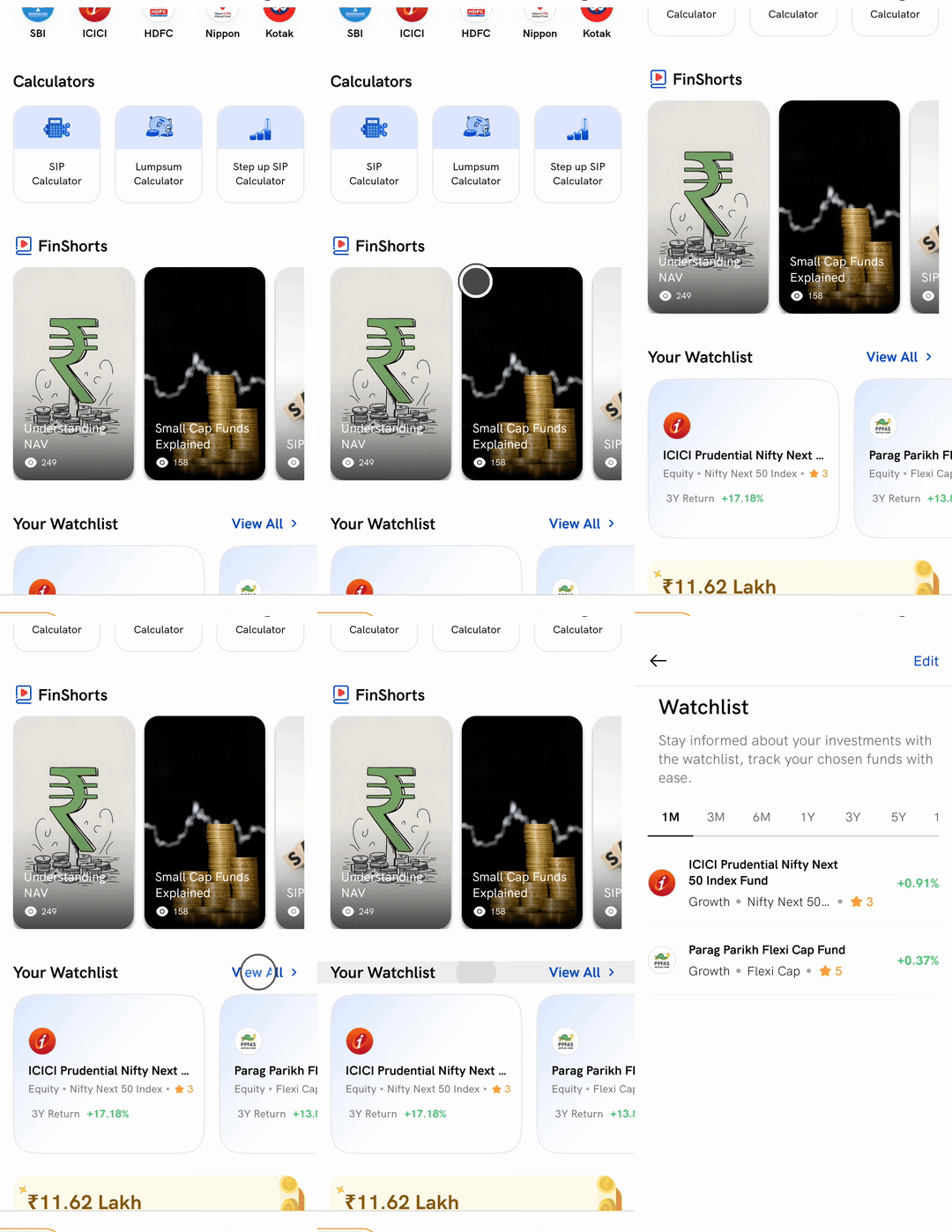
Your saved funds live on the mutual funds Home screen. Scroll down to the Your Watchlist section and tap View All to open the full Watchlist screen.
The Watchlist screen lists each fund you have saved along with its return, and you can switch the period from 1M through to 10Y to see how each one has performed over that time.
How do I remove a fund from my Watchlist?
There are two ways:
- From the fund's page — tap the filled bookmark icon. It empties out, and you will see Removed from watchlist.
- From the Watchlist screen — tap Edit at the top right, select the funds you want to drop, and tap Delete.
Things to keep in mind
- You can save up to 10 funds. Once your Watchlist is full, adding another shows Maximum 10 items can be added to your watchlist — remove one to make room.
- The Watchlist only tracks funds; it does not buy anything. Saving a fund is just a shortlist to watch — no order is placed and no money moves until you actually invest.
- The bookmark is not the flask. The flask icon beside it adds the fund to MF Lab, a separate feature for testing funds in a virtual basket — see What is MF Lab on Rupeezy, and how does it work?. Saving to your Watchlist and adding to MF Lab are different actions.
- Returns shown are past performance over the period you pick, and are not a promise of future returns.