
Open the fund from My Mutual Funds on the Portfolio tab, scroll down to Transaction History and tap View All. That lists every transaction in that folio, newest first. Tapping any one of them opens its own screen with the units, the NAV, your folio number, the transaction ID and a status timeline.
How do I see all of a fund's transactions?
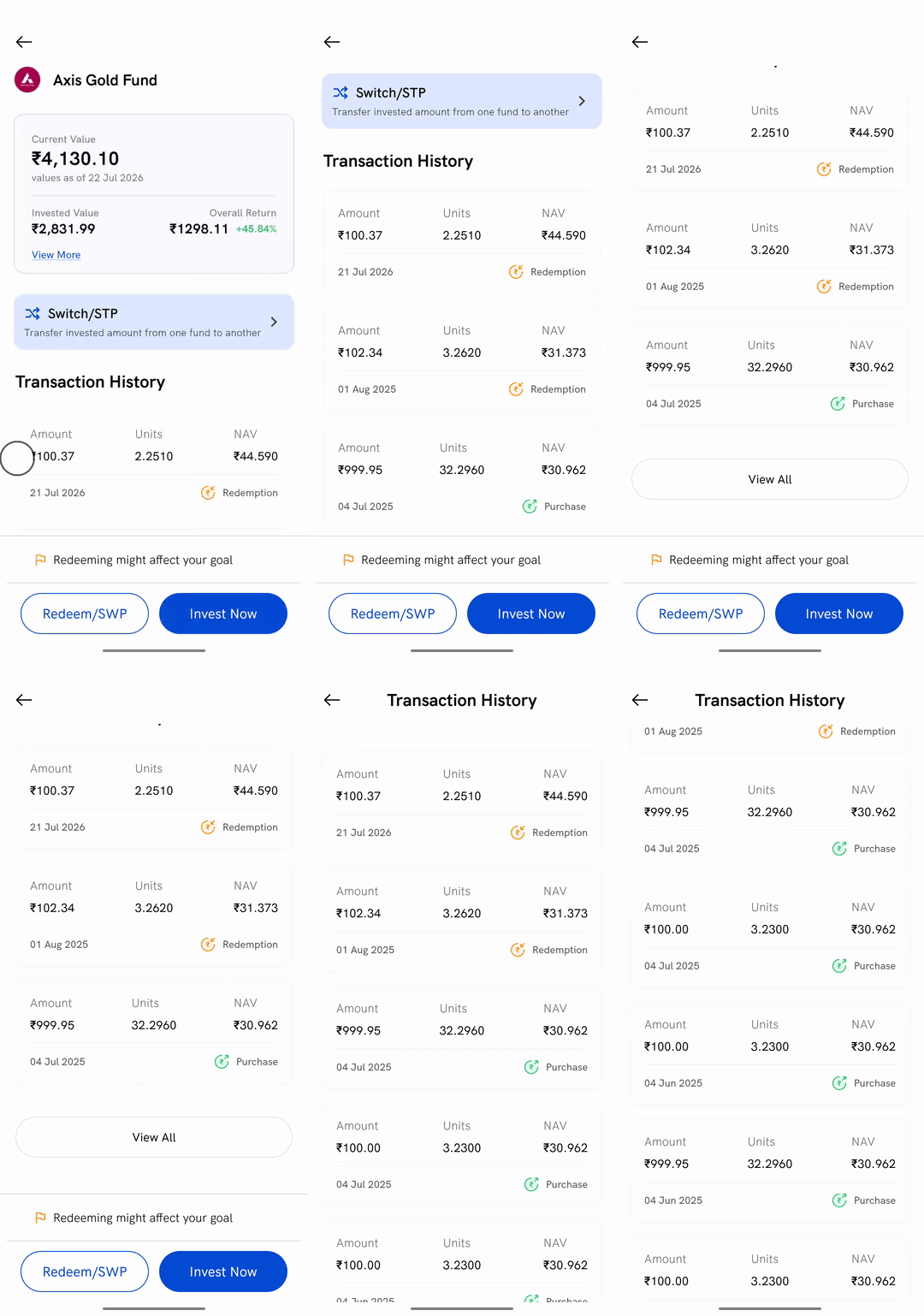
1. Open the fund's details — tap the fund under My Mutual Funds on the Portfolio tab. If you are not sure how to get there, see How to view mutual fund investment details on Rupeezy? first.
2. Scroll down to Transaction History — the section below the summary card shows your three most recent transactions in that folio.
3. Tap View All — the full list opens on its own screen, headed Transaction History.
4. Scroll the list — every transaction in the folio is there, newest first.
What does each transaction in the list show?
Every card carries the same four things:
- Amount — what was invested or paid out
- Units — how many units the transaction added or removed, to four decimal places
- NAV — the NAV the units were allotted at, to three decimal places
- The date, and the type — either Purchase with a green arrow or Redemption with an orange one
The date on the card is the day the transaction was allotted, not the day you placed the order. Those are usually a day or two apart, and the transaction's own screen shows both.
Why is my recent order missing from this list?
Because the list only holds transactions that have already been allotted — units either added to the folio or taken out of it. Until an order is allotted there are no units and no NAV to show, so it does not appear here.
An order still being processed sits under the Orders position of the toggle at the top of the Portfolio tab instead, which lists your orders rather than your allotted transactions.
How do I open one transaction?
Tap any transaction card, in the full list or in the three-row preview on the fund's own screen.
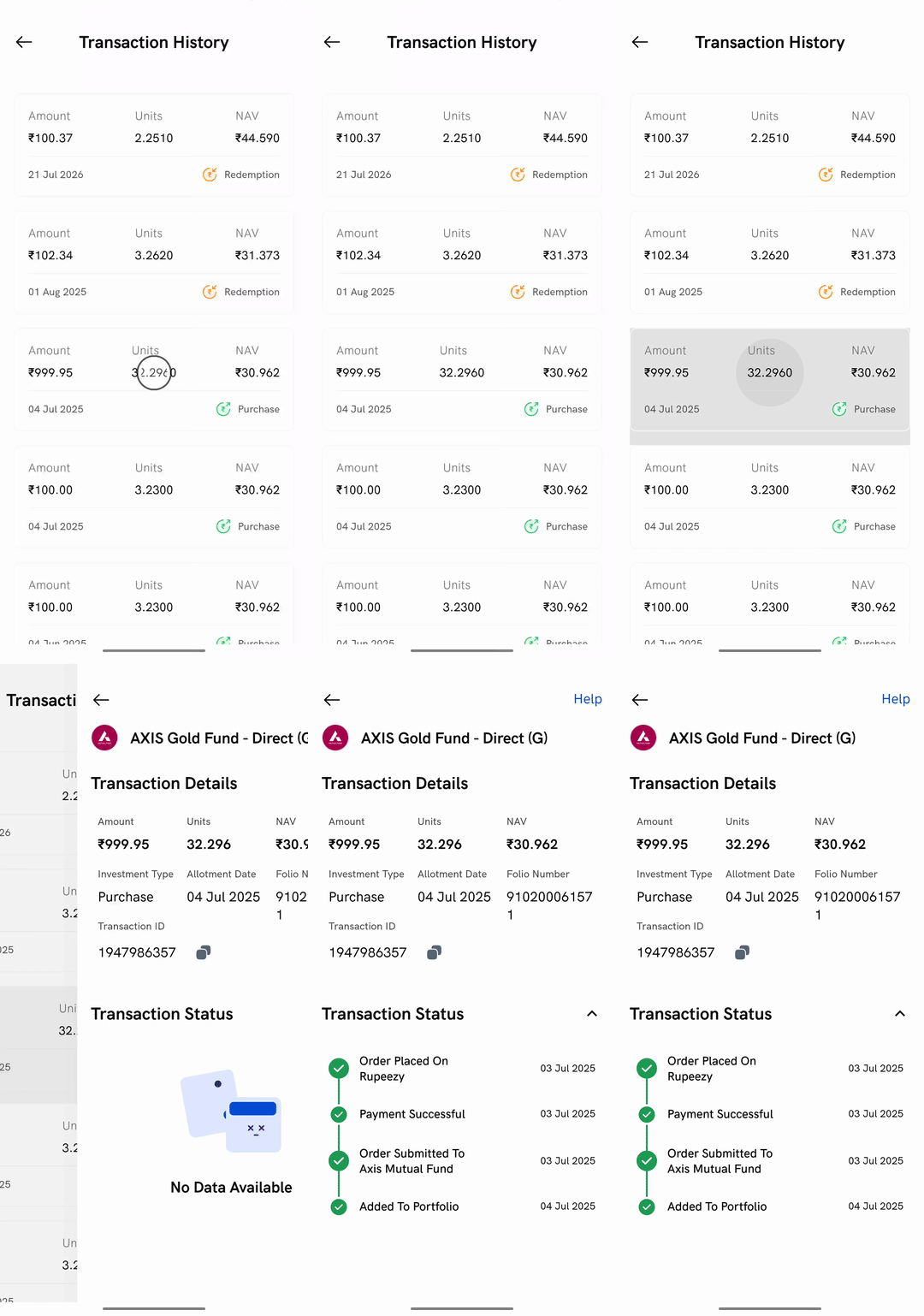
The screen opens under the fund's name, headed Transaction Details:
- Amount, Units and NAV — the same figures as the card in the list
- Investment Type — reads Purchase for anything that added units to the folio, a SIP instalment included. On a redemption this field is labelled Order Type and reads Redemption
- Allotment Date — the day the units were allotted. On a redemption it is labelled Redemption Date
- Folio Number — your account number with that fund house
- Transaction ID — the reference for that one transaction, with a copy button beside it. Tapping it copies the ID and confirms with Copied
Help at the top right of the screen opens Rupeezy's help and support, with the transaction still in front of you.
What does Transaction Status show?
A dated timeline of what happened to that transaction, from the moment it was placed to the moment it settled. For a purchase it runs:
- Order Placed On Rupeezy
- Payment Successful
- Order Submitted To [your fund house]
- Added To Portfolio
A redemption runs through its own four steps — Redemption Placed On Rupeezy, Redemption Submitted to BSE, Redemption Submitted To [your fund house], and Redeemed Successfully.
Each step carries its own date, which is what makes the gap between placing an order and holding the units visible. Tap the arrow beside Transaction Status to collapse the timeline.
Things to keep in mind
- This is one folio's history, not the whole scheme's. If your investment in a scheme is split across more than one folio, each folio has its own transaction history, reached by picking that folio first.
- The list is always newest first. There is no sort or filter on this screen, and no date range to set.
- It is a record, not a control. Nothing on either screen cancels, edits or repeats a transaction.
- Tapping the fund's name at the top opens something different — the scheme's own page, which is about how the fund itself has performed rather than about your transaction.
- If nothing has been allotted in the folio yet, the section reads No Data Available and no View All button appears.