
Open the stock, tap GTT, choose Single or OCO with the Trigger Type toggle, fill in your trigger price and quantity, then tap Create GTT.
How to place a GTT order
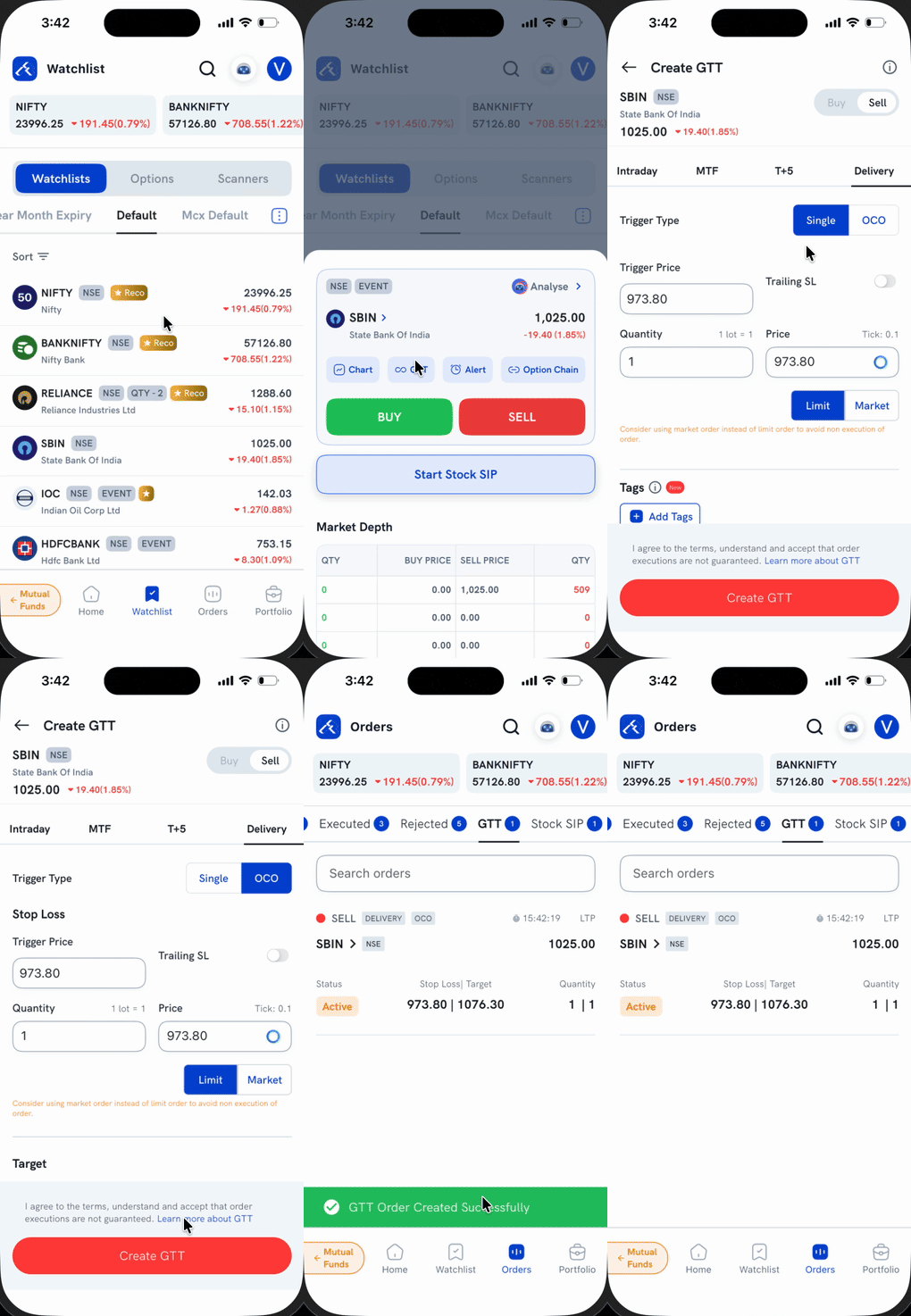
1. Open the stock — either tap it in your Watchlist, or open its Stock Detail screen — and tap GTT in the quick-actions row.
2. Choose Buy or Sell, and the product type — Intraday, MTF, T+5, or Delivery.
3. Set Trigger Type — tap Single for one trigger, or OCO for a Stop Loss and Target together.
4. Fill in the trigger price(s), quantity, and the Limit/Market price for each leg.
5. Tap Create GTT.
You'll see a "GTT Order Created Successfully" confirmation, and the order shows up under Orders → GTT with an Active status.
What's the difference between Single and OCO?
Single sets one trigger — a long-standing stop-loss or a "wait till this price" order. OCO (One Cancels Other) sets a Stop Loss and a Target together: whichever price is hit first goes to the exchange, and the other leg is automatically cancelled.
Things to keep in mind
- GTT order execution isn't guaranteed — it's a trigger you set, not a guaranteed fill.
- Margin or position for the order is checked only when the trigger condition is met, not when you create the GTT.