
You can change or remove any alert you've set from the All Alerts screen. Here's how in the Rupeezy app.
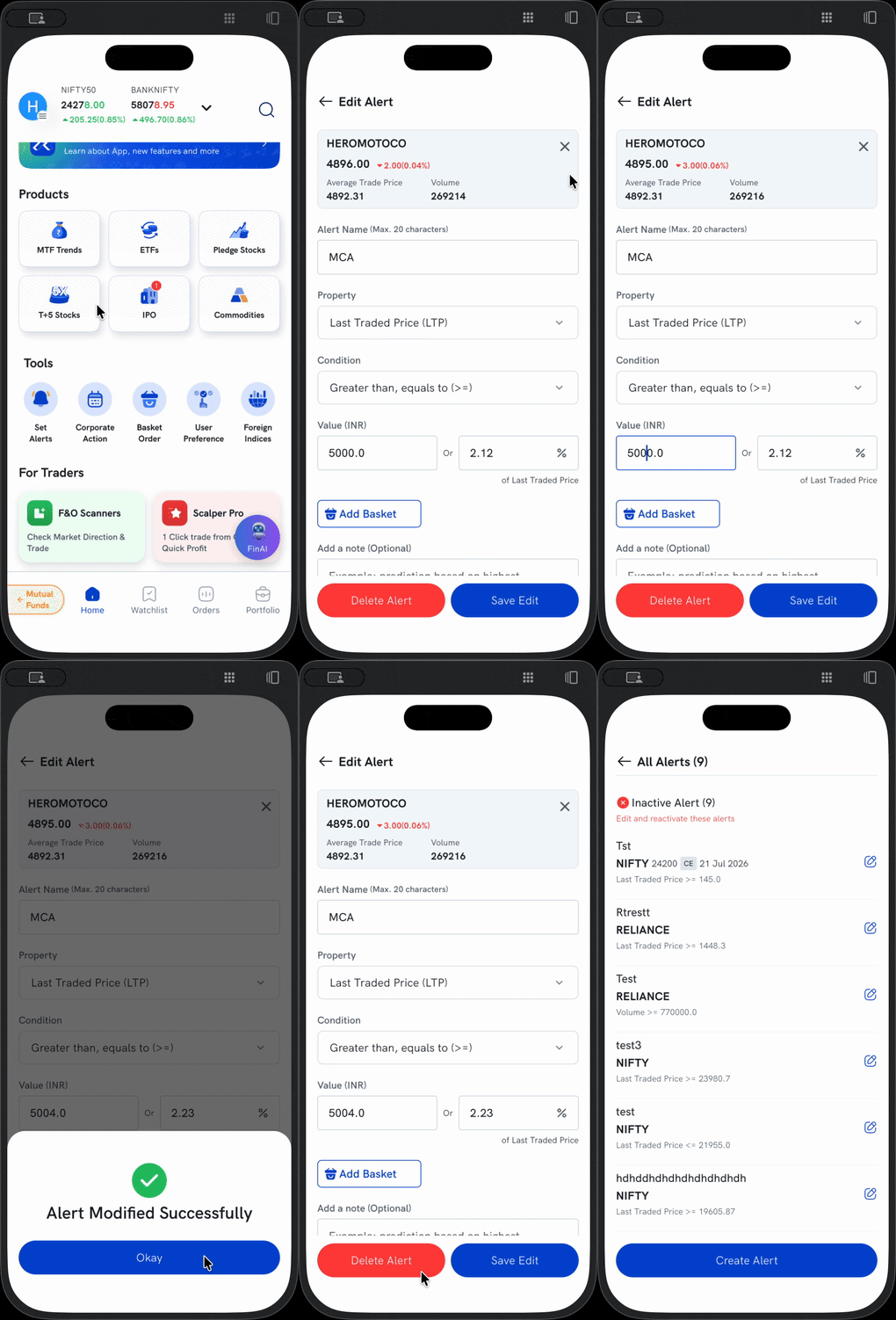
Open your alerts
- Tap Tools on the bottom navigation, then tap Alerts.
- The All Alerts screen shows your Active and Inactive alerts. Each alert has an edit (pencil) icon on the right.
Modify an alert
- Tap the edit icon on the alert you want to change — the Edit Alert screen opens.
- Update any field: the name, property (LTP / Average Trade Price / Volume), condition (≥, =, ≤), value (absolute or %), or the note.
- Tap Save Edit. Your changes take effect immediately.
Delete an alert
- Open the alert by tapping its edit icon.
- On the Edit Alert screen, tap Delete Alert (the red button).
The alert is removed from your list.
Good to know
- Inactive alerts (ones that have already triggered or expired) show under "Inactive Alert — Edit and reactivate these alerts." Open one and edit it to reactivate it.
- To create a new alert instead, see How to set alerts.