
A Stock SIP buys a stock for you automatically at regular intervals — daily, weekly or monthly — the way a mutual fund SIP does for funds. To start one, open the stock in the Rupeezy app and tap Start Stock SIP, set an amount or quantity and a frequency, and tap Create Stock SIP. The orders are paid from your trading balance, so keep enough money in your account.
How do I start a Stock SIP?
You can start a Stock SIP from two places in the app.
From a stock's detail page
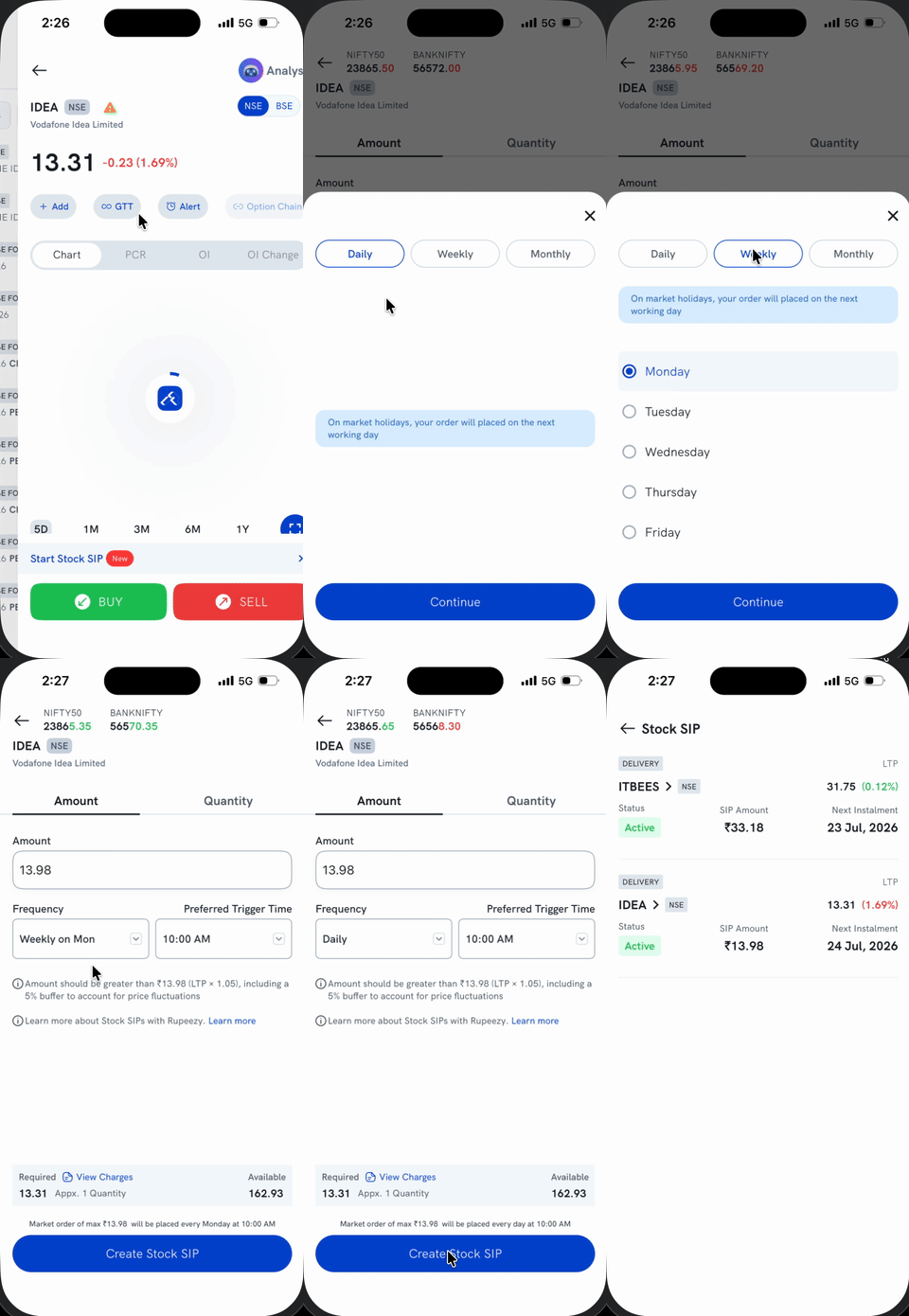
- Open the stock's detail page and tap Start Stock SIP, above the Buy/Sell buttons.
- Choose the Amount or Quantity tab and set your investment value.
- Tap Frequency and choose Daily, Weekly or Monthly. Weekly also lets you pick a day, Monday to Friday.
- Set your Preferred Trigger Time, then tap Create Stock SIP.
From your Watchlist
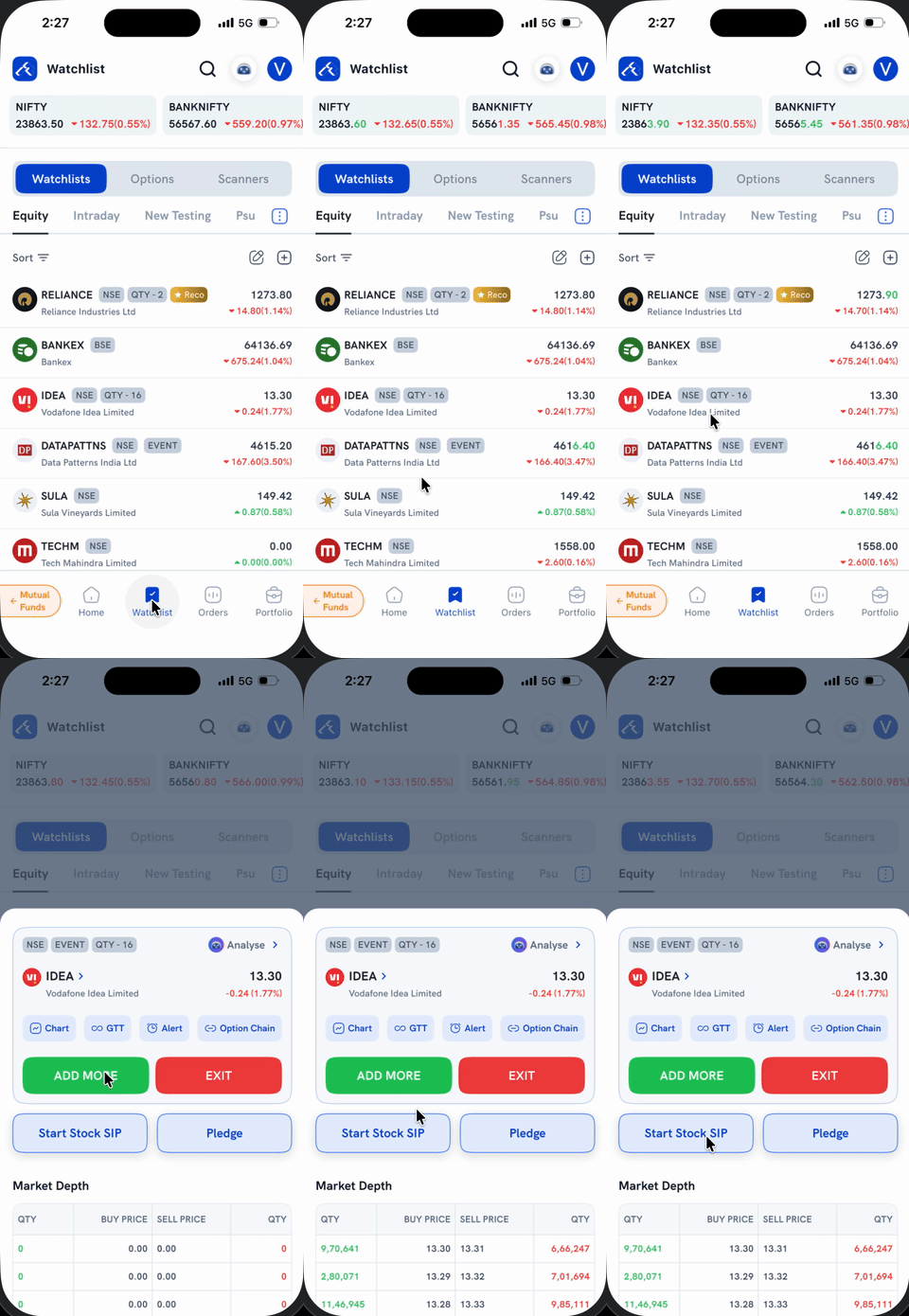
Tap a stock in your Watchlist to open its quick-actions sheet, then tap Start Stock SIP. This takes you to the same Amount / Frequency screen as above.
Once created, your SIP shows up under the Stock SIP tab of the Orders screen, with its amount or quantity and next instalment date.
What options do I get when setting up a SIP?
- Mode — Delivery, available for every tradeable stock, or MTF, available for stocks eligible for MTF.
- Amount or quantity — with an amount-based SIP, Rupeezy buys as many shares as fit within the amount you set. With a quantity-based SIP, you set the number of shares.
- Frequency — Daily, Weekly (on a day you pick) or Monthly.
- Trigger time — any time between 9:15 AM and 3:15 PM. Your order is placed automatically at that time on each instalment day.
How do I manage my SIPs?
Go to the Orders tab and open Stock SIP to see all your SIPs, with their frequency, amount or quantity, status and next instalment date.
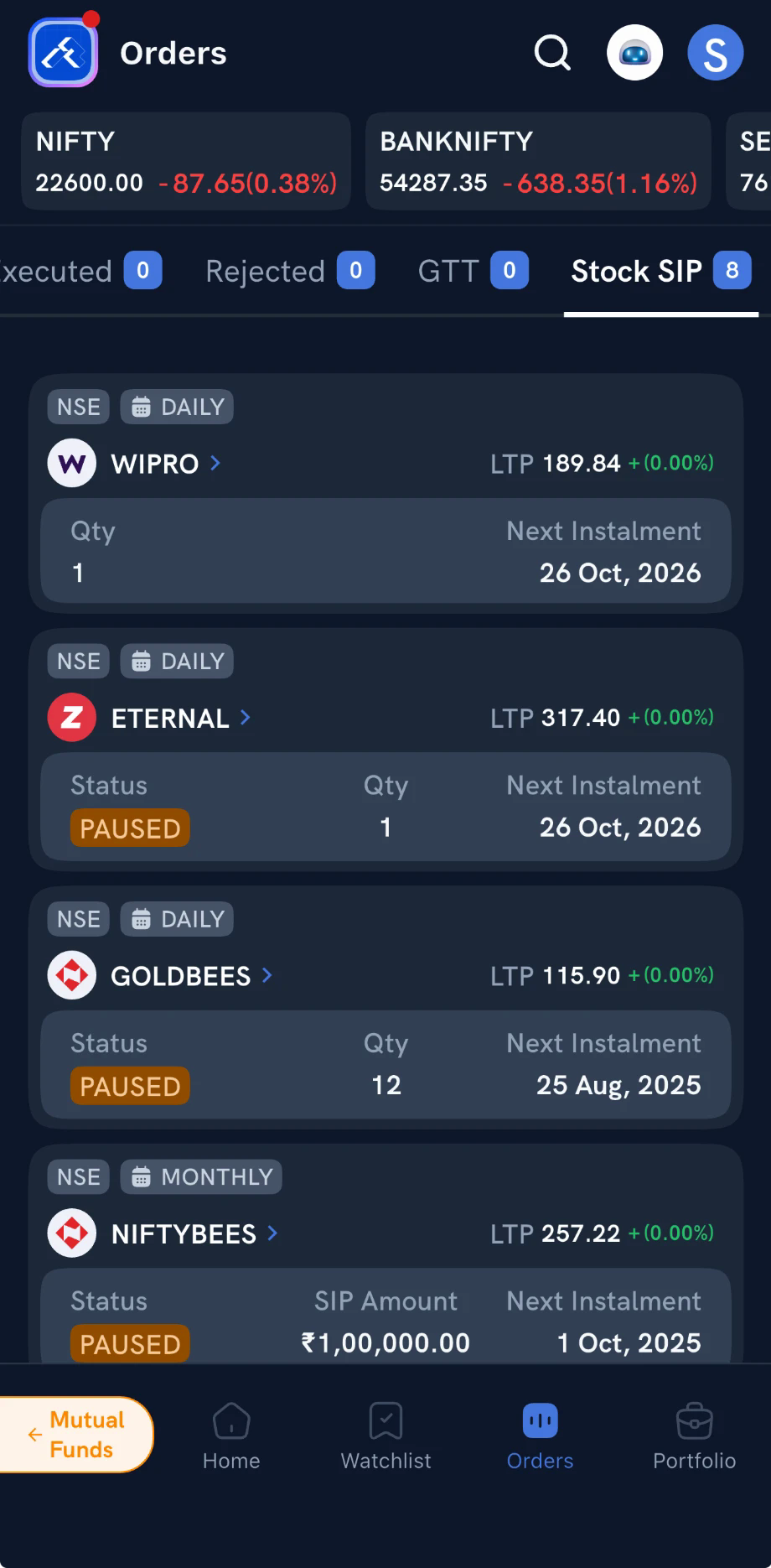
Tap a SIP to:
- Edit its amount, frequency or trigger time.
- Pause or delete it.
- Resume a paused SIP — tap Activate on its details screen.
For the full walkthrough, see How do I modify a Stock SIP?
How are Stock SIPs paid for?
From the balance in your trading account — there's no payment mandate, so make sure enough money is in your account before each instalment.
- Not enough balance — the order is rejected, and Rupeezy notifies you to add funds.
- Price has risen sharply — if your balance won't cover the next order, Rupeezy notifies you to add funds.
- Several SIPs due at the same time — they're placed in the order you created them, oldest first. If your balance covers only some of them, the oldest ones go through first.
Things to keep in mind
- A SIP due on a trading holiday is placed on the next trading day.
- Stock splits, bonus issues and rights issues don't affect your SIPs.
- You can run as many Stock SIPs as you like, on different stocks.
- Rupeezy notifies you when a SIP order executes or is rejected, and when you need to add funds.