
An OCO (One Cancels Other) GTT order lets you set a stop loss and a target for the same scrip or position at the same time, in one order. Whenever one of the two conditions is met, that leg is sent to the exchange and the other leg is automatically cancelled.
For example, you bought SBI shares at 650 and want to sell them if the price falls to 732 (stop loss) or rises to 809 (target). An OCO order lets you place both triggers together instead of tracking the price yourself.
Note: This article assumes you already understand how GTT orders work. If not, read What are GTT Orders at Rupeezy? first.
How do I place an OCO GTT order?
You can place an OCO order directly from the Create GTT screen:
- Open the Create GTT screen for the scrip.
- Select Sell and choose OCO as the order type.
- Enter your trigger conditions for both the stop loss leg and the target leg.
- For each leg, choose how the order should execute once the trigger is hit — select Market under the price field to execute at market price, or enter your desired limit price.
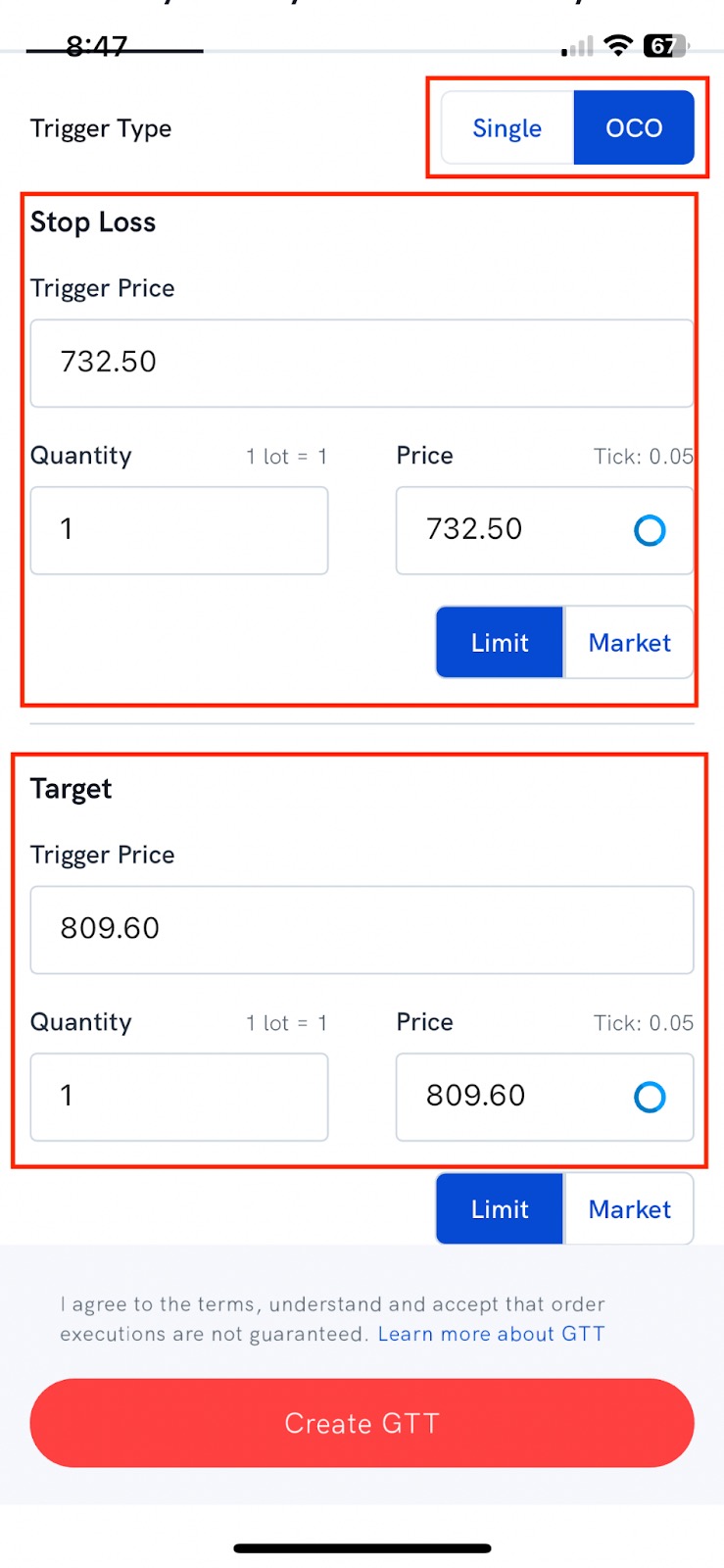
You can create OCO GTT orders for both buy and sell positions.
How do I set a stop loss and target while placing the main order?
You can also attach an OCO order to your main buy order. On the Order placement screen:
- Enable the Stop loss and Target switches.
- Enter the stop loss and target percentages in their respective fields. The stop loss and target trigger prices are calculated from the average buy price of your main buy leg.
- Choose the execution type — select GTT-M to execute at market price once the trigger is met, or GTT-L to place a limit order with the limit price set the same as the trigger price.
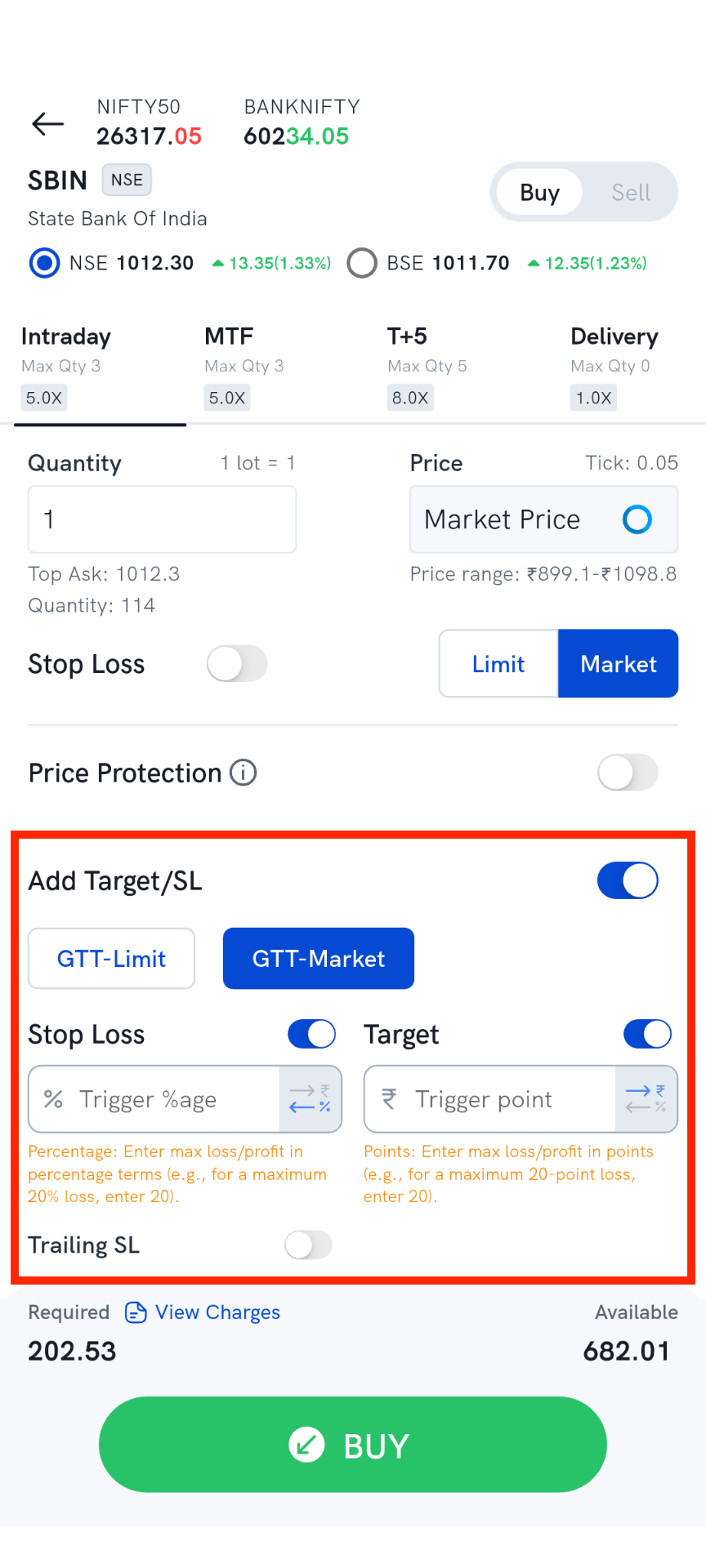
Similar orders can be placed in the Intraday segment too. Intraday GTT legs get cancelled if the trigger condition is not met the same day.
How does an OCO order get executed?
The system continuously checks for both the stop loss trigger price and the target trigger price. Whenever one of the conditions is met, that leg is placed on the exchange and the other leg is cancelled.
Taking the earlier example — you placed a sell OCO order for SBI with the stop loss leg at 732 and the target leg at 809:
- If SBI reaches 732 first, the stop loss leg is sent to the exchange and the target leg (809) is cancelled.
- If SBI reaches 809 first, the target leg is sent to the exchange and the stop loss leg (732) is cancelled.
How do I access, modify, or cancel an OCO order?
OCO orders can be accessed from the GTT tab in the orders screen.
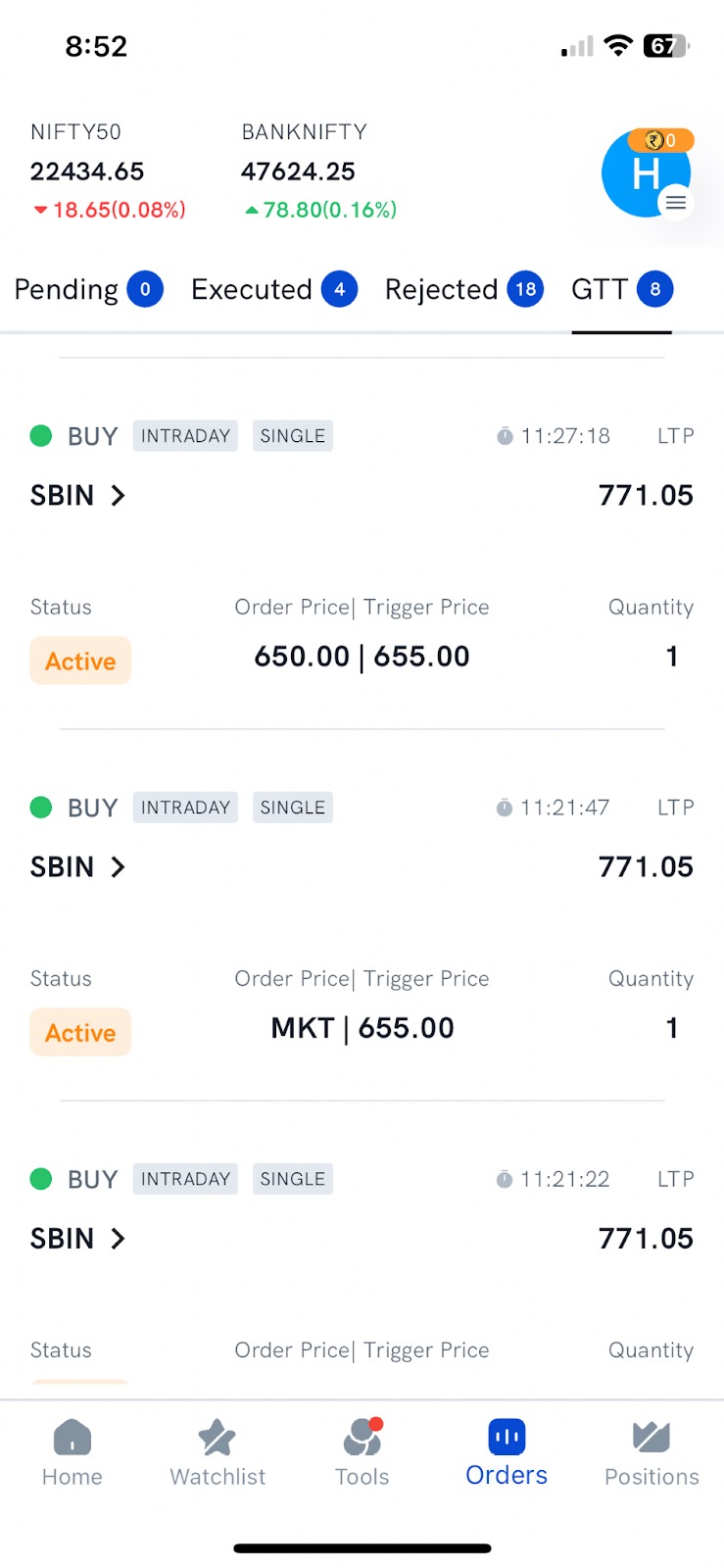
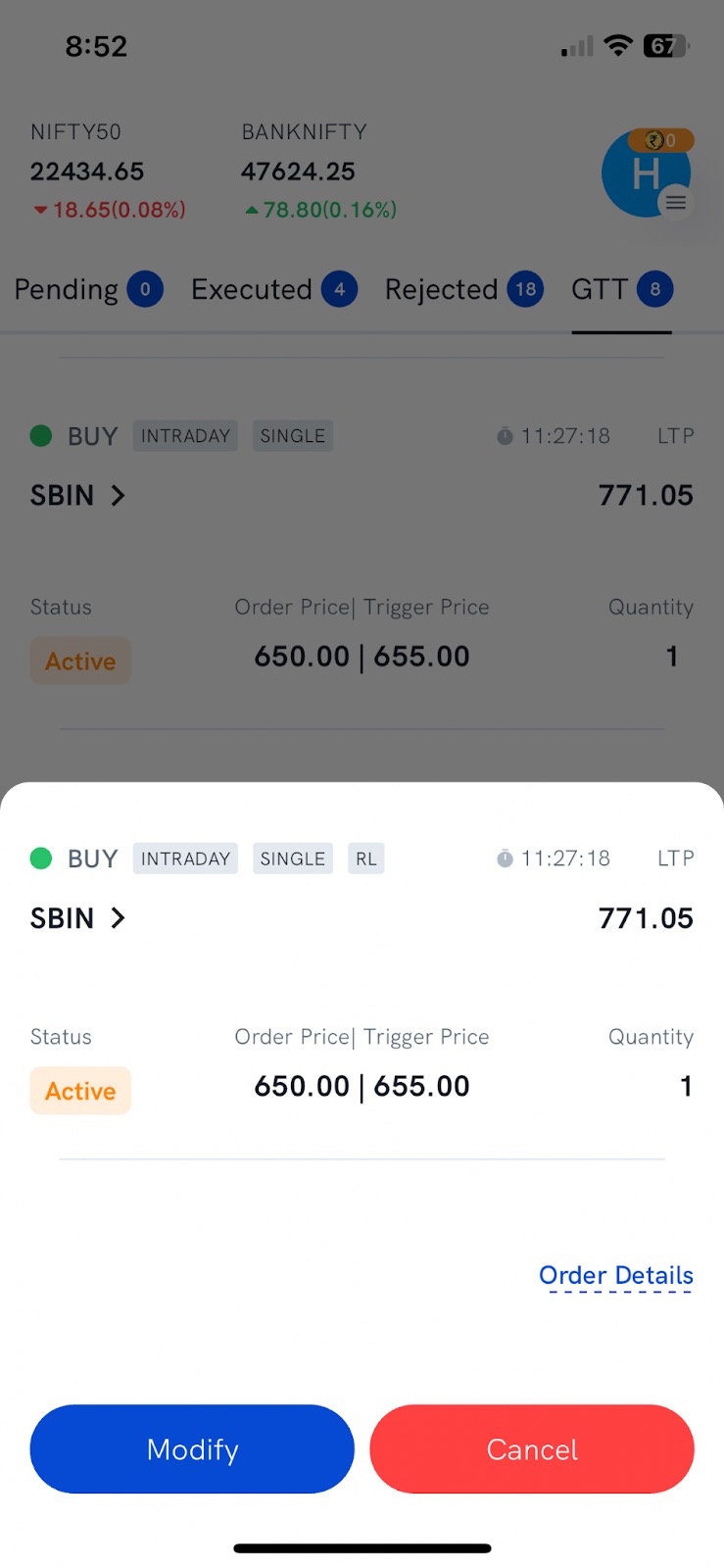
Modification: Tap the order in the GTT tab and select Modify.
Cancellation: Tap the order in the GTT tab and cancel it. OCO orders do not get cancelled when you exit the main leg — cancelling them is your responsibility, so always check your GTT orders after the main leg or a GTT leg executes.
Caution: An OCO order can feel like a bracket order, but it is not. A bracket order checks for the availability of margin/position when the order is created; an OCO order does not. Availability of margin/position is checked only after the trigger condition is met for one of the legs. Always check for pending GTT orders before placing new ones or squaring off.