
On Rupeezy, open a Watchlist's manage screen — tap the pencil icon next to its name — to reorder or remove instruments, then tap Save Changes to keep them.
How do I save changes to my Watchlist?
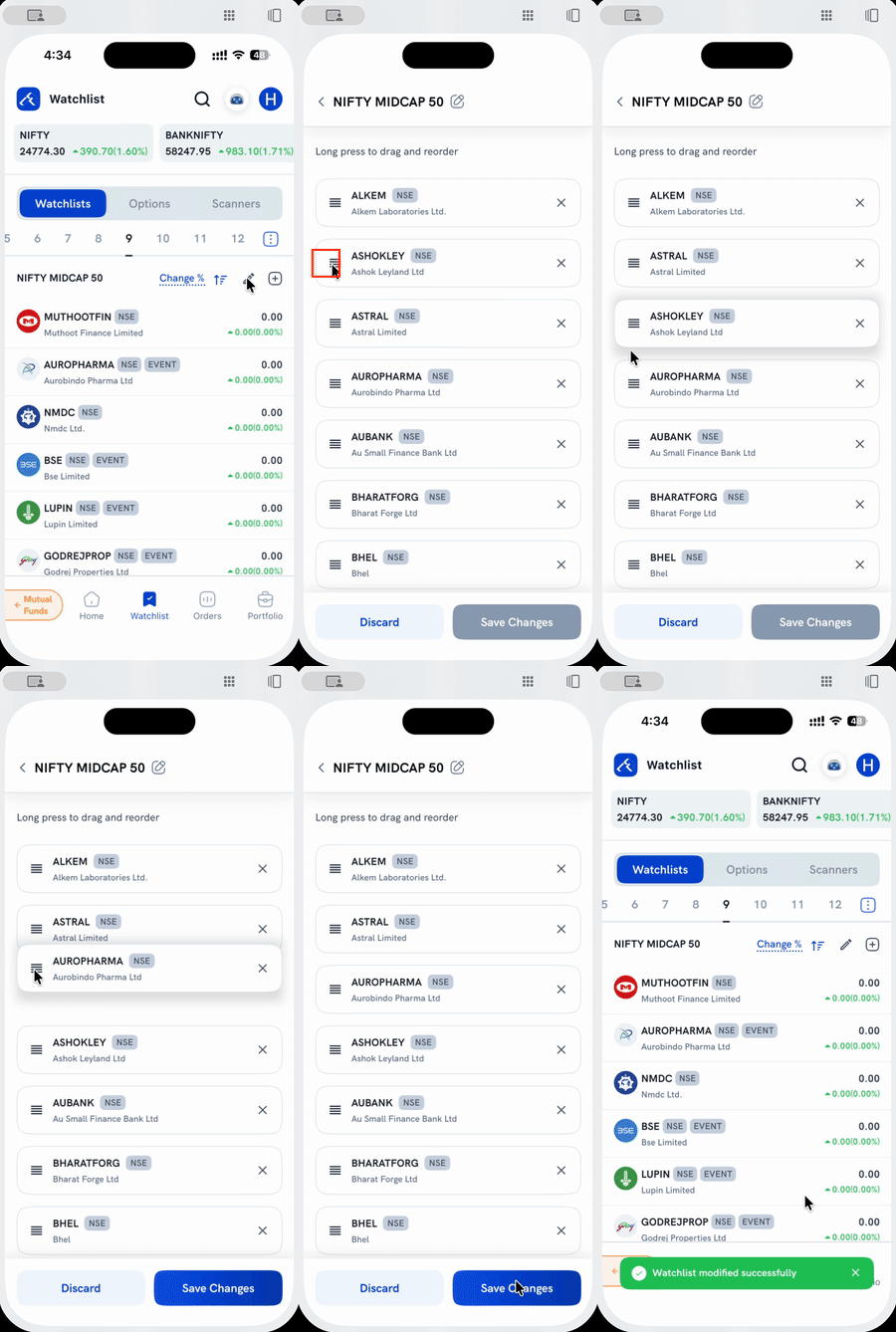
1. Open the Watchlist tab and pick the list you want to edit.
2. Tap the pencil icon next to the watchlist's name. This opens its manage screen, which reads Long press to drag and reorder.
3. Long-press a row's ☰ handle and drag it to reorder, or tap the X to remove an instrument. You can make more than one change before saving.
4. Tap Save Changes.
What happens after I tap Save Changes?
A Watchlist modified successfully confirmation appears, and you're taken back to the Watchlist tab with the new order (and any removals) already applied.
Things to keep in mind
- Discard cancels any reordering or removals you made on this screen — nothing is saved.
- Removing an instrument here only takes it off this watchlist — it doesn't affect any position you hold in it. To add instruments back, see How do I add instruments to my Watchlist?
- Renaming is a separate action with its own Save, right on this same screen — see How do I rename a Watchlist?