
Push notifications are usually blocked by a permission or setting on your device or browser, not stopped on Rupeezy's end — check your notification permission first, both at the OS/browser level and inside the app.
On the mobile app
Check the OS-level notification permission — this is the most common cause. If it's off, Rupeezy can still send the notification, but your phone won't show it.
- Android: Settings → Apps → Rupeezy → Notifications → make sure All Rupeezy notifications is turned on.
- iOS: Settings → Notifications → Rupeezy → turn on Allow Notifications.
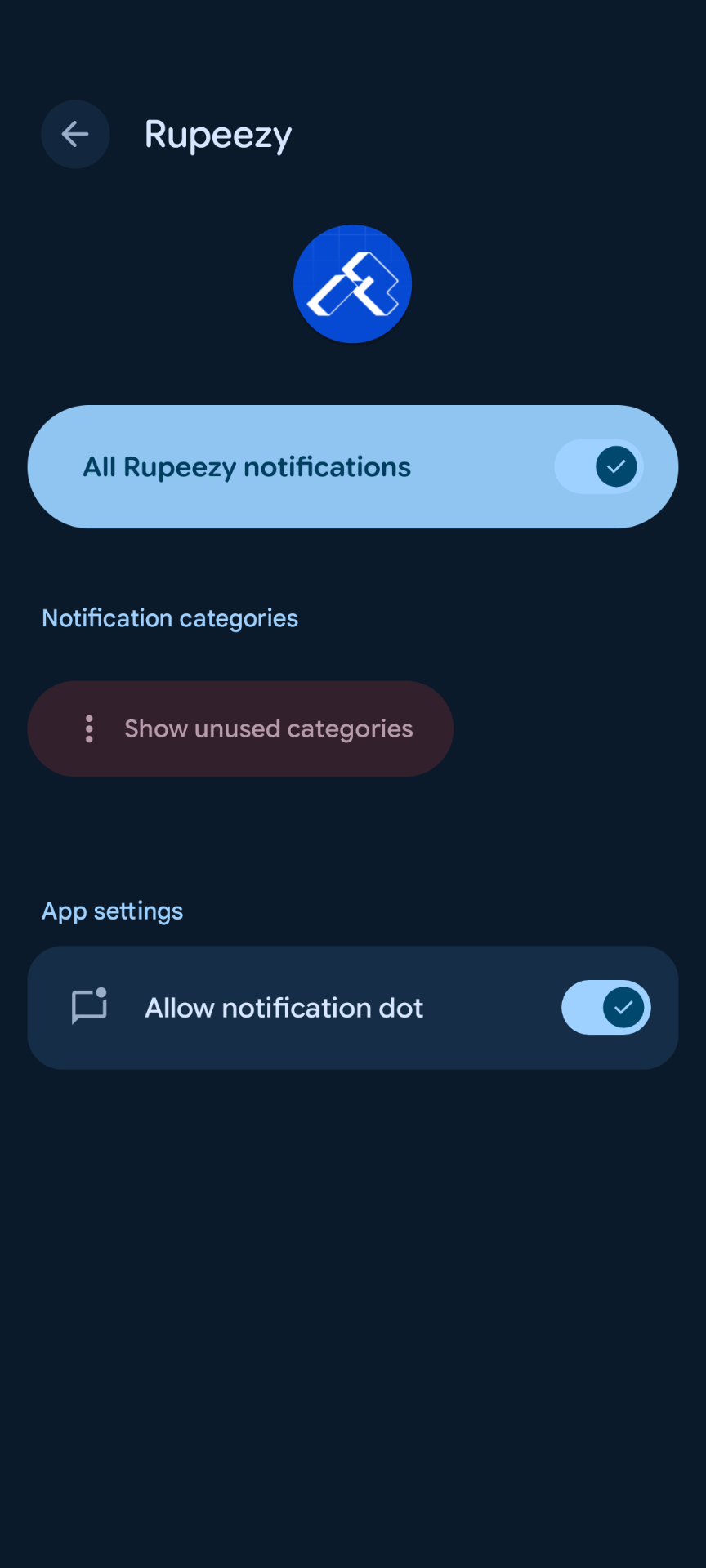
Check Do Not Disturb — if it's on, notifications may be silenced or hidden depending on your phone's settings.
Check your phone's battery/background restrictions. Some Android makers (Xiaomi, OnePlus, Oppo, Vivo, and others) restrict background activity for apps to save battery, which can delay or block notifications. Look for a battery or background-activity setting for Rupeezy and set it to unrestricted.
Check which device you're logged in on. A push notification is sent to the device where you're currently logged in to the Rupeezy app — if you've logged in on a new phone, the old one won't get it.
On Rupeezy web
Check the browser's site permission — click the lock/info icon next to the address bar for rupeezy.in, open Notifications, and make sure it's set to Allow.
Check your OS-level notification setting for the browser — Windows and macOS also let you turn notifications off per-app (including your browser), separately from the site permission above.
Manage what you get notified about
Inside the app, go to Account → Manage Notifications to choose which categories you receive: Portfolio Updates, News & Market Updates, Educational Updates, Promotional & Offers Updates, Stock Recommendations Updates, and IPO Updates.
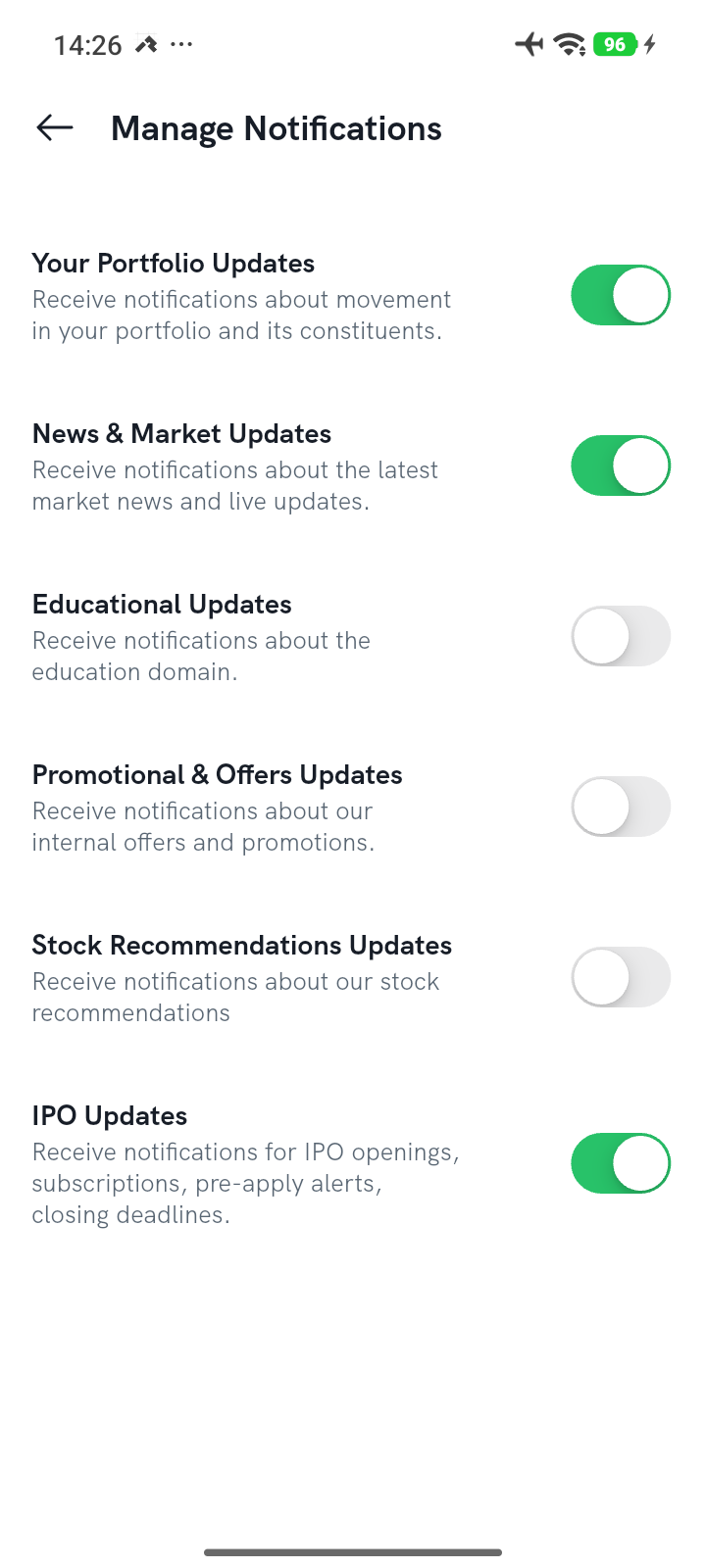
This screen only controls those informational categories — it doesn't control alert-triggered or order-update notifications, so turning a category off here won't explain a missed alert or order notification. Those follow the OS/browser permission checks above.
Good to know
- If you've checked all of the above and still aren't getting notifications, raise a complaint with us.
- For how alert notifications specifically work, see How will I be notified if an alert is triggered?
- If an alert didn't fire even though the price seemed to reach your level, that's usually a different issue — see Why is the alert not triggered even though the conditions are met?