
Tap the pencil icon next to your Watchlist's name, tap the pencil again on the screen that opens, type the new name, and tap Save.
How to rename a Watchlist
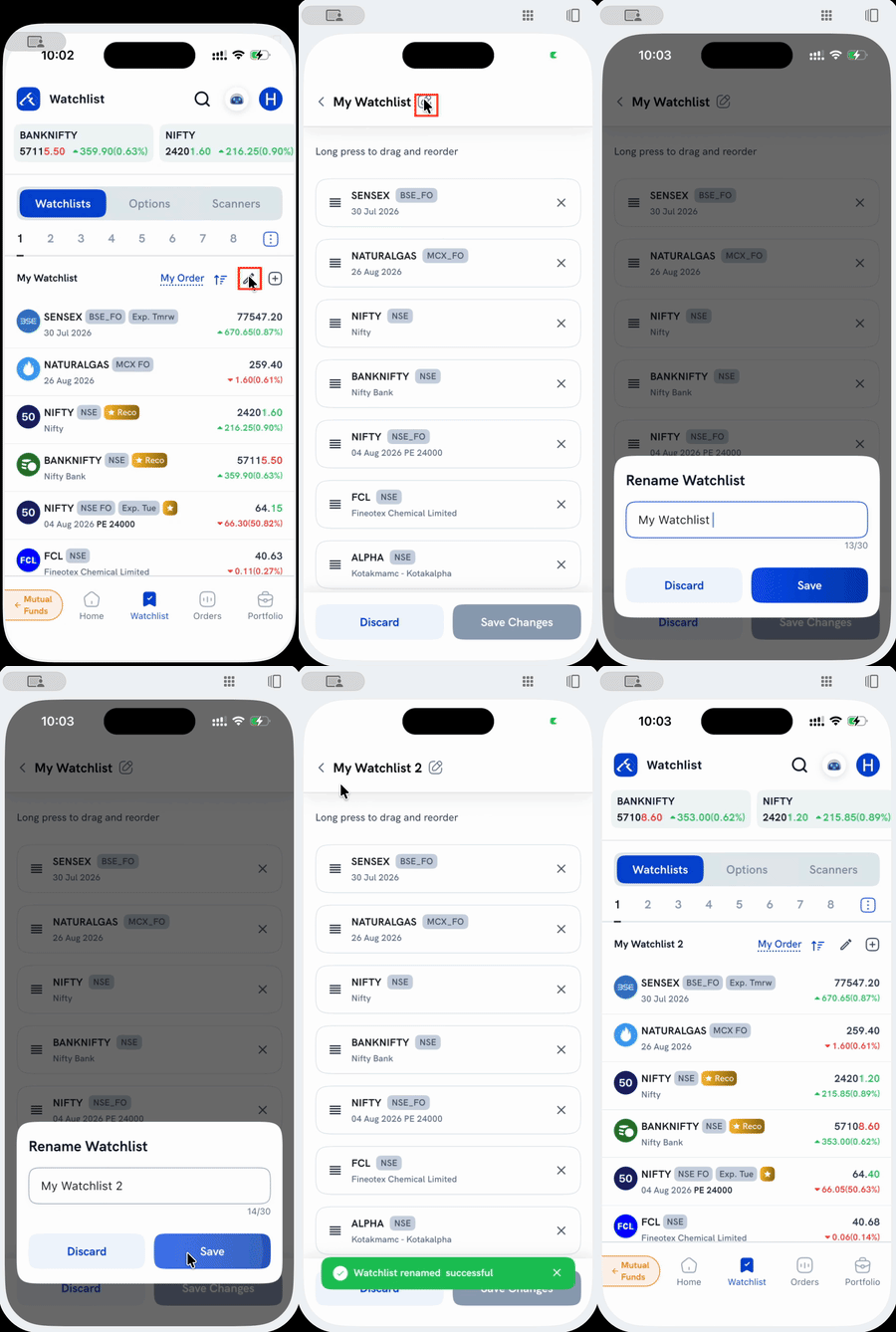
1. Tap the pencil icon next to your Watchlist's name (between "My Order" and the + button).
2. Tap the pencil icon again, next to the title on the screen that opens. This opens the Rename Watchlist dialog.
3. Type the new name. Names can be up to 30 characters.
4. Tap Save. A confirmation appears, and the new name shows up immediately, on this screen and back on your Watchlist tab.
Things to keep in mind
- Renaming doesn't change what's in the Watchlist or its position among your other tabs. It only changes the label.
- The same screen you opened to rename also lets you remove instruments (the X next to each row) or drag to reorder them (long-press the row), but those need a separate Save Changes tap; renaming saves on its own. See How to save Watchlist settings in Rupeezy? for that flow. To add new instruments, see How do I add instruments to my Watchlist?.