
Trade From Charts (TFC) lets you place and manage orders directly on the chart on the Rupeezy web app — you drag price lines to set your entry, target and stop-loss, instead of opening the order window.
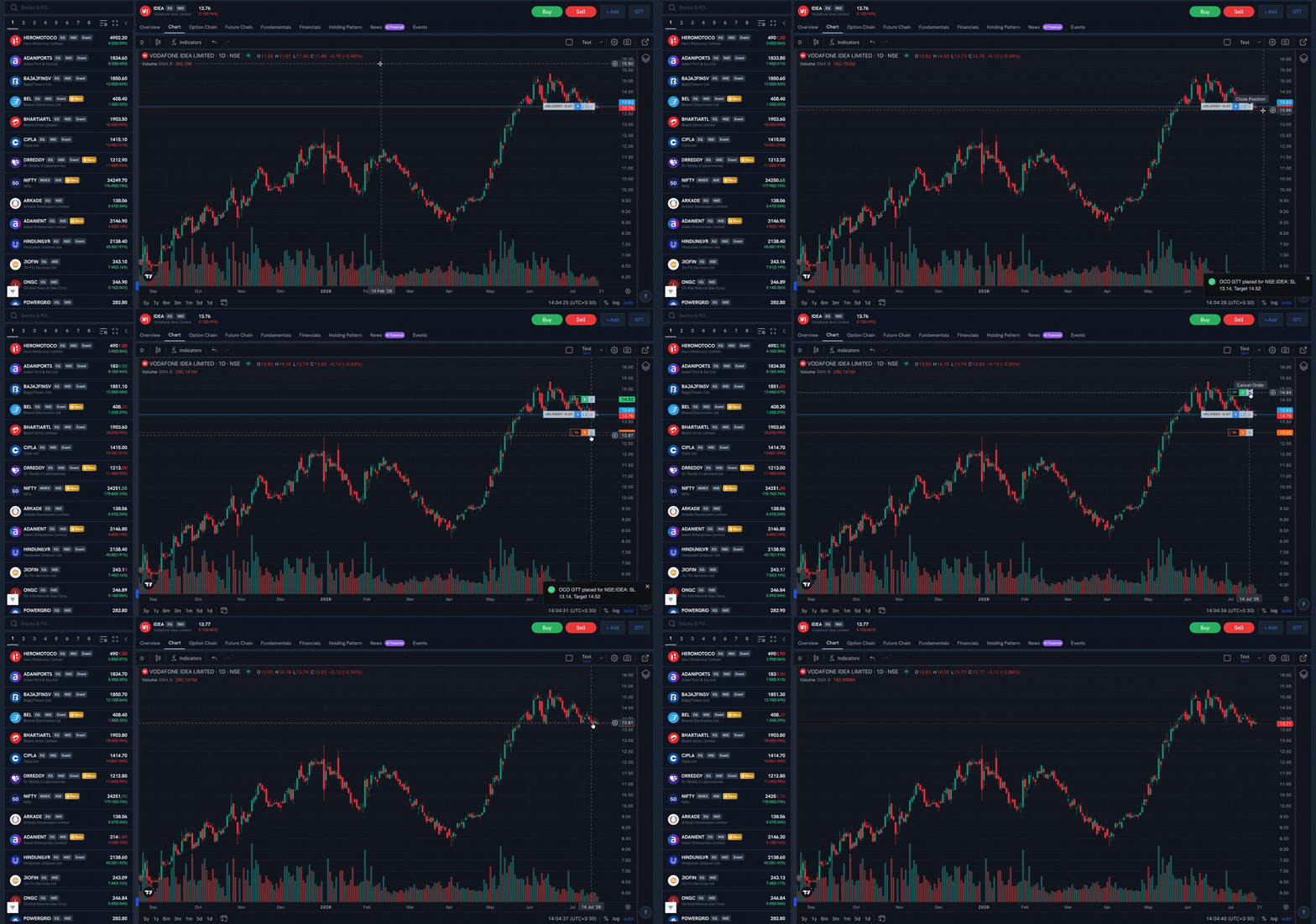
Place an order from the chart
- Open the stock's Chart on the Rupeezy web app.
- Move your cursor to the price axis on the right. A ⊕ (add order) button appears at the price next to your cursor.
- Click it to drop an order line on the chart at that price. The line shows the order (for example, DELIVERY) with a quantity box, a [ ] button (to add an OCO), and a ✕ button (to remove it).
- Drag the line up or down to set the exact price, and set the quantity in its box.
Add a target and stop-loss (OCO GTT) in one click
- On the entry order line, click the [ ] button. In a single click this adds an OCO — both a Target (TP) line above and a Stop-loss (SL) line below your entry.
- Drag the TP and SL lines to set your target and stop-loss prices.
- They're placed together as an OCO GTT (One-Cancels-the-Other) — if the target is hit, the stop-loss is cancelled, and vice versa. You'll see a confirmation like "OCO GTT placed for NSE:IDEA: SL 13.14, Target 14.52."
Modify or remove
- Drag any line to change its price.
- Use the ✕ on a line to remove that order.