
You can jump the chart straight to a specific date and time instead of scrolling back through the candles. Here's how in the Rupeezy app.
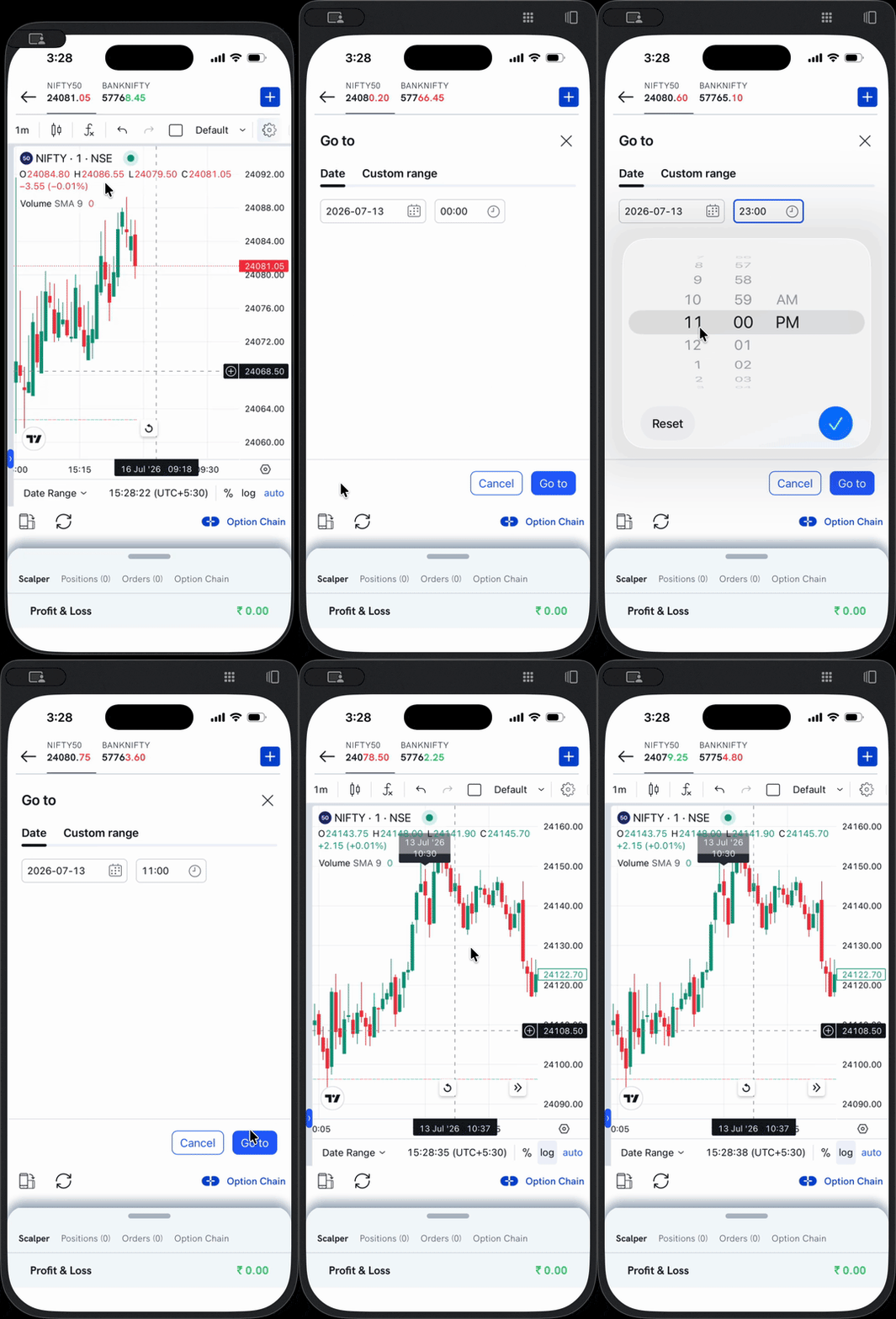
Go to a date and time
- Open the chart for any stock or index.
- Tap Date Range below the chart (bottom-left).
- In the menu that opens, tap Go to… at the bottom.
- On the Date tab, set the date using the calendar picker and the time using the clock picker (scroll the wheel and tap the ✓ to confirm the time).
- Tap Go to. The chart jumps to that date and time.
Tip: view a custom range
In the same panel, switch to the Custom range tab to view the chart between a specific start and end date instead of a single point.