
To set up the Rupeezy MCP server, add its config to your AI client — VS Code or Claude Desktop — and then approve the secure Rupeezy sign-in when the client asks for it. Once connected, your AI assistant can read your Rupeezy portfolio and market data and manage GTT orders when you ask in plain language.
What can I do with the Rupeezy MCP server?
The Rupeezy Trading MCP Server uses the Model Context Protocol (MCP) to let an AI assistant fetch real-time data and act on your Rupeezy account. With it, you can:
- Manage GTT orders — place, modify or cancel GTT (Good Till Triggered) orders, and cancel a pending order.
- Search instruments — find securities by name or symbol.
- Track market activity — view your trade book, order book and open positions.
- View your portfolio — check stock holdings, mutual fund investments and available funds in real time.
- Access market insights — fetch historical data and analyse trends.
- Control access — connect your Rupeezy account through a secure sign-in, and revoke access whenever you want.
How do I set up the MCP server in VS Code?
The quickest way is the one-click Install in VS Code link. It opens VS Code and adds the Rupeezy MCP server for you.
If the link doesn't work, add the Rupeezy MCP server manually as an HTTP server with this URL:
https://mcp.rupeezy.in/mcp
How do I set up the MCP server in Claude Desktop?
1. Download and install Node.js from the official Node.js website.
2. Download the Claude desktop app and sign in.
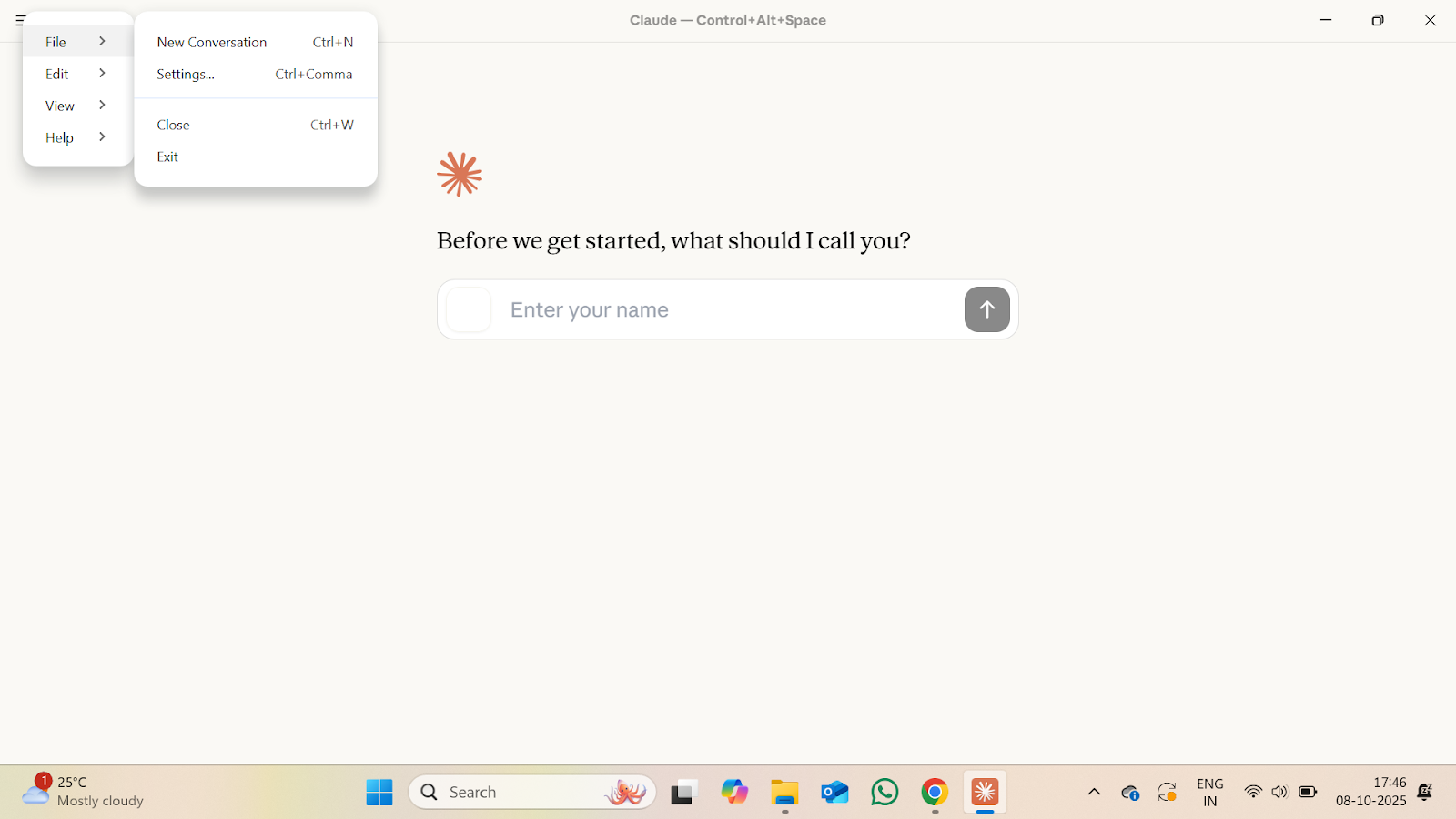
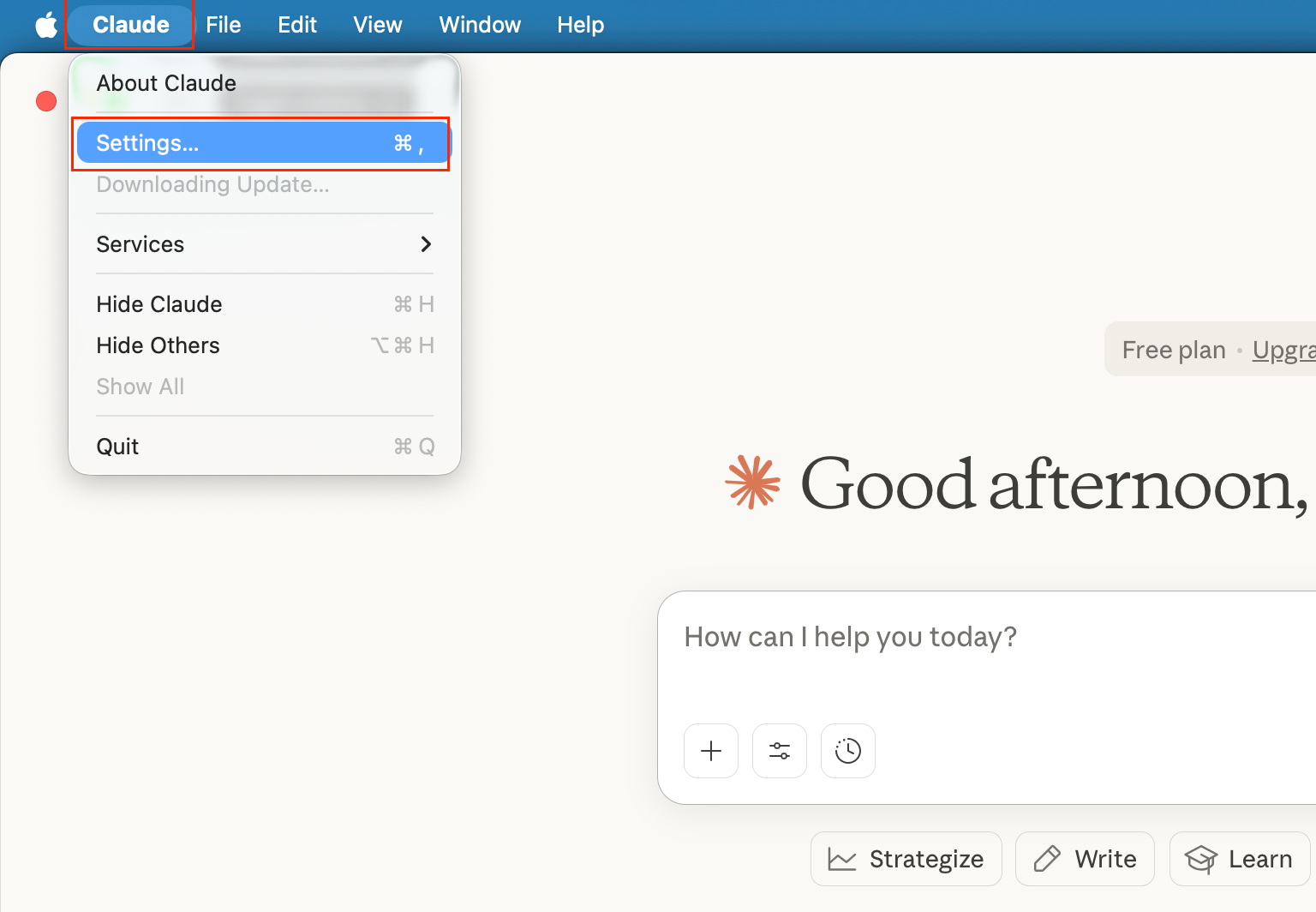
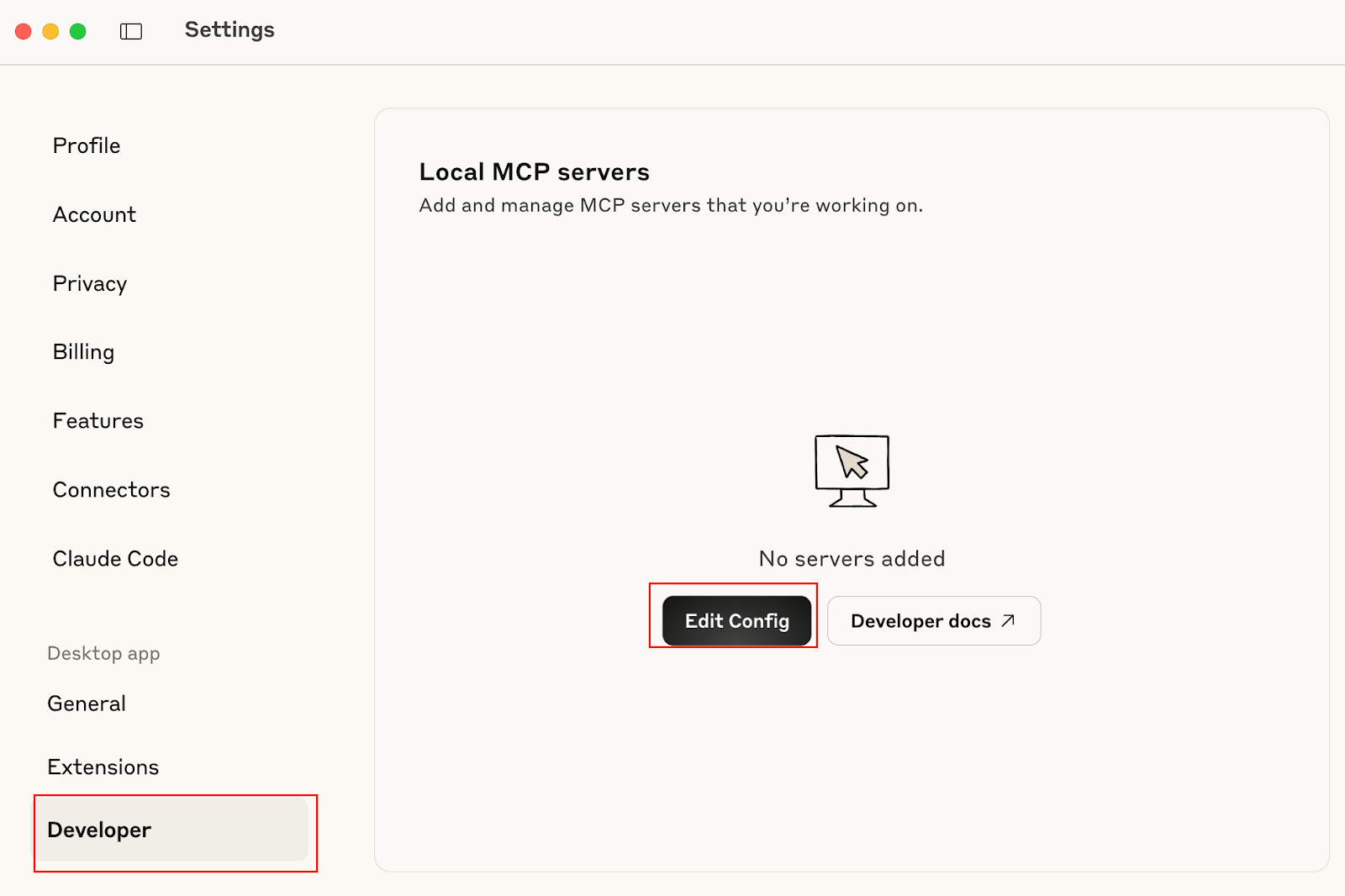
3. Go to Settings → Developer.
On Windows, open Settings from the File menu:
On Mac, open Settings from the Claude menu:
4. Click Edit Config. This opens the folder that holds the config file.
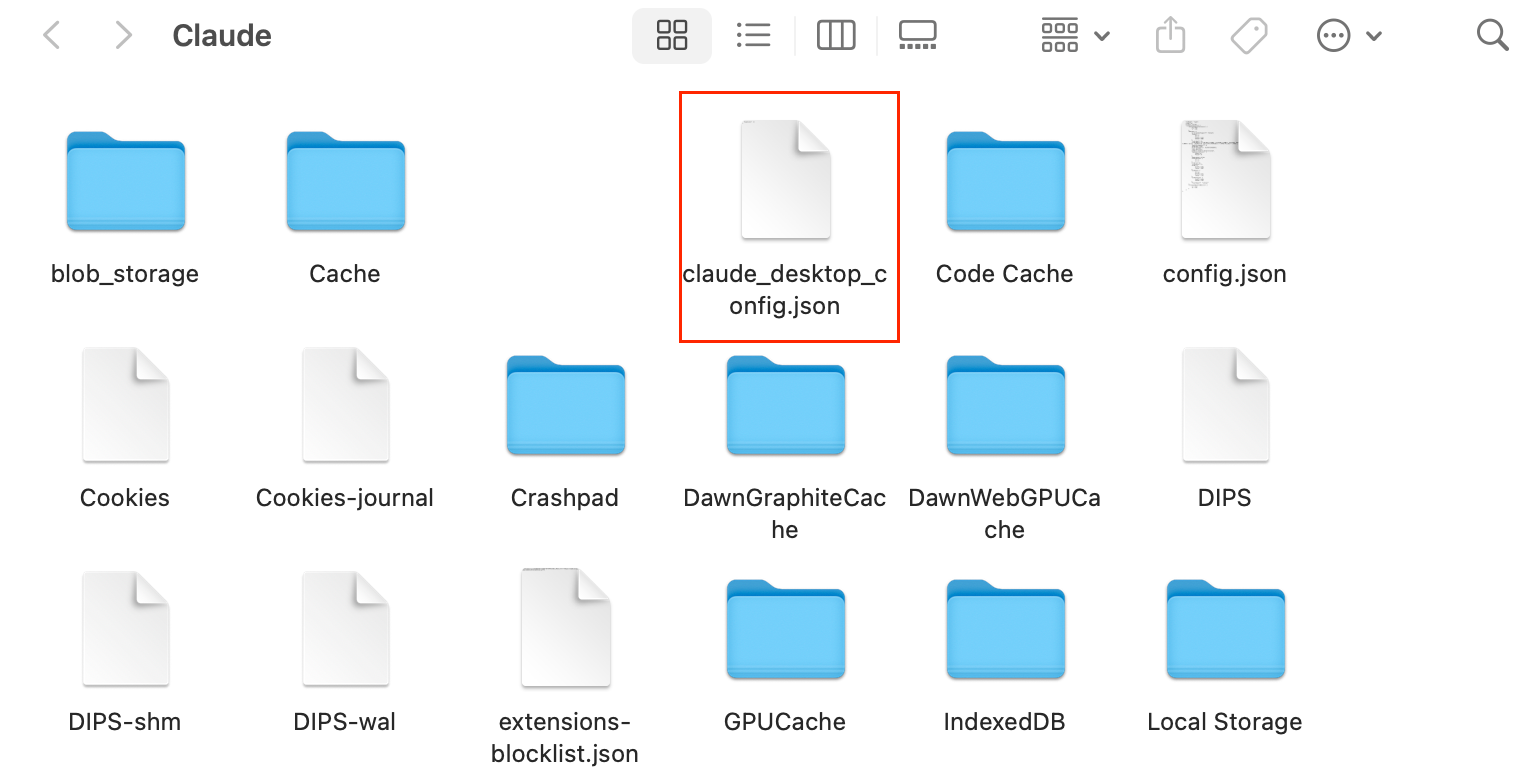
5. Open the file named claude_desktop_config.json.
6. Paste the following config inside:
{
  "mcpServers": {
    "rupeezy": {
      "command": "npx",
      "args": [
        "mcp-remote",
        "https://mcp.rupeezy.in/mcp"
      ]
    }
  }
}
7. Save the file and close it.
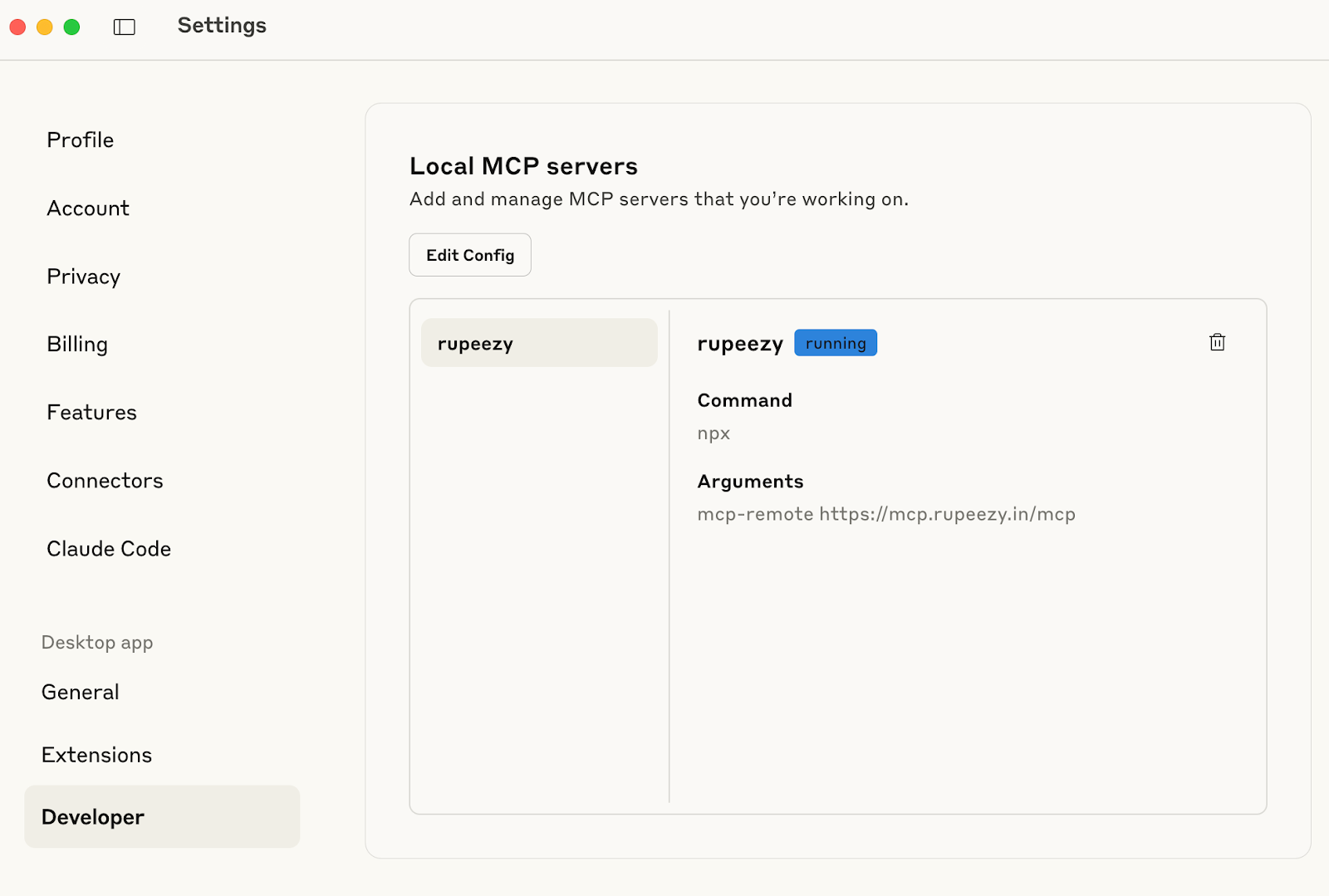
8. Restart Claude Desktop. Under Settings → Developer, the developer config should now look like this:
How do I connect my Rupeezy account?
Once the MCP server config is installed, your AI client connects it to your Rupeezy account with a secure OAuth sign-in — there's no command to type. Different AI clients trigger this differently, but the flow is the same:
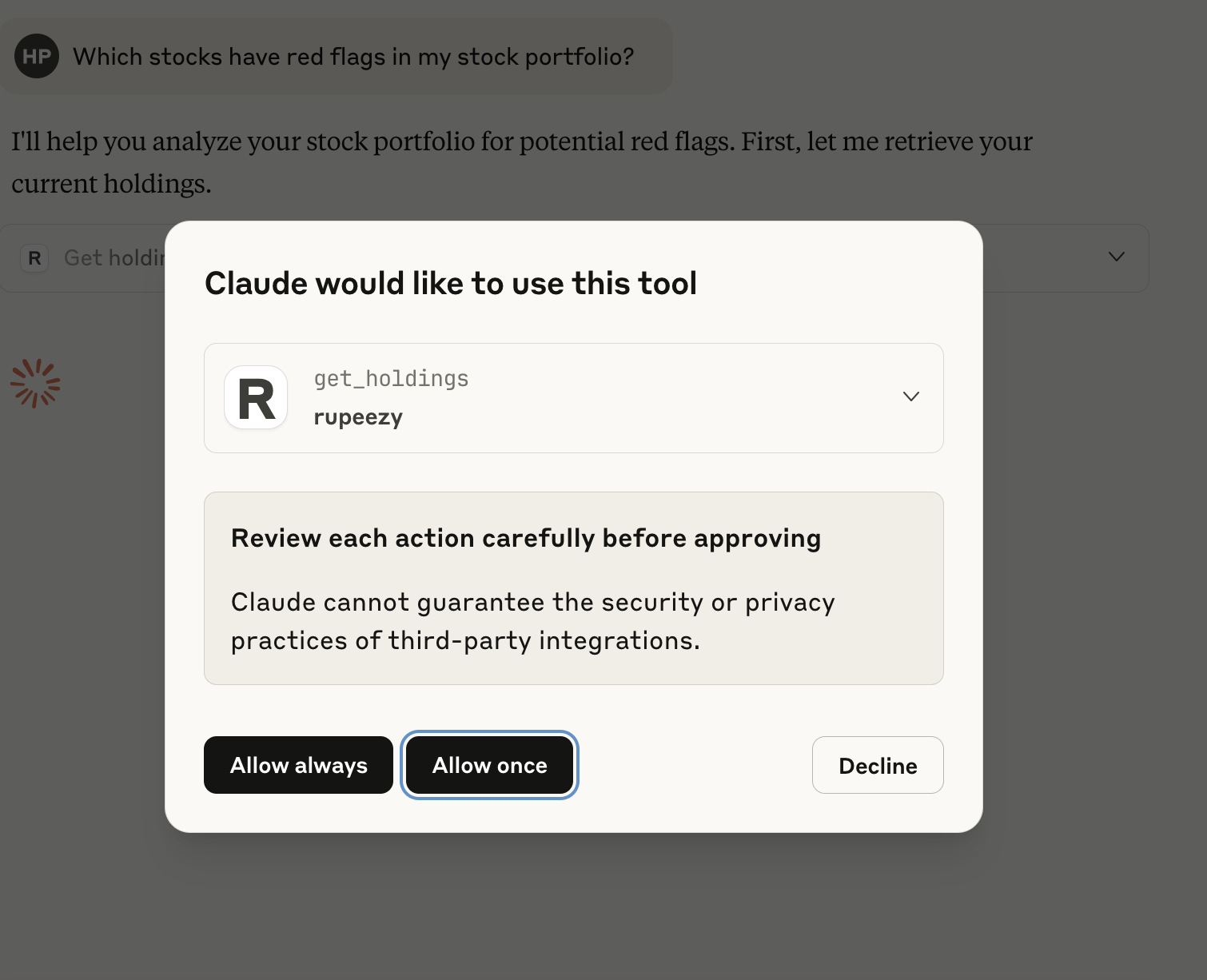
1. Approve the connection. When your client first uses a Rupeezy tool, approve it — for example, choose Allow always or Allow once if it asks.
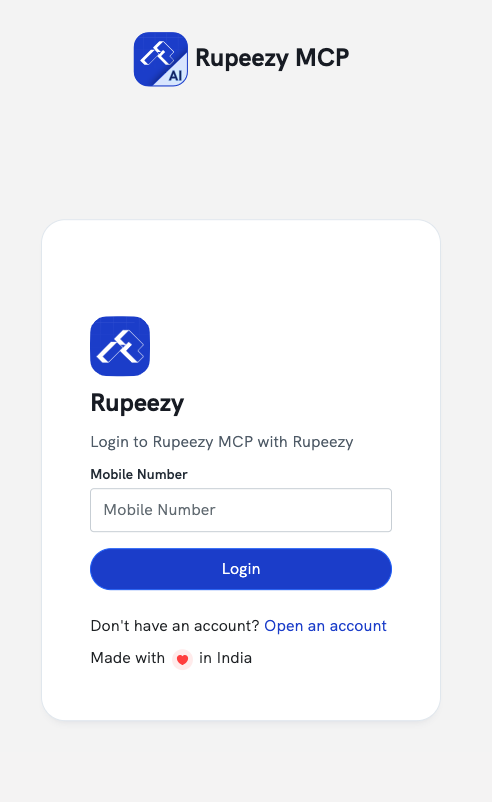
2. Sign in to Rupeezy. A secure Rupeezy sign-in page opens in your web browser — log in with your Rupeezy account and approve access.
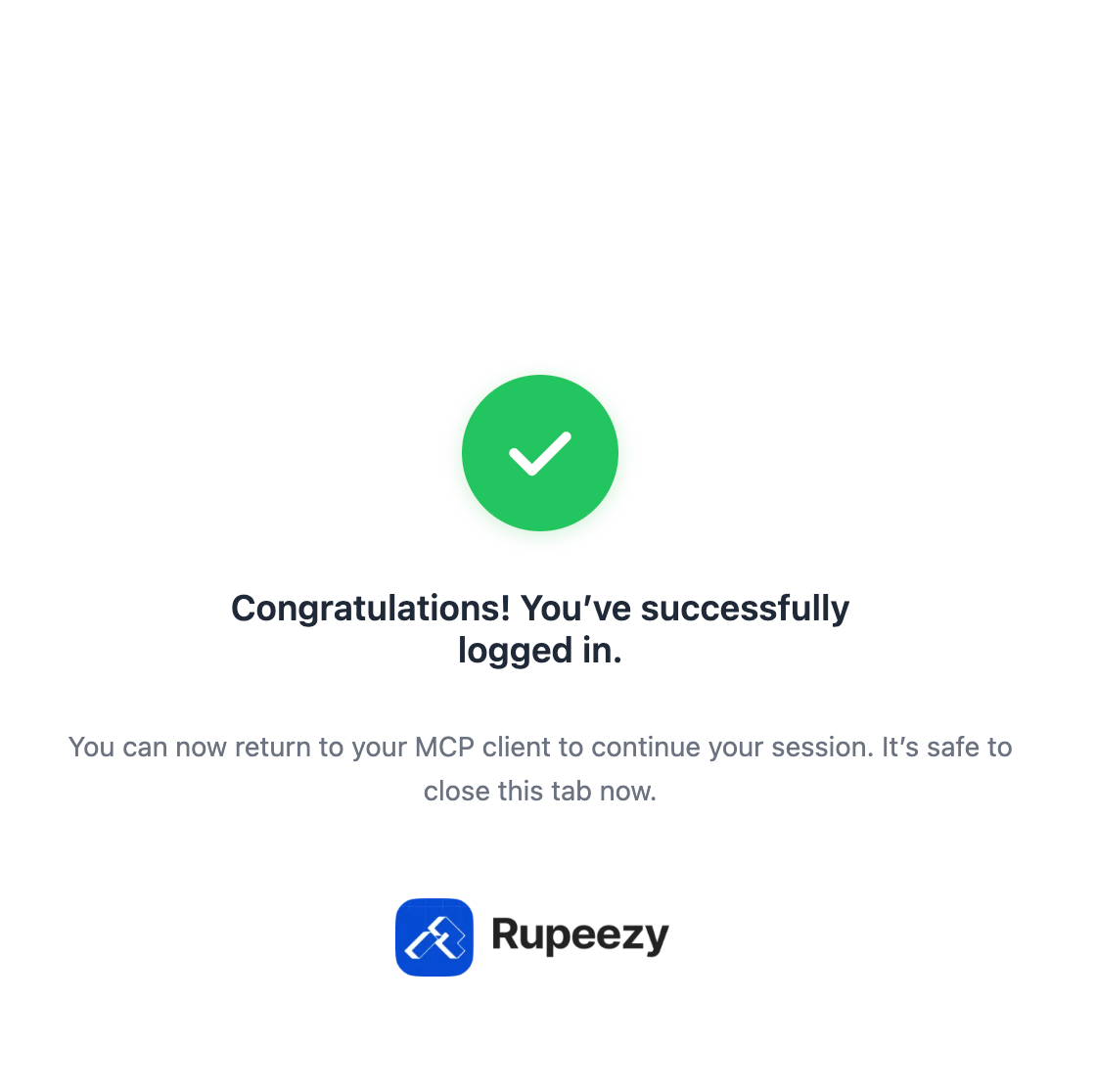
3. Start asking. You're connected. Ask your AI client things like "Fetch my stock portfolio and find red flags."
For common questions, see Frequently asked questions about the Rupeezy MCP server. For the underlying Trading API, see How do I register for the Trading API (Vortex)? and How does the Algo ID work in API trading?.