
Basket sharing lets you package several trading ideas into one basket and send it as a link that the receiver can execute in a single click. Suppose you have four trading ideas that you’d like to share. Instead of typing or taking screenshots, you can simply create a basket of trading ideas on the Rupeezy app with details like price, quantity, stop loss. This basket can be shared as a link. The basket link opens as a single basket order and the receiver can execute it in a single click.
Let us see how you can use this feature.
How to share a basket using the Rupeezy app on your phone
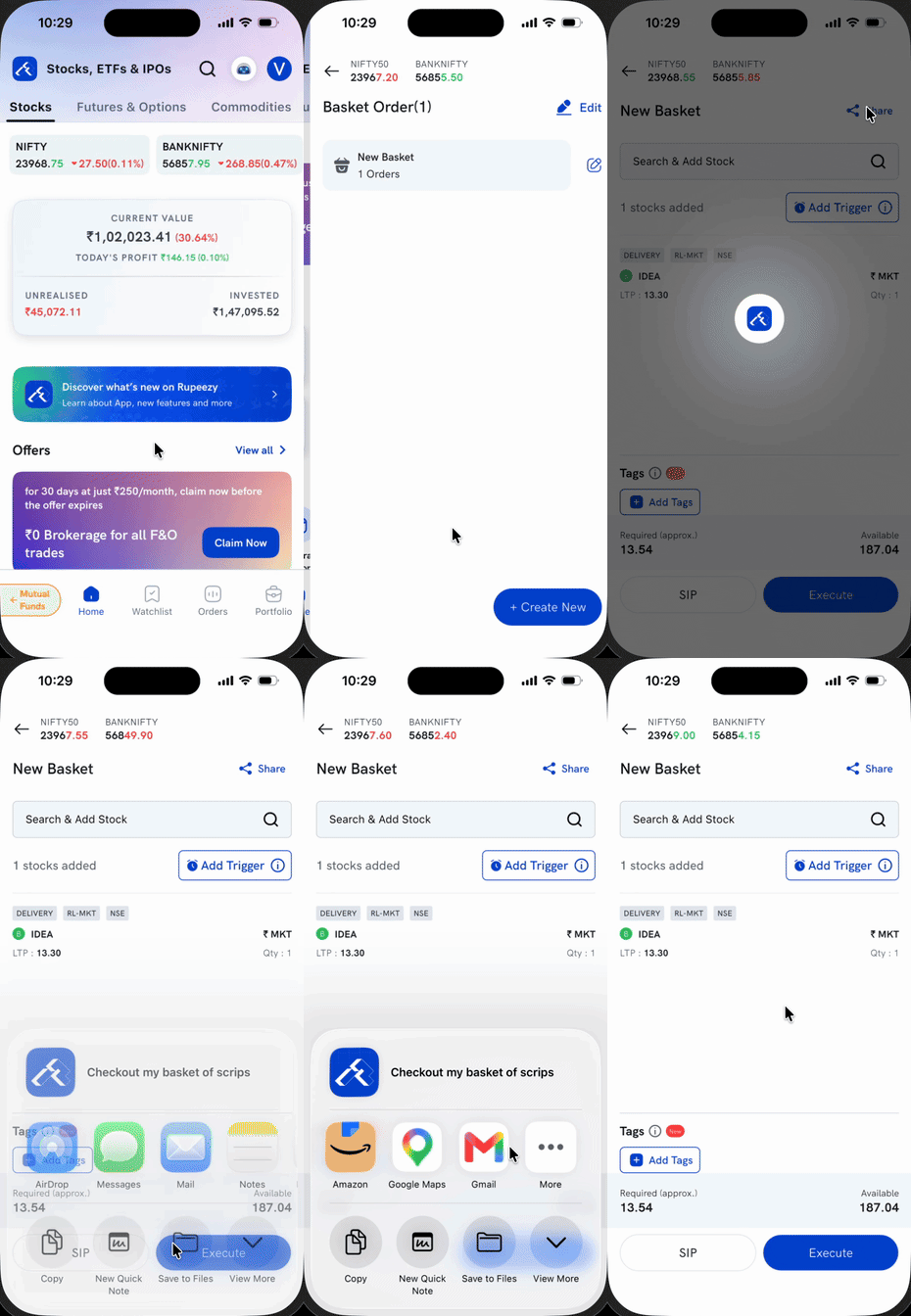
Step 1: On the Home screen, scroll to the Tools section and tap Basket Order.
Step 2: Create your own Basket. It could be equity, Intraday orders, options strategies or currency trades — see How to use the basket order feature on the Rupeezy app? for the full creation flow.
Step 3: Open the basket and tap the Share icon to share it as it is. A Disclaimer screen pops up — tap Ok, got it! to grant permission for link sharing (this also grants automatic permission for further sharing of the link). Your device's native share sheet then opens with the basket link ready to send.
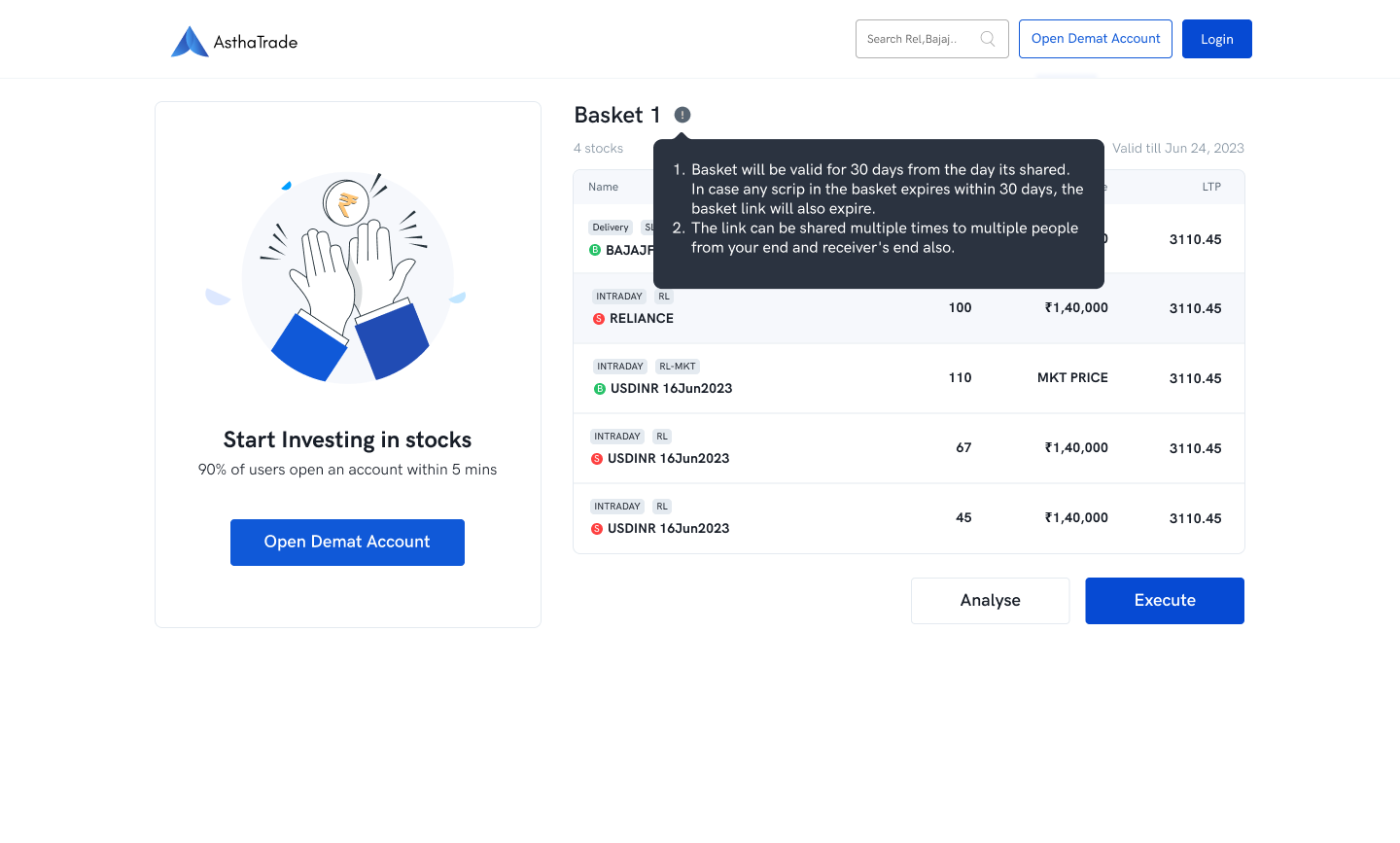
Note: The Basket Sharing link will create a copy of the basket and link will be valid for 30 days from the day it is created. In case any scrip in the basket expires within 30 days, the basket link will expire. The link can be shared multiple times to multiple people from user’s end and from receiver ’s end as well. Basket sharing any number of times will not affect the original basket in any way.
Step 4: Share the link using any app in the share sheet, or copy the link from the same screen and share it yourself.
The receiver upon opening the link will see the screen below. It will show the number of stocks and Validity of Basket.
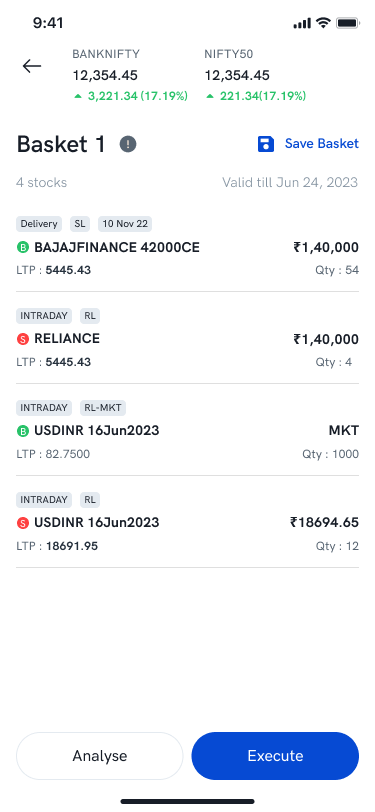
Step 5: Click on Save Basket.
Step 6: Tap on Analyse & Execute to view PayOff Graph and execute the basket order via the Rupeezy app on your phone.
Link validity
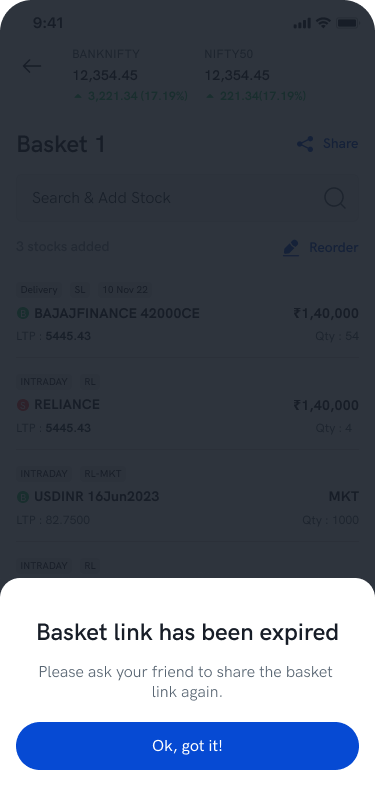
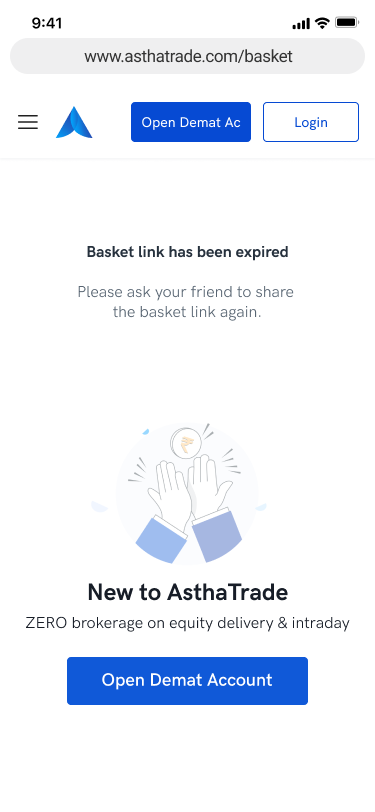
If the link Validity has passed, the link will show as expired. Receiver will need to take the link from the sender again.
Once the receiver saves the basket, the ‘Share’ button will be visible. Receiver can further share the basket any number of times to multiple users.
In case the receiver does not save the link by End Of Day, the link will expire.
How to open a shared basket in a mobile browser
This applies when the link is opened in a mobile browser and the receiver doesn’t have the Rupeezy app installed on their phone.
Step 1: Upon receiving the link, you can view the basket in the browser, since you don’t have the Rupeezy app installed on your phone.
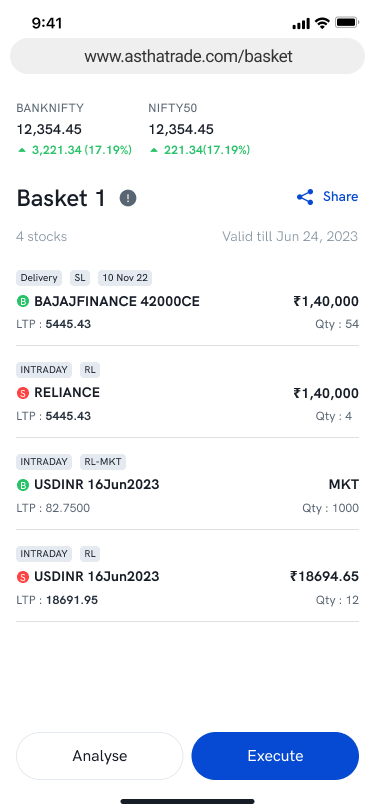
Step 2: Click on Execute or Analyse will redirect user to Google Playstore and Apple App Store to download the Rupeezy app then they can analyse and Execute the basket.
Step 3: You can share the link further using the ‘Share’ button. This can be done from the mobile browser itself even when you are not logged in and also when you do not have any Rupeezy account.
Link validity
If the link Validity has passed, the link will show as expired. Receiver will need to take the link from the sender again.
How to share the basket from the TradingView Terminal
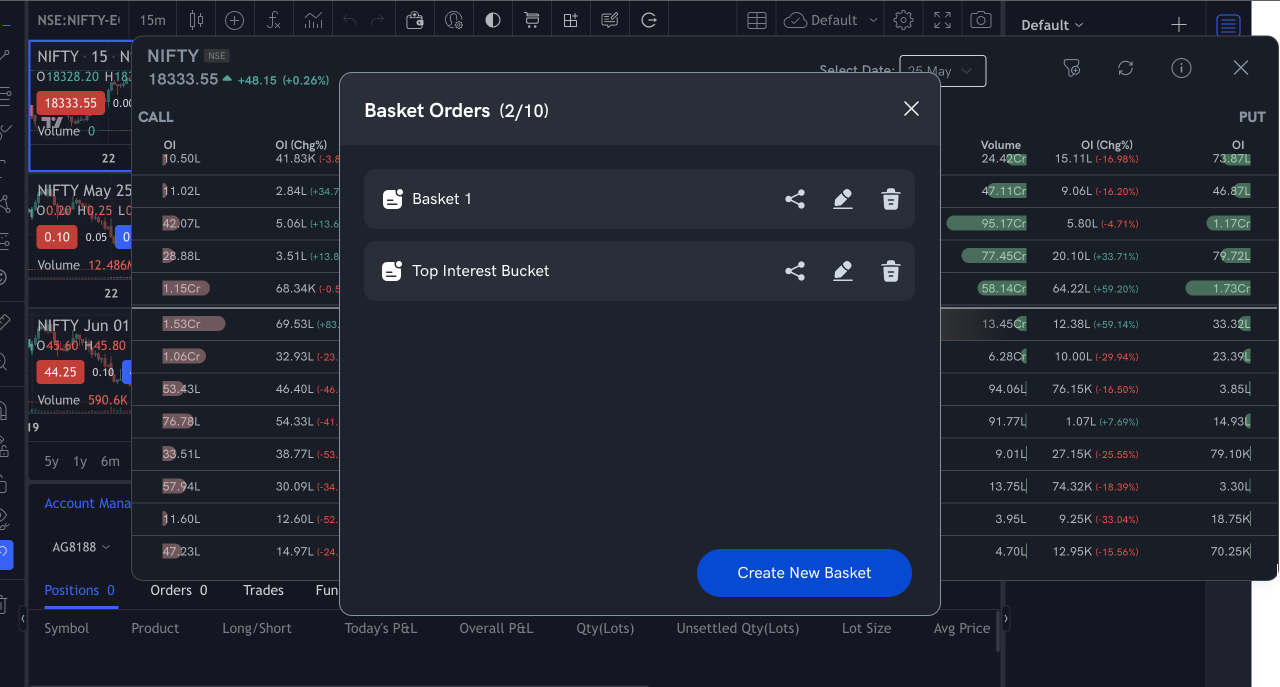
Step 1: Create a basket from the ‘Basket Order’ icon on the top navigation bar of your TradingView Terminal trading screen.
Step 2: A ‘Share’ icon will appear in front of the basket name. Tap on the ‘Share’ button.
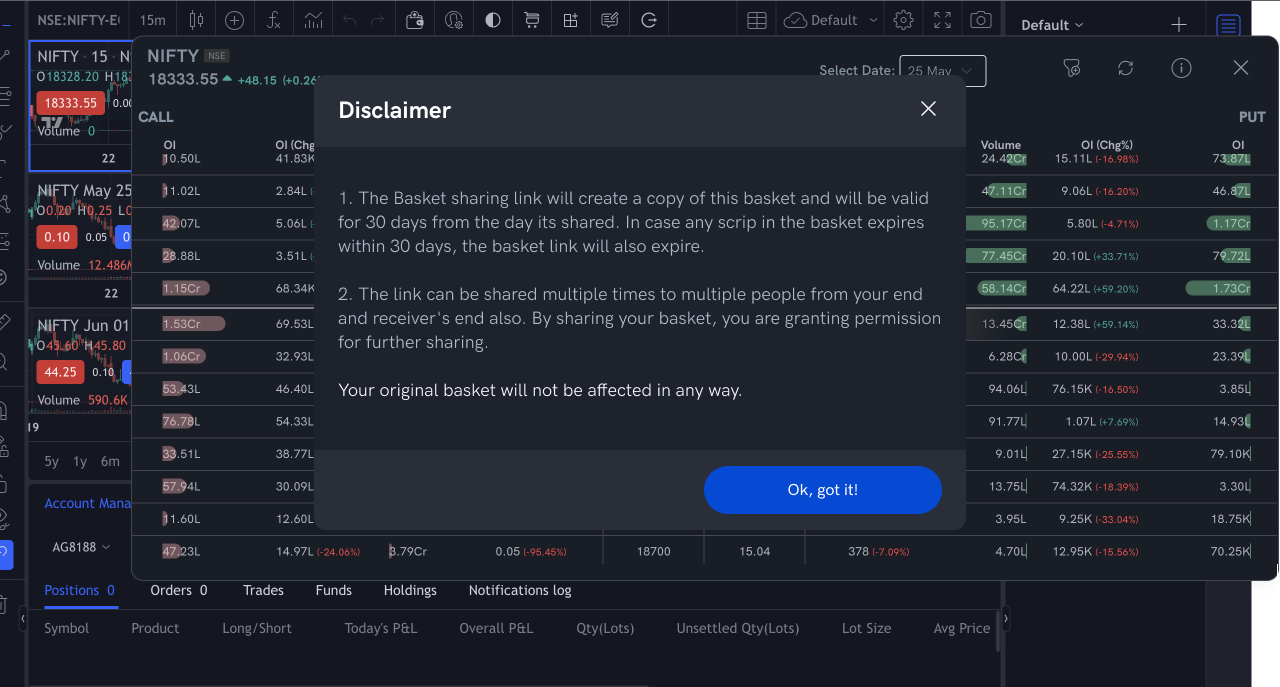
Once you click on the Share button, Disclaimer will appear (for first time users).
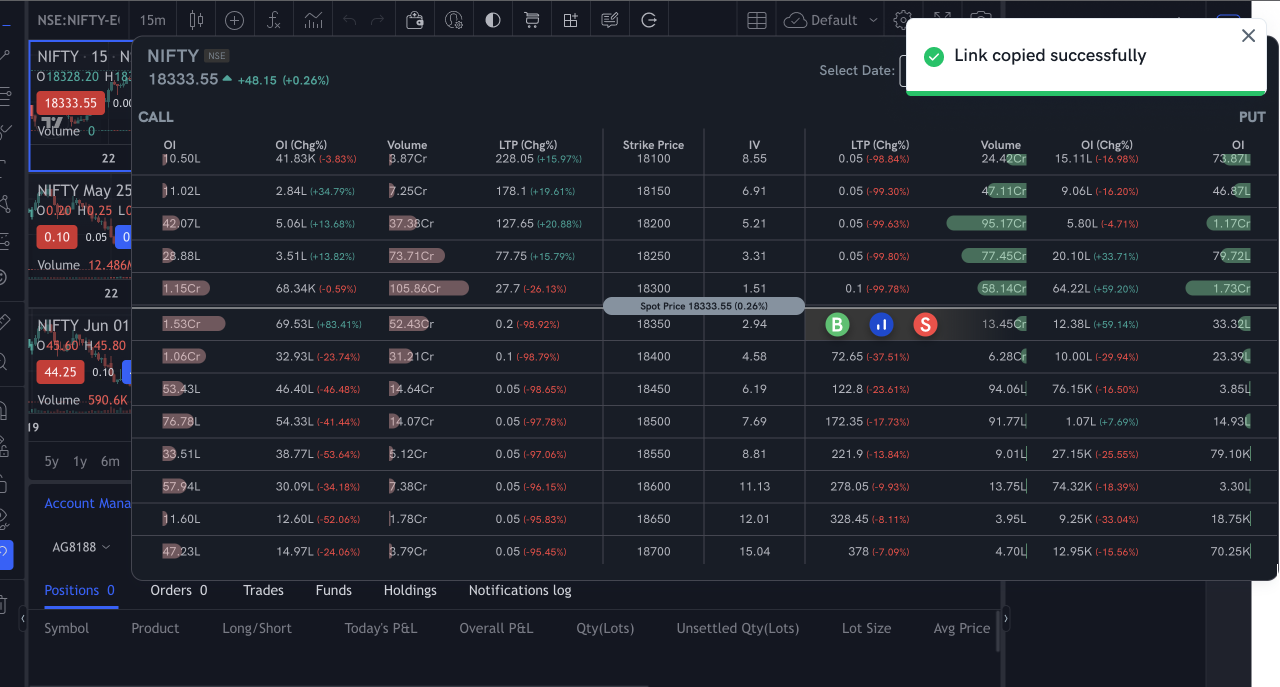
Next screen will show the message that the link has been copied successfully.
Step 3: Share the link via any messaging app/mail etc.
How to open the basket in a web browser
Step 1: Open the link in a web browser, the Basket sharing page will open as below.
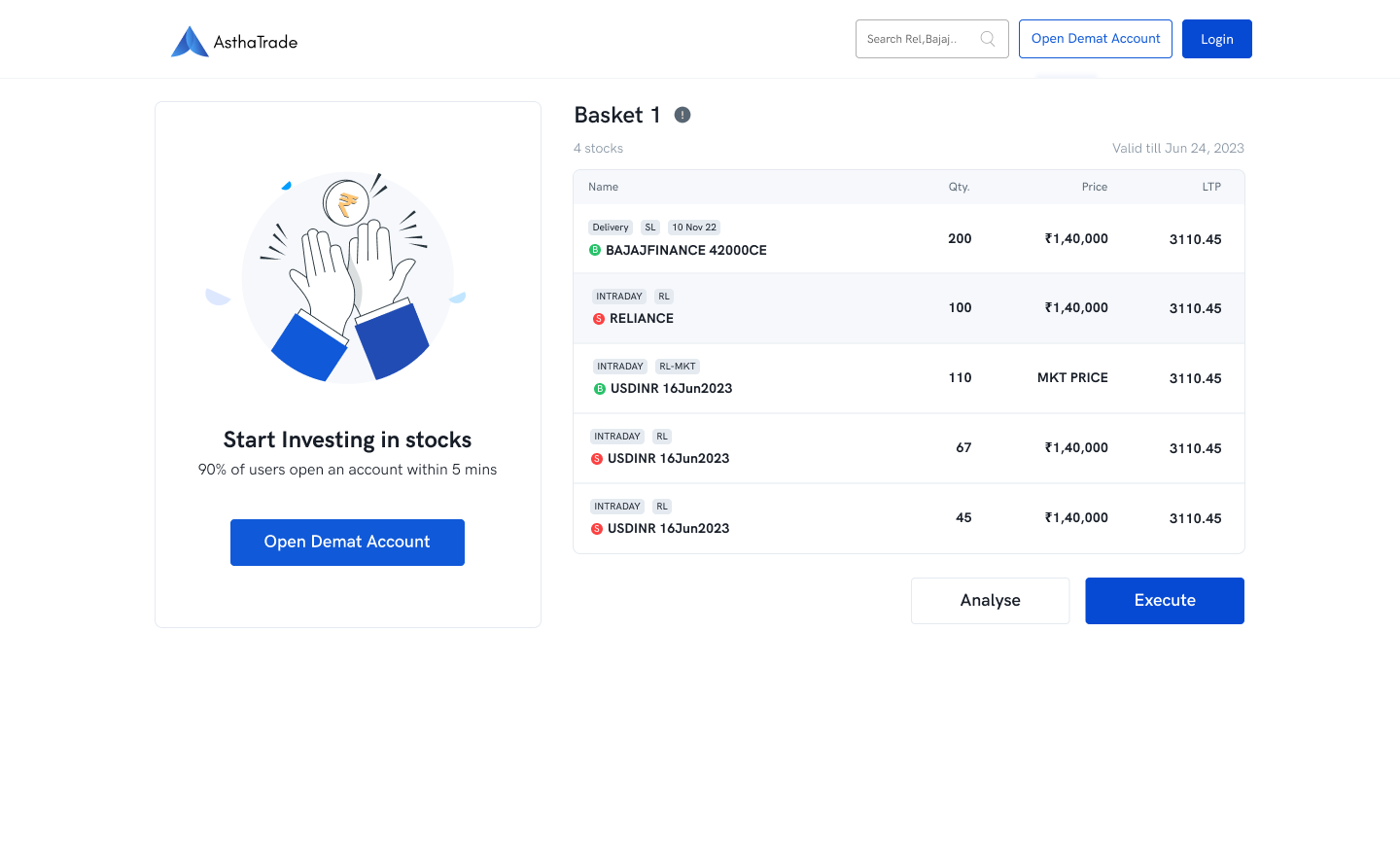
The info icon next to Basket shows the disclaimer.
Step 2: Click Analyse or Execute, you will be redirected to the Rupeezy TradingView Terminal. In case a user does not have an account, he/she will be prompted to open a demat and trading account and start trading.
Step 3: Login to your Rupeezy TradingView Terminal.
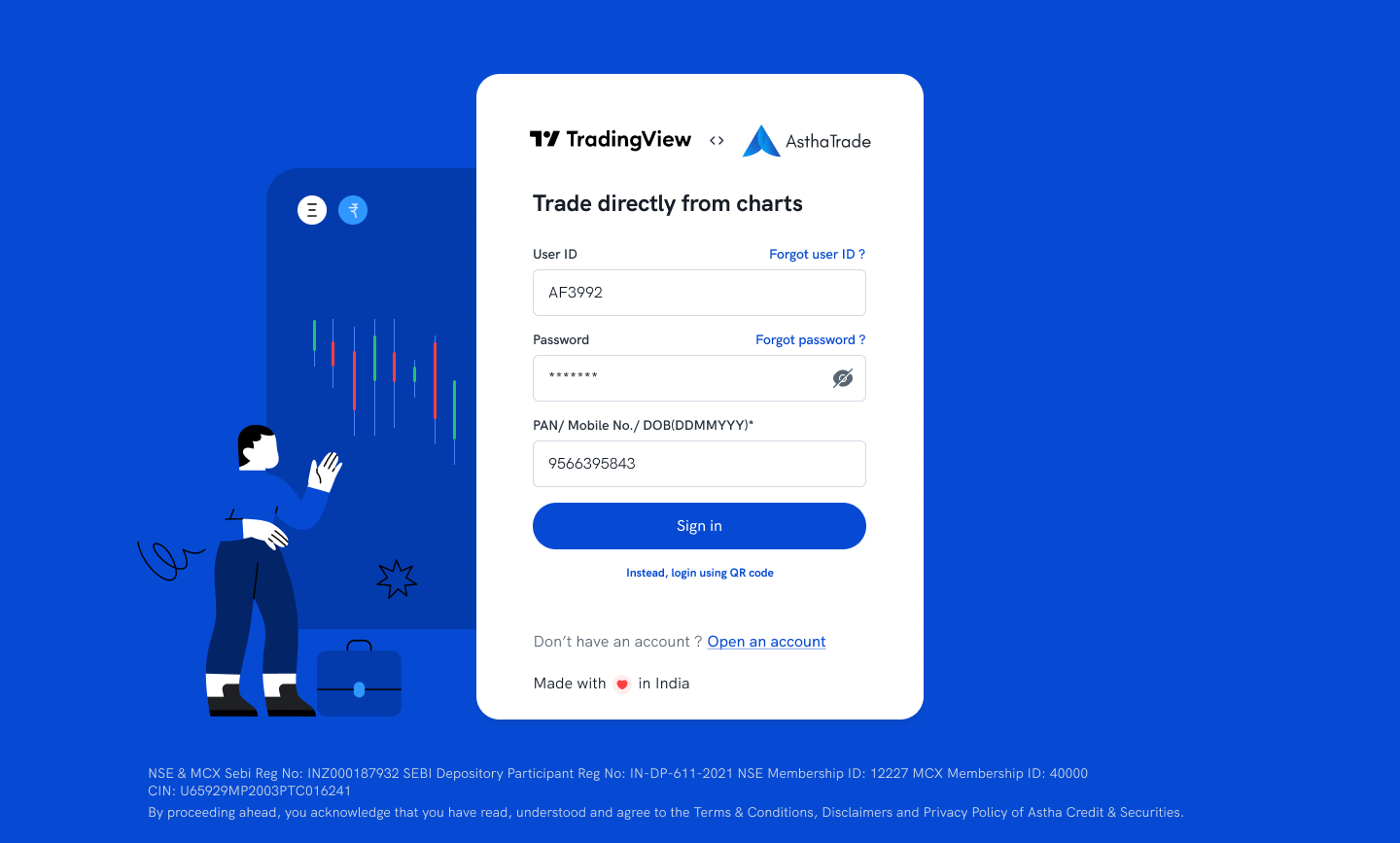
Step 4: Once you login to the TradingView Terminal, you can save the Basket.
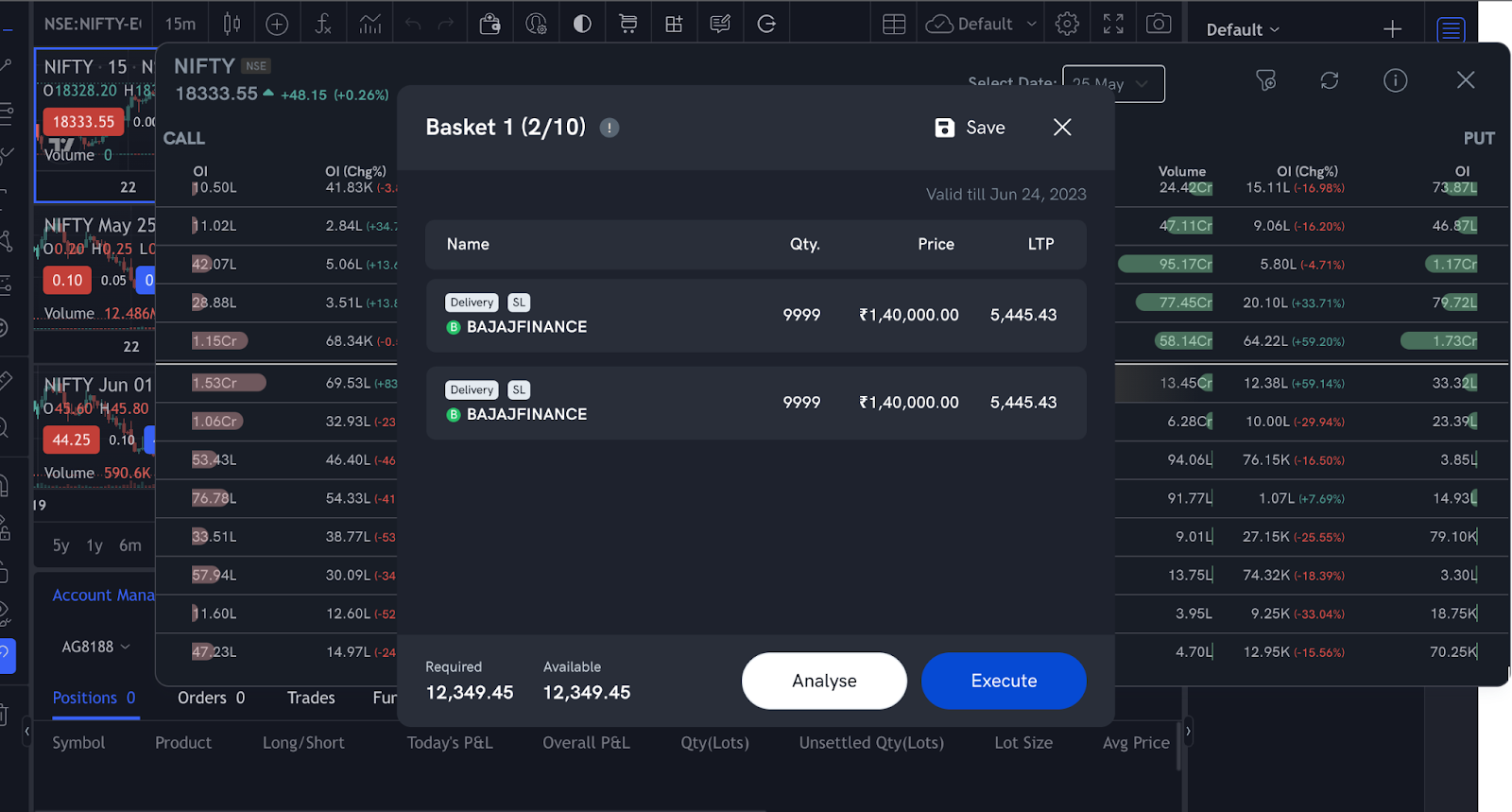
Step 5: Tap on Analyse & Execute to view PayOff Graph and execute the basket order via the TradingView Terminal.