
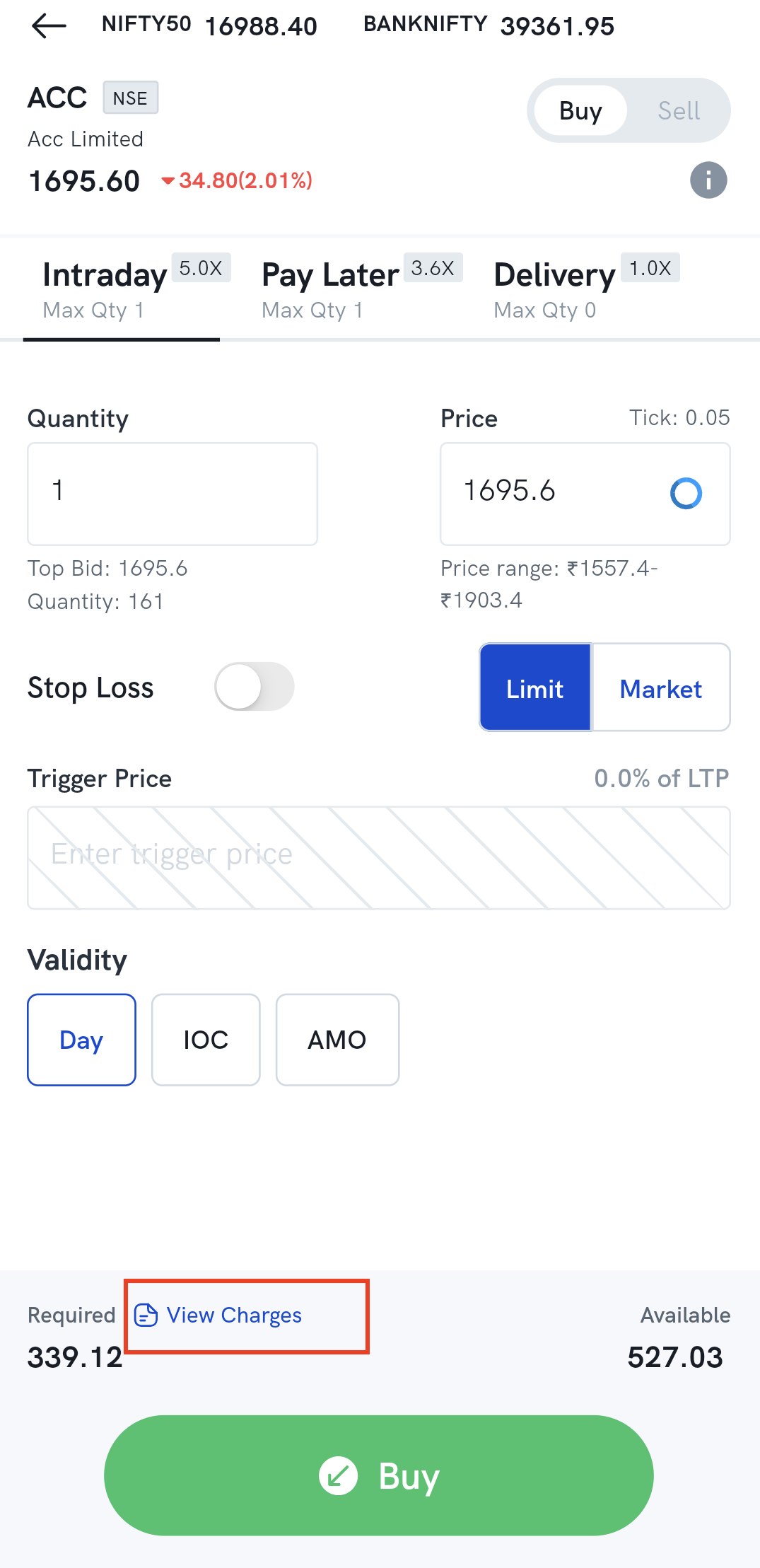
Before you place a buy or sell order, tap View Charges just above the Buy/Sell button. It opens the Charges Summary — an estimate of everything that order will cost you in brokerage, taxes and exchange charges, so you can see the full cost before you commit.
How do I open the charges summary?
1. Open the Rupeezy app and search for the stock you want to trade.
2. Set up the order — quantity, order type and price.
3. Tap "View Charges", the link just above the Buy/Sell button.
What does the charges summary show?
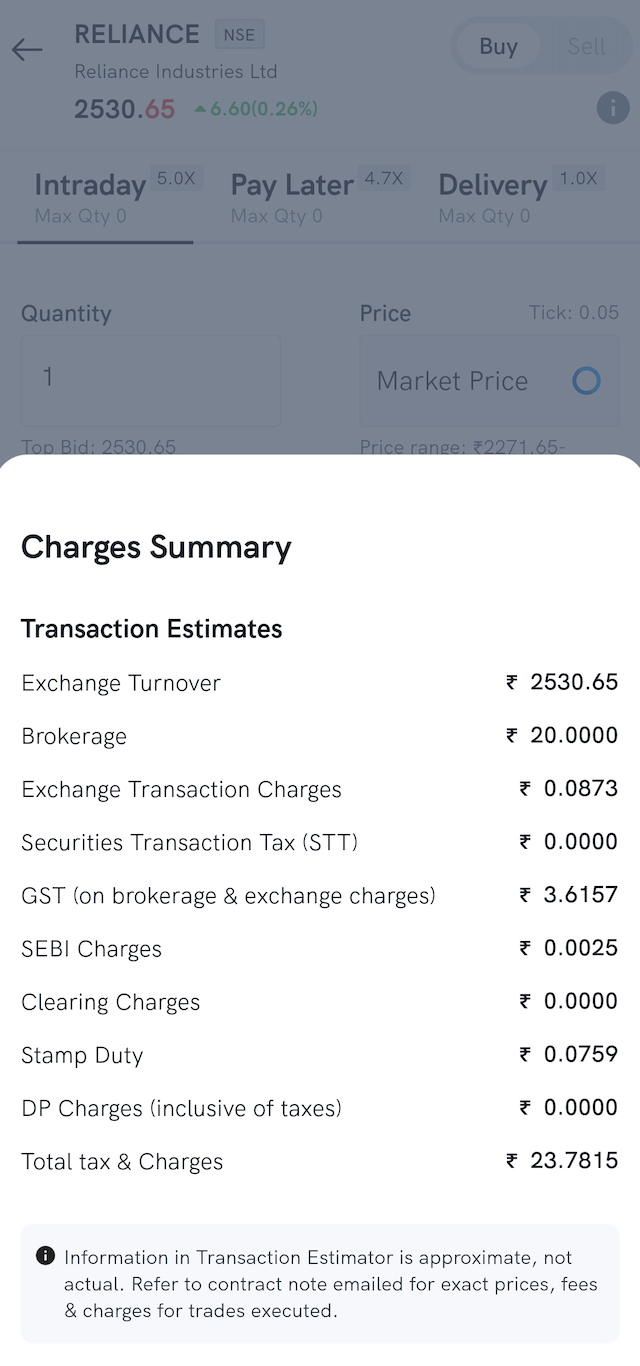
It breaks the order down line by line: exchange turnover, brokerage, exchange transaction charges, Securities Transaction Tax (STT), GST, SEBI charges, clearing charges, stamp duty, DP charges, and the total tax and charges.
For what each of those charges actually is and who levies it, see What charges will I pay, and what does each charge mean?.
Is this the final amount I will be charged?
It is an estimate for that specific order, worked out from the quantity and price you entered. Your actual charges appear in your Dock ledger statement once the trade goes through. The exact rates for your segment and plan are on our pricing page.